VYROX Very Intelligent Platform (VIP)
VYROX Point of Sales POS System (POSERVA)
1. Introduction
This guide is designed to help you effectively manage and operate the POSERVA system. It provides step-by-step instructions for utilizing this advanced POS system to handle payments, manage transactions, and ensure a seamless checkout experience for customers and staff.
2. POSERVA
POSERVA is an advanced IoT-driven POS system for the F&B industry, leveraging cloud computing to optimize operations, enhance customer experiences, and boost profitability. Features include real-time analytics, smart inventory, and seamless cloud storage, revolutionizing F&B business management.
2.1. Add New Stock Group
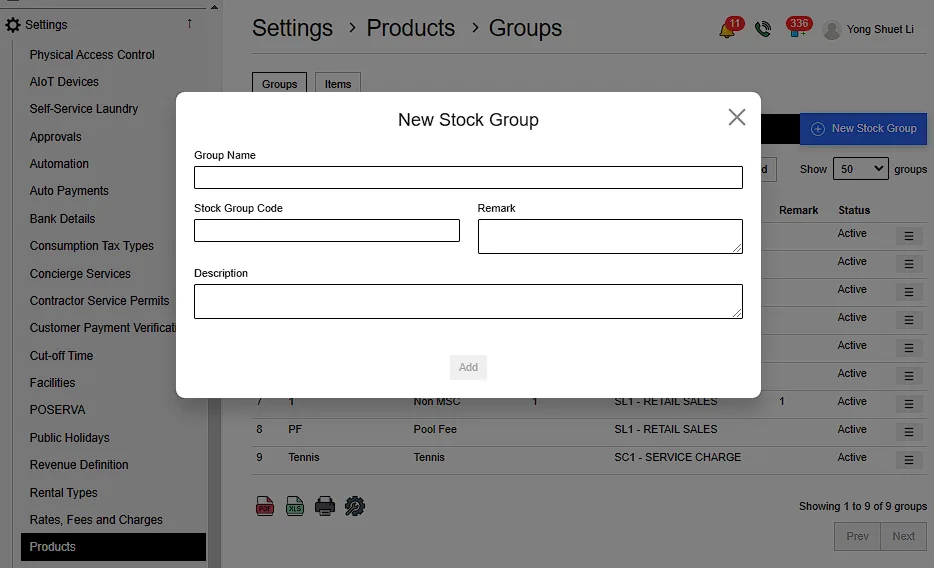
Go to Settings > Product > Groups > New Stock Group > Fill in details > Add
Details include:
- Name
- Stock Group Code
- Remark Description
2.2. Add New Item
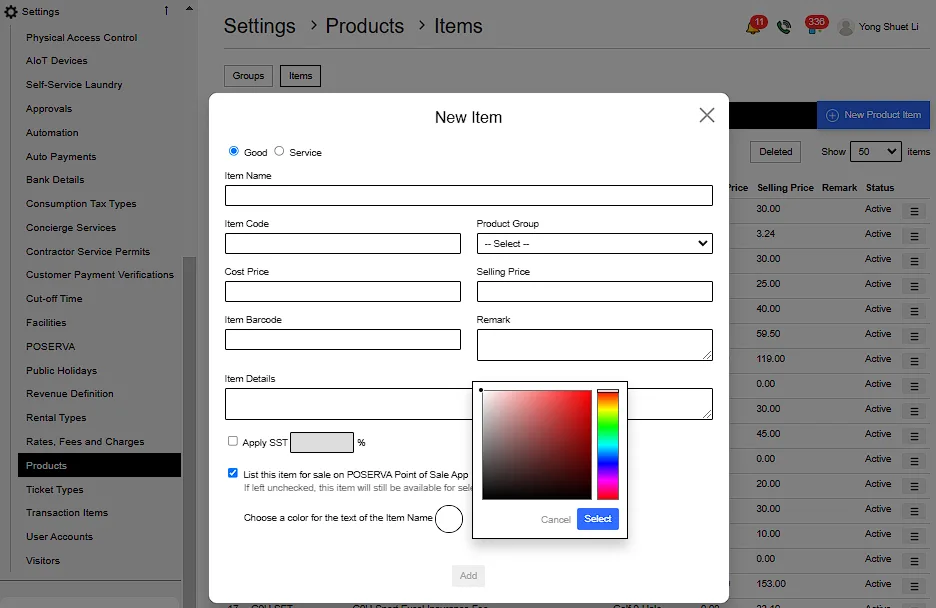
Go to Settings > Product > Item > New Product Item > Fill in details > Add
- Goods: Physical items that can be owned and used.
- Services: Actions or activities performed to fulfil needs or desires.
Details include:
- Choose either item is Good or Service
- Item Name ,Code & Cost Price
- Product Group
- Selling Price
- Item Barcode
- Remark
- Item Details
- Apply SST amount
- Whether to List this item for sale on POSERVA Point of Sale App ( If left unchecked , this item will still be available for selection when creating a new invoice )
- Choose a color for the text of the Item Name
2.3. Use POSERVA
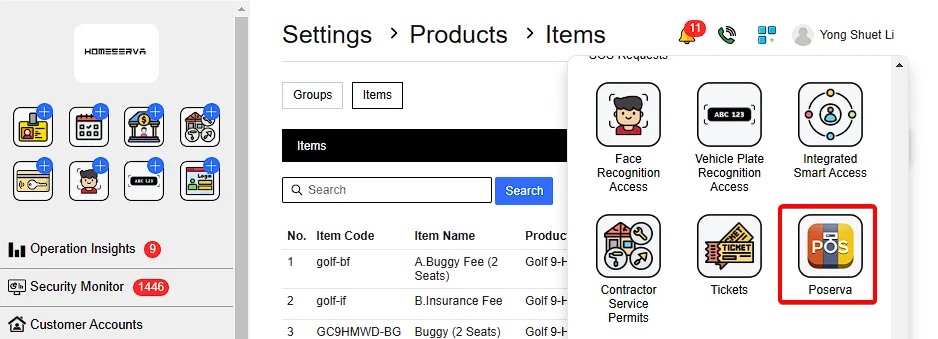
Go to More Options > POSERVA > Select items wanted > Select amount
To change or give discount , Select Discount or Change > Enter Authorization pin
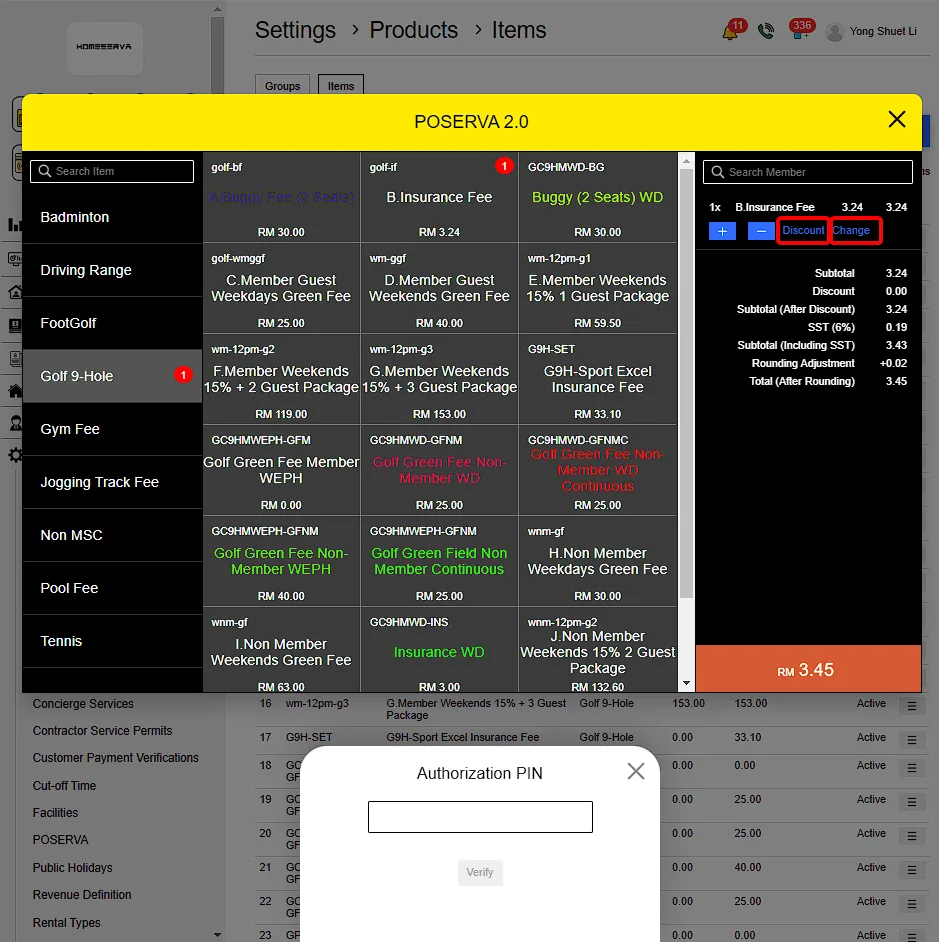
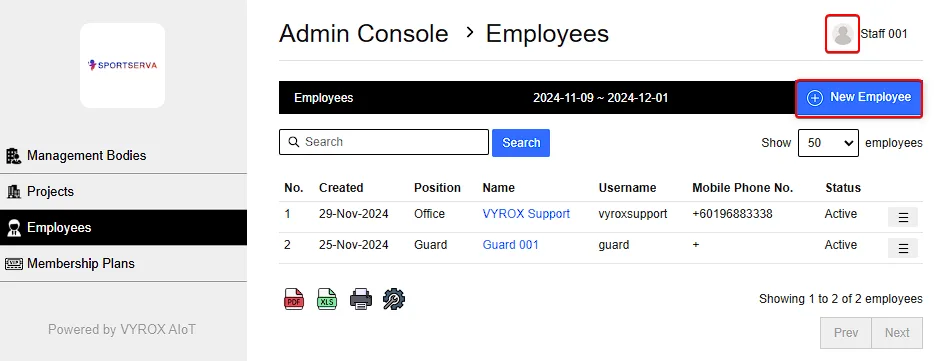
The Authorization PIN Code are unique to each employees and is set by going to Profile > Admin Console > Employee > New employee
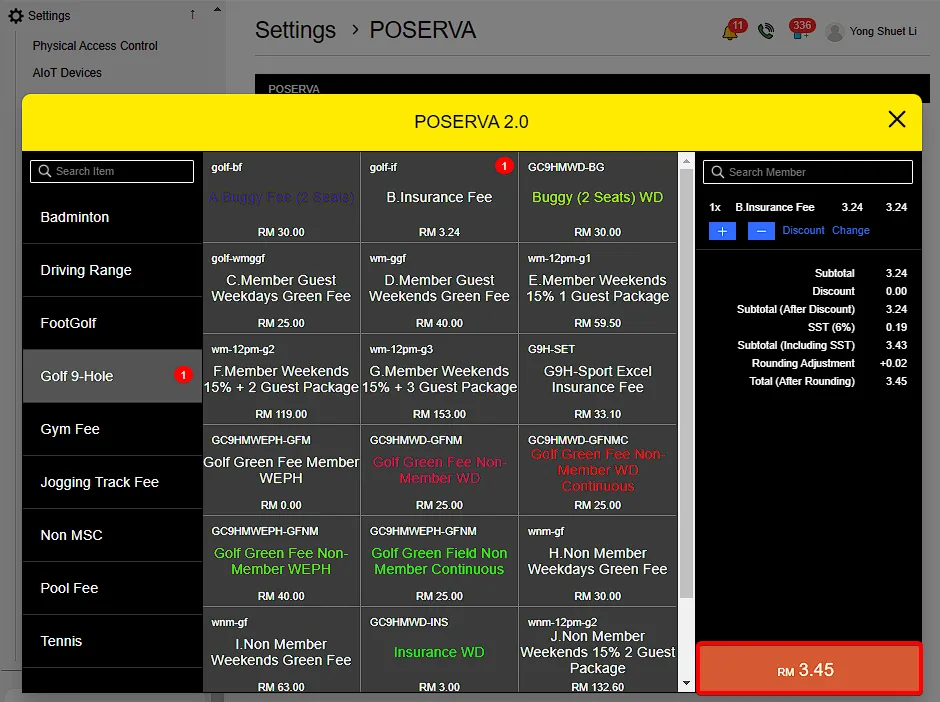
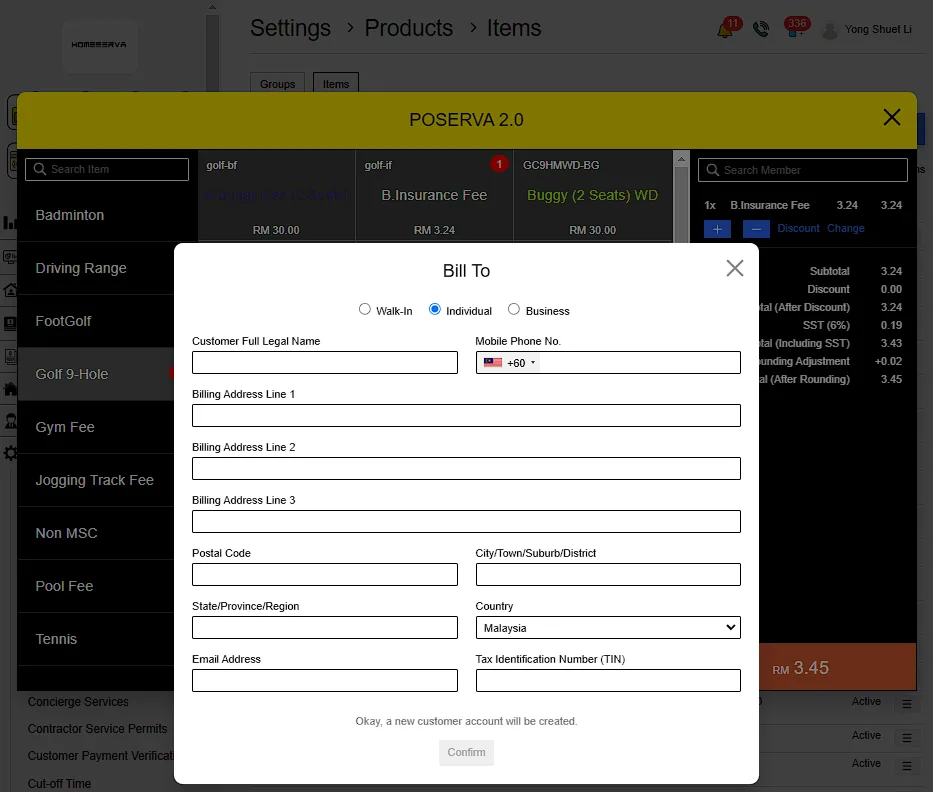
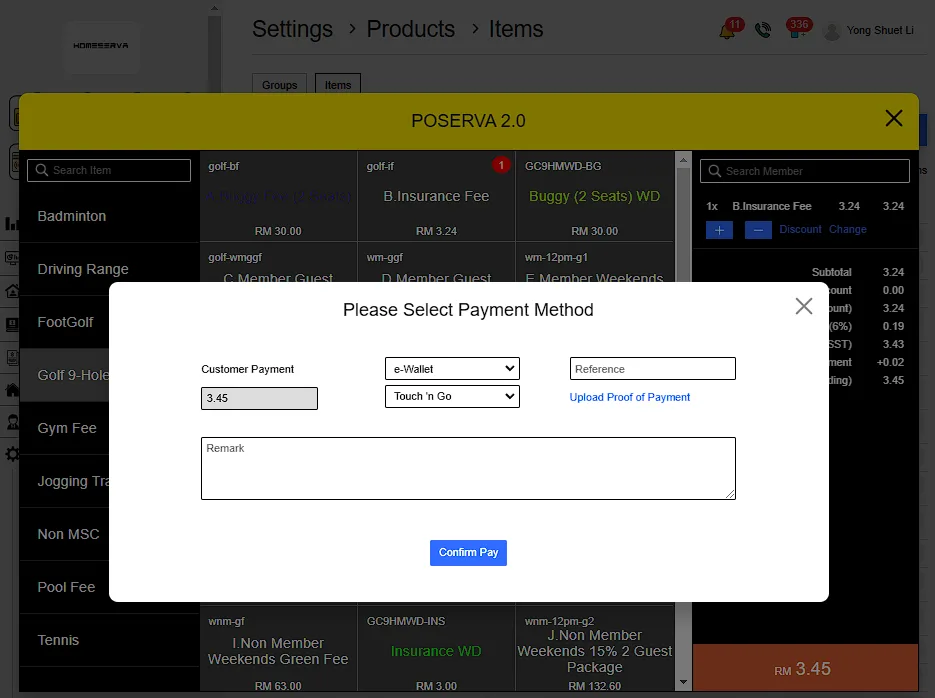
To pay , Click on total amount > Select Bill To > Fill in details > Confirm > Select Payment Option > Confirm Pay
Bill To options:
- Walk in = Immediately process to payment without account.
- Individual = New customer account will be created.
- Business = New business account will be created.
Bill To fill in details include:
- Name
- Phone no
- Billing address
- Tax Identification Number
2.4. Automatically Print Receipts
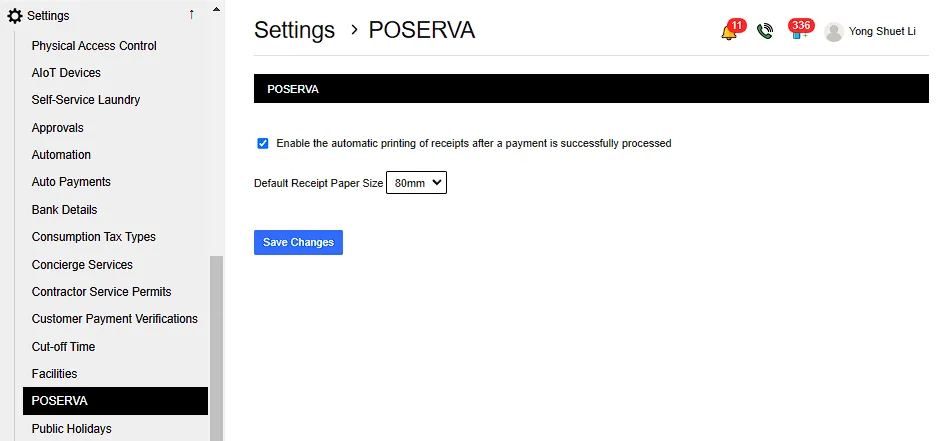
Go to Settings > POSERVA > Save Changes
Choose whether to enable the automatic printing of receipts after payment is successfully processed .Then Choose Receipt Paper Size.