VYROX Very Intelligent Platform (VIP)
Facial Recognition Access
1. Introduction
This guide outlines a detailed process for using facial recognition in a manual user system to enhance security, streamline identity verification, and control access. It explains how biometric algorithms capture and match facial features to stored data, ensuring only authorized access. Users will learn key operational steps, hardware needs, and safety considerations for effective system use.
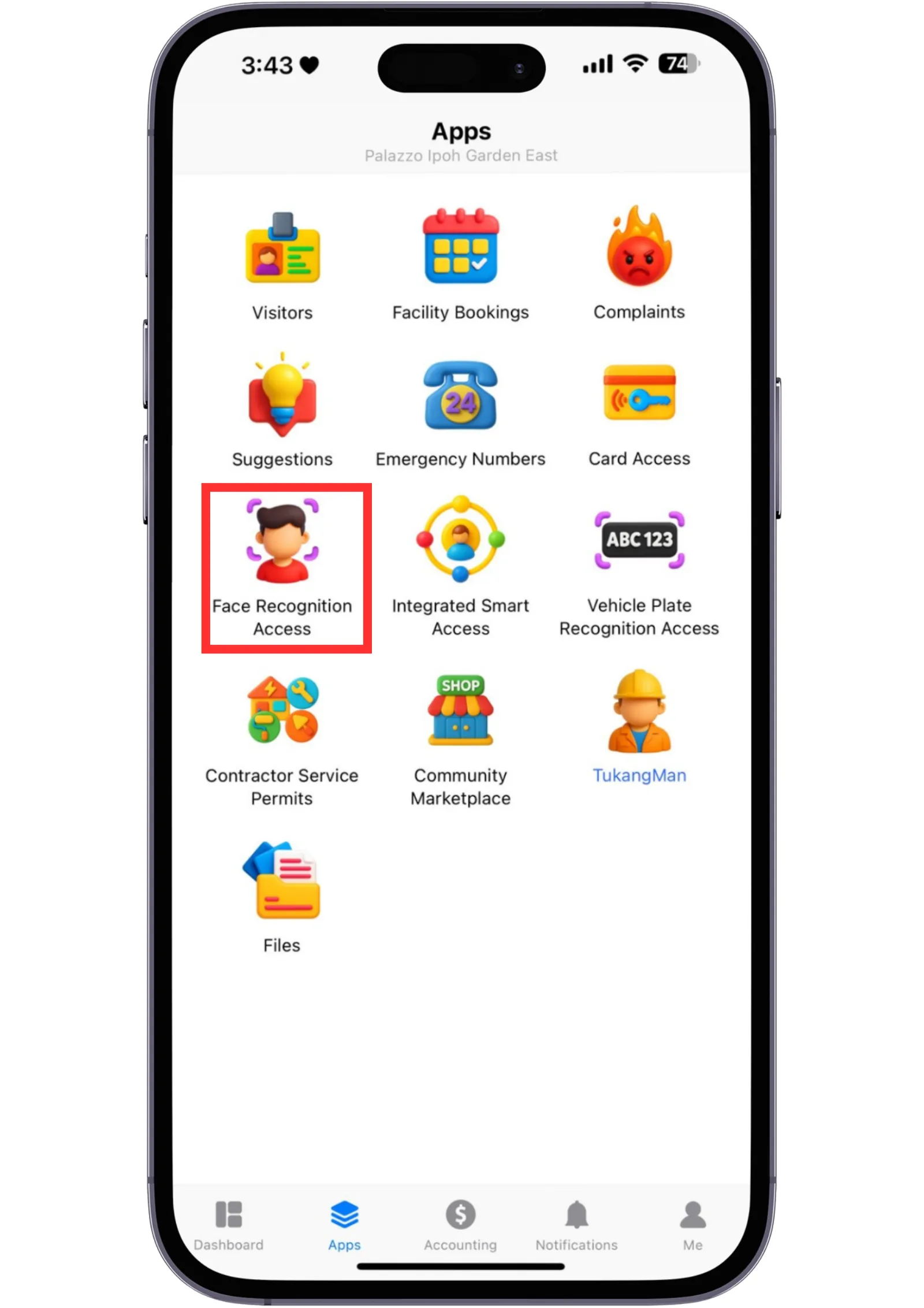
Step 1: Go to Front Page
Click “Face Recognition Access”.
Step 2: Click New Face
Click “New Face”.

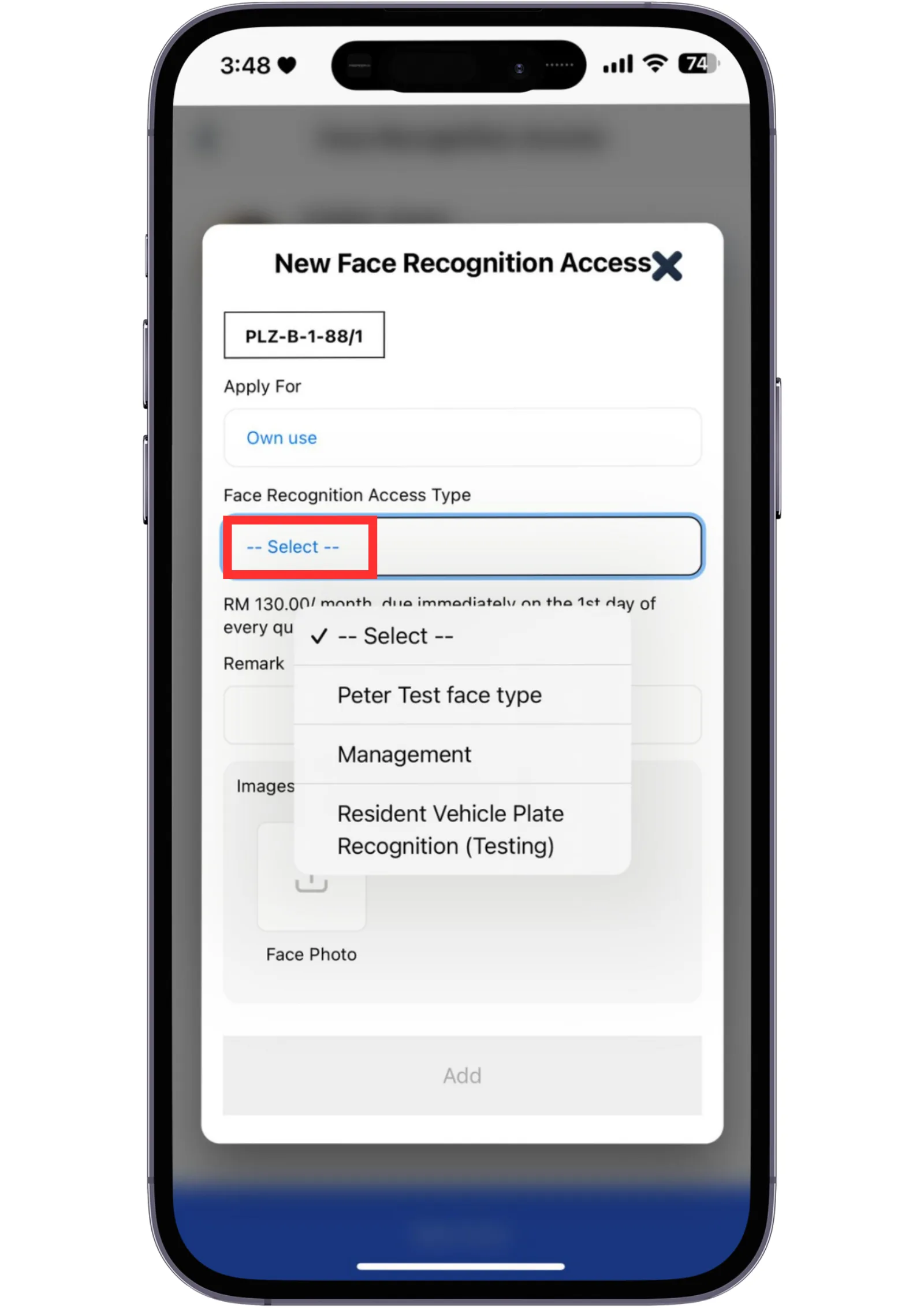
Step 3: Face Recognition Access Type
Click “Select ”.
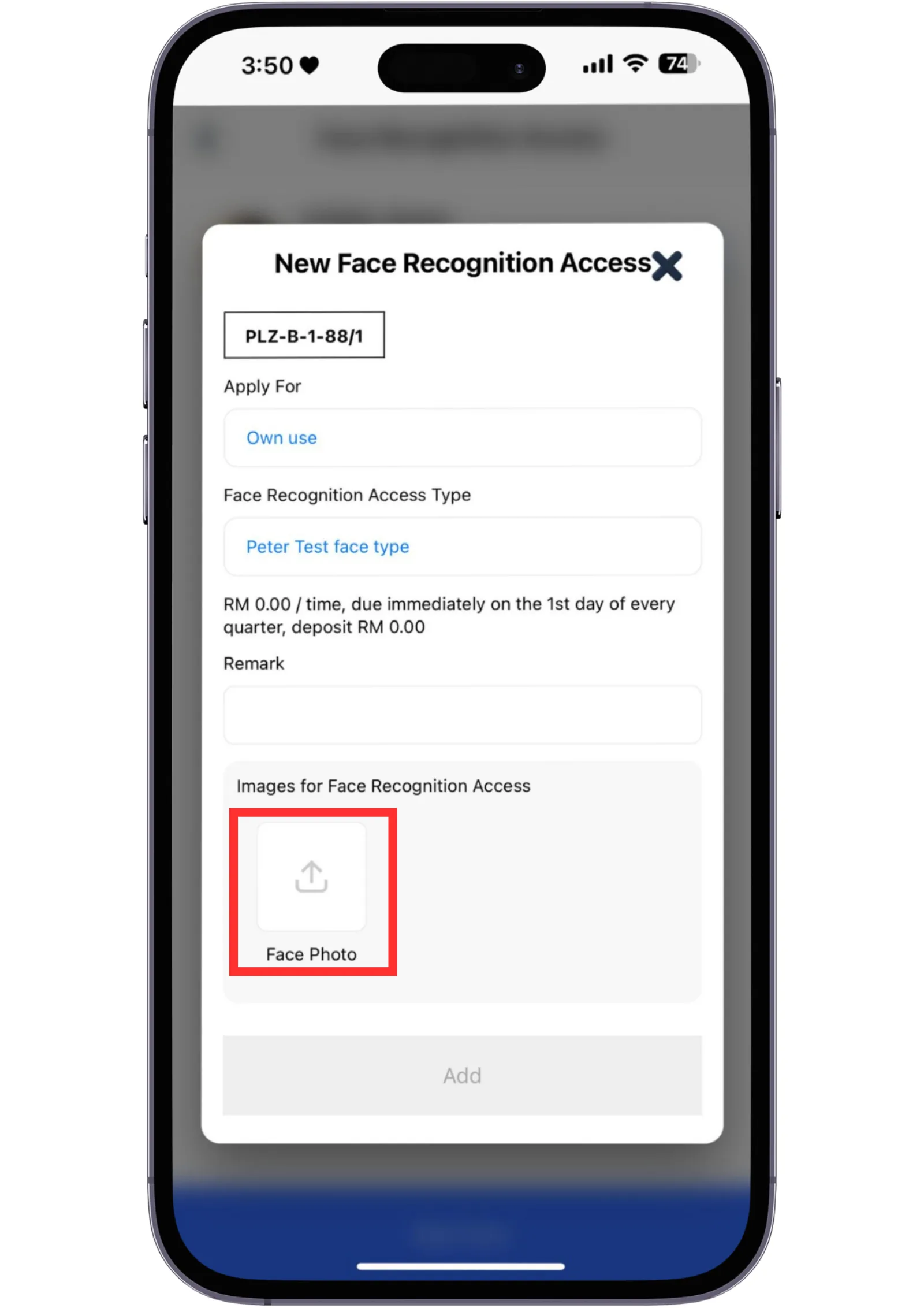
Step 4: click Face Photo
Click “Face Photo”.
Step 5: Click Add
Click “Add ”.
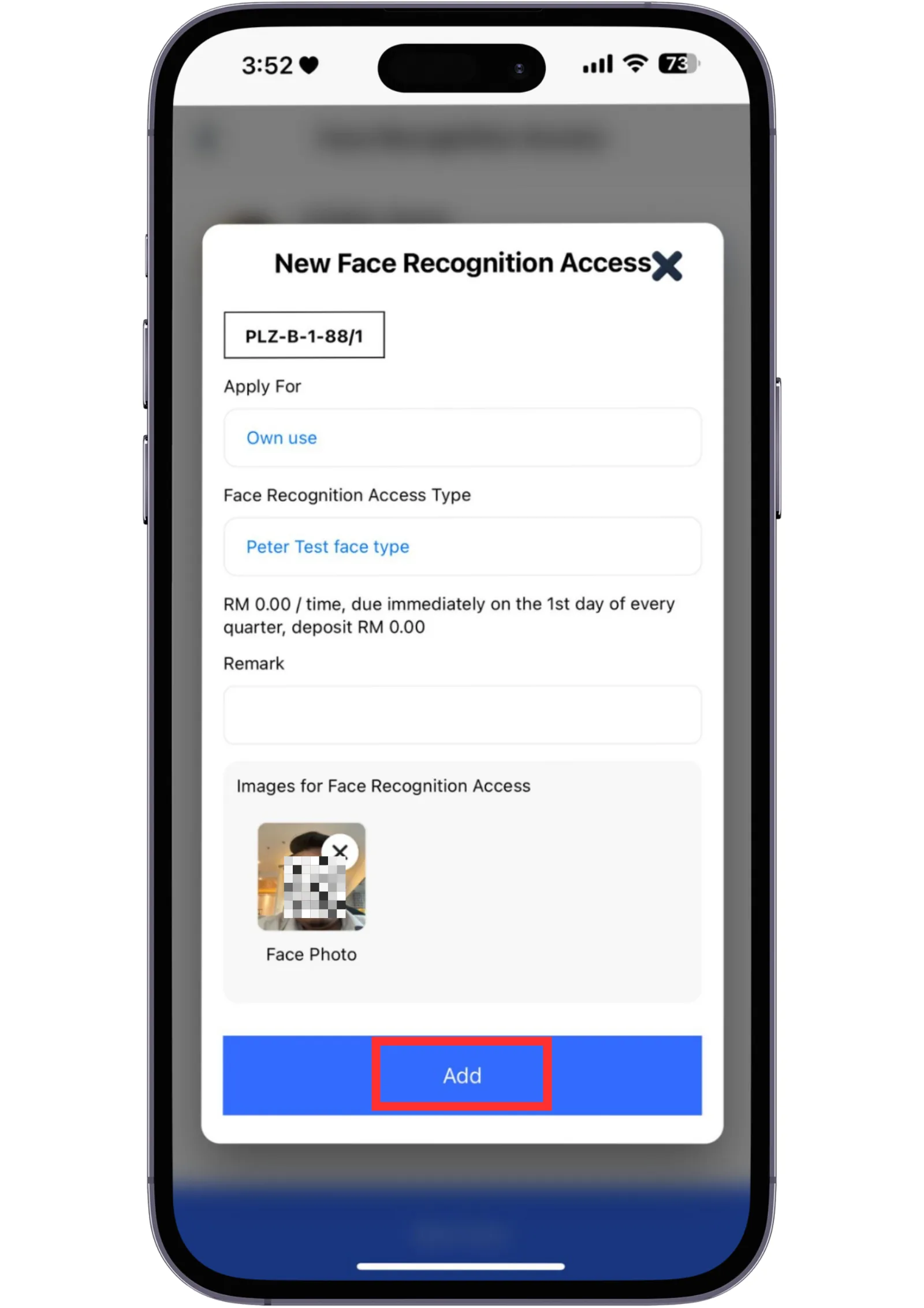
When you're done doing this, wait for management to approve it. If you want add the other face recognition access, repeat from the beginning.