Snooker King
Chapter 11: Settings Selling Items
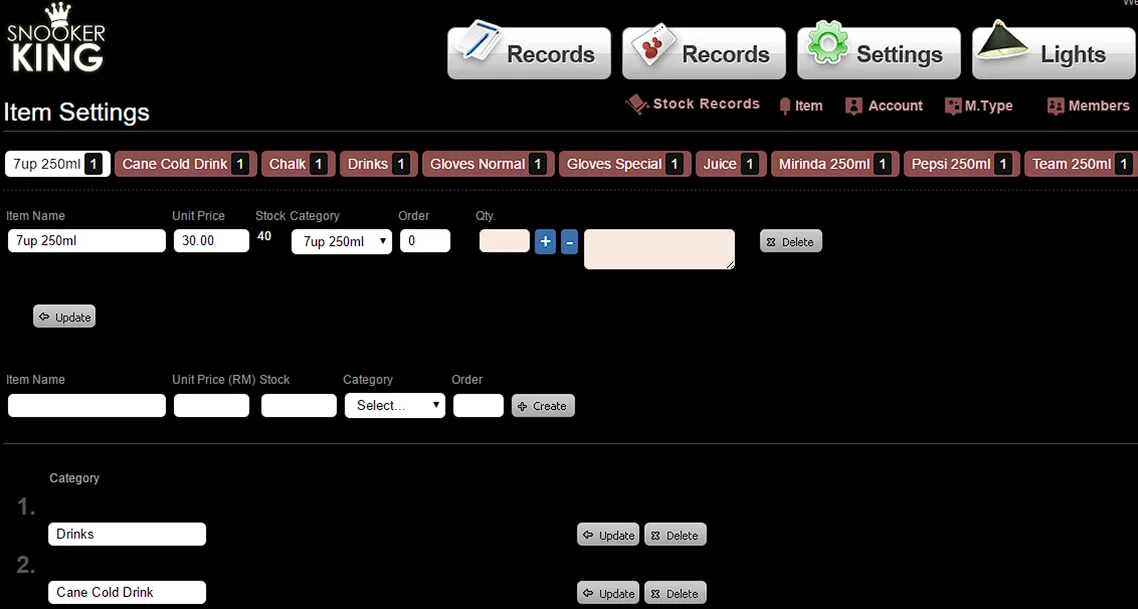
11.1. Add Category (Must fill in category before adding selling items)
- Go to Settings > Item> Category
- Enter name for each category
Sample:
11.2. Adding Selling Items
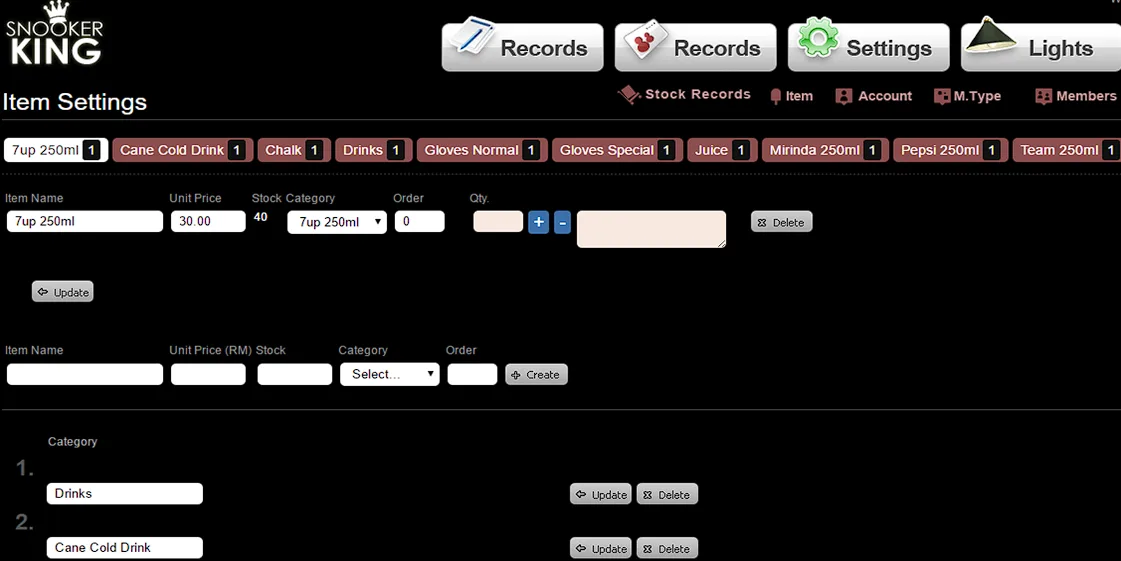
- Fill in Item, Price, Stock and select Category options.
- Remember to select category for each selling items.
- Then, click “Update” button to save this setting.
Sample:
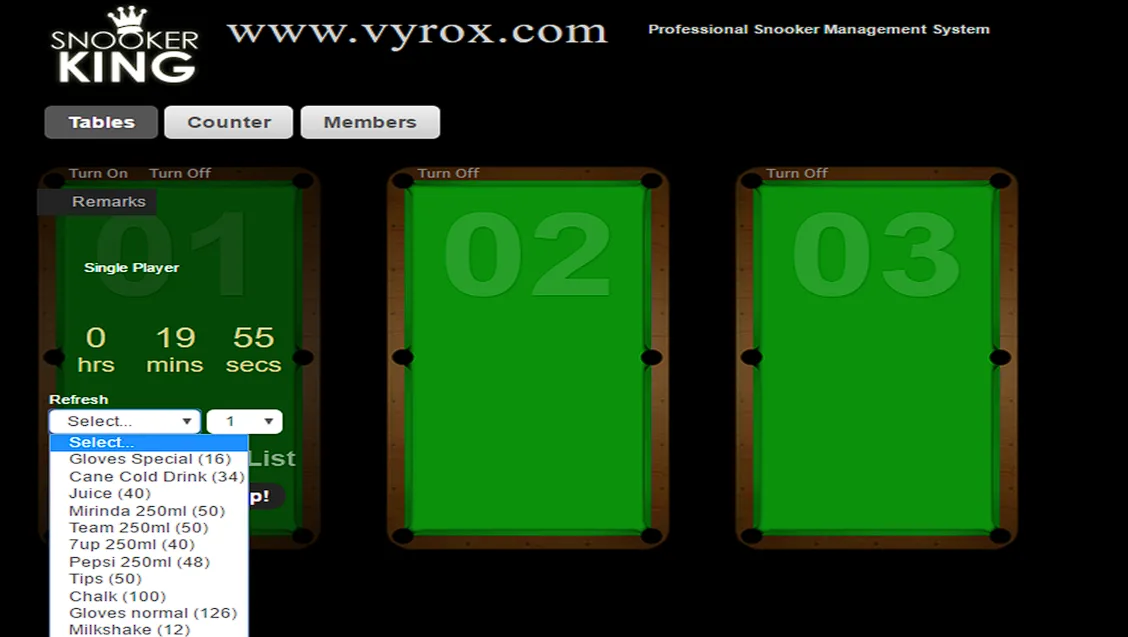
Effect:
11.3. Stock Record for each Selling Items
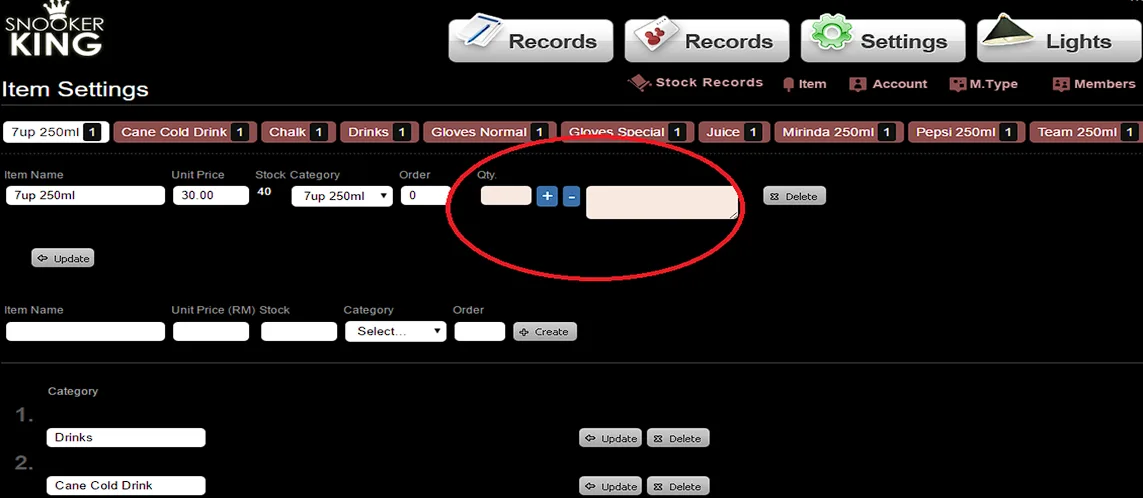
- Fill in stock amount inside textbox of Quantity of each item and click “ + ” button to stock in.
- Fill in stock amount inside textbox of Quantity of each item and write the remark beside the “Delete” button to mention that why you are going to deduct the stock. Then only to click “-” button.
Sample:
Effect:
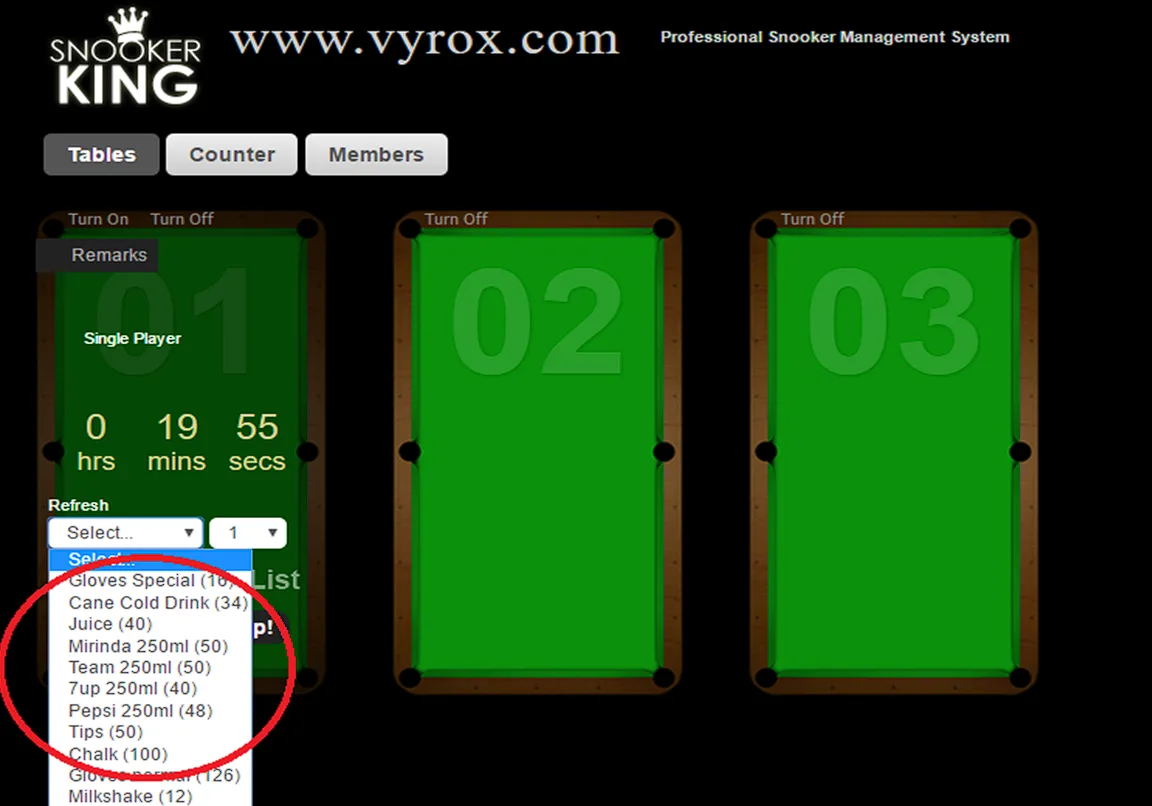
The system automatically deducts the number of remaining stock when items checkout.
11.4. Arrange the item order in the counter
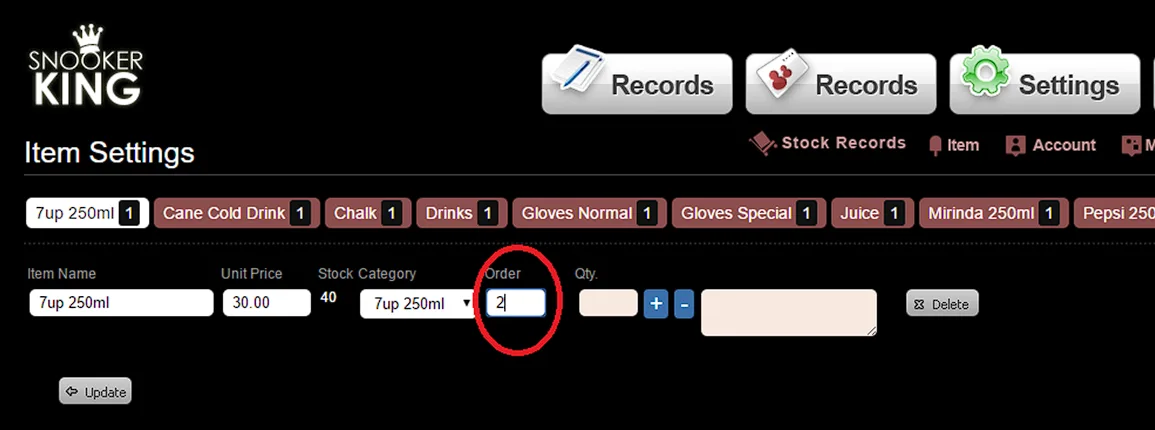
- Please key in the number to arrange the item order.
- Remember click “Update” button.
Sample:
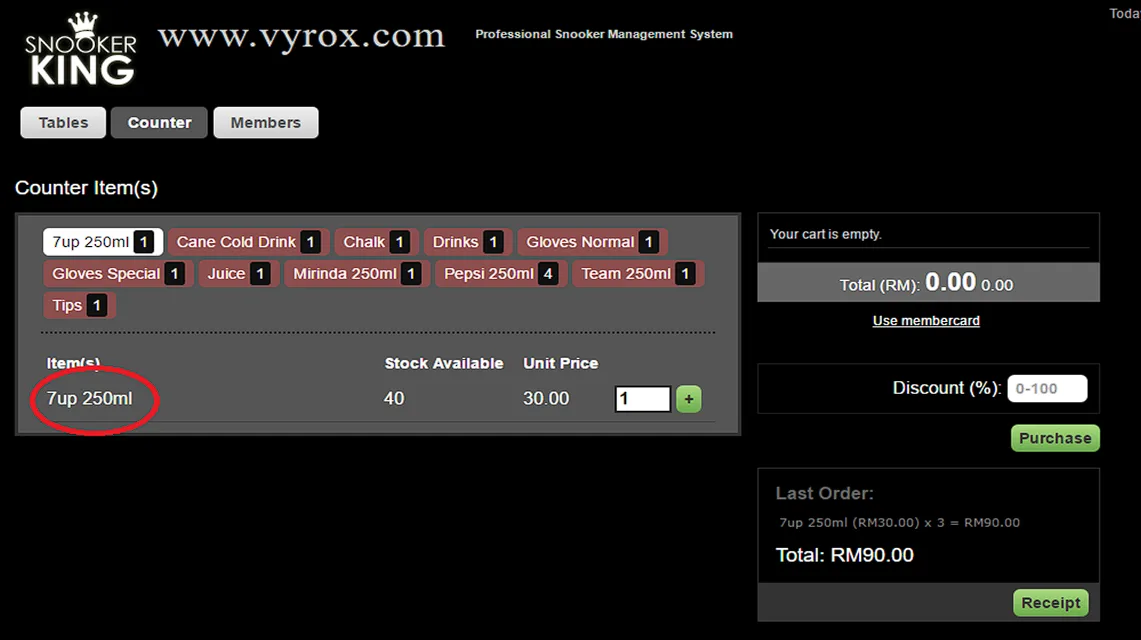
Effect: