
Table of Contents
Facility Booking System
1. Introduction
This guide will walk you through the steps to effectively add and manage facilities on your platform. With an intuitive design inspired by best-in-class user interfaces, managing your facilities has never been easier.
2. Facility and Facility Type
This step helps you access the central hub for managing your facilities. The dashboard provides an overview of all facilities and tools to manage them efficiently.
2.1. Access the Facility Management Dashboard
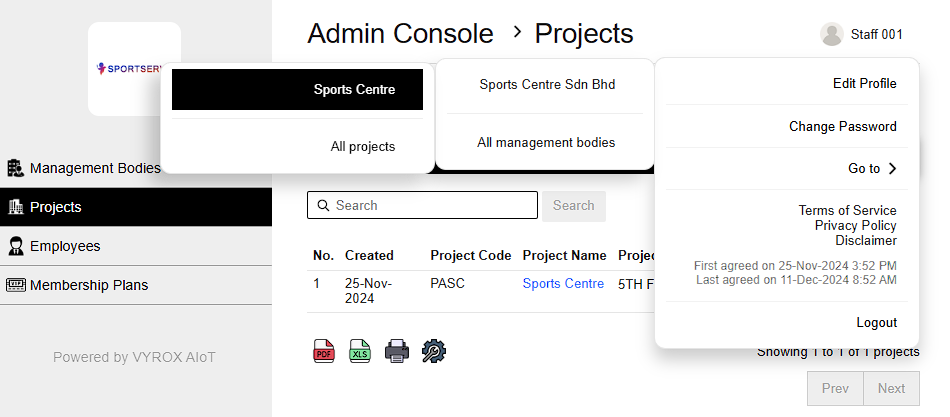
At the top-right corner of the webpage, Go to the profile icon > Go to > SPORTS CENTRE SDN.BHD. > Sports Center
This brings you to the facility management dashboard.
 |
2.2. Configure Facility Types
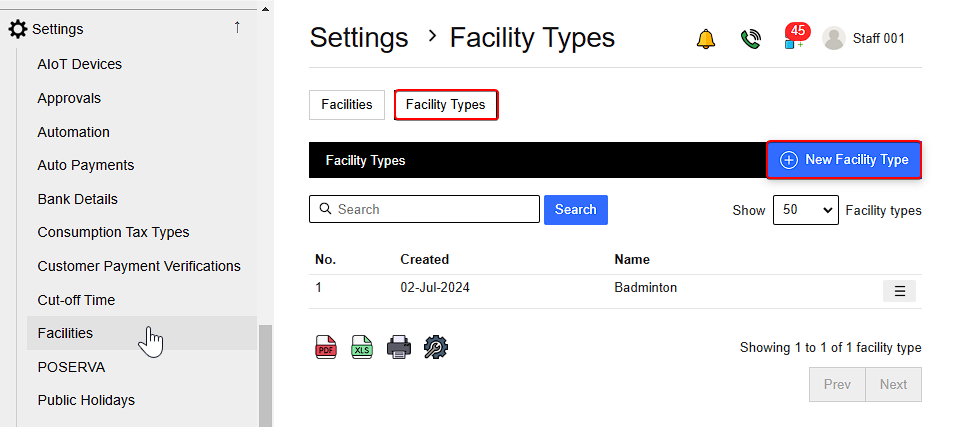
On the left-side menu, go to Settings > Facilities.
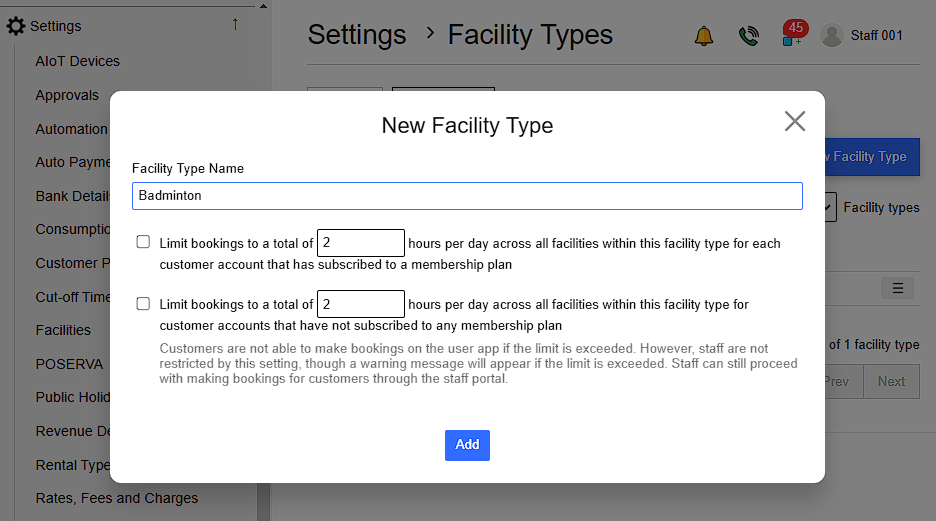
At the top of the page go to Facility Types > New Facility Type, enter the facility type name and customizations
This feature allows you to categorize your facilities (e.g., meeting rooms, gyms, pools) to streamline management and user selection.
 |
Booking Limit Policy :
- Limit daily bookings to a set number of hours across all facilities within the facility type for Customers With Membership Plan:
- Limit daily bookings to a different set number of hours across all facilities within the facility type for Customers Without Membership Plan:
This means Customers cannot make further bookings through the user app once the limit is exceeded. However ,Staff are not restricted by these booking limits when processing customer bookings through the staff portal. If a customer exceeds the daily limit, a warning message will appear, but staff can still proceed with the booking.
When done click Add to save it.
 |
2.3. Add New Facilities
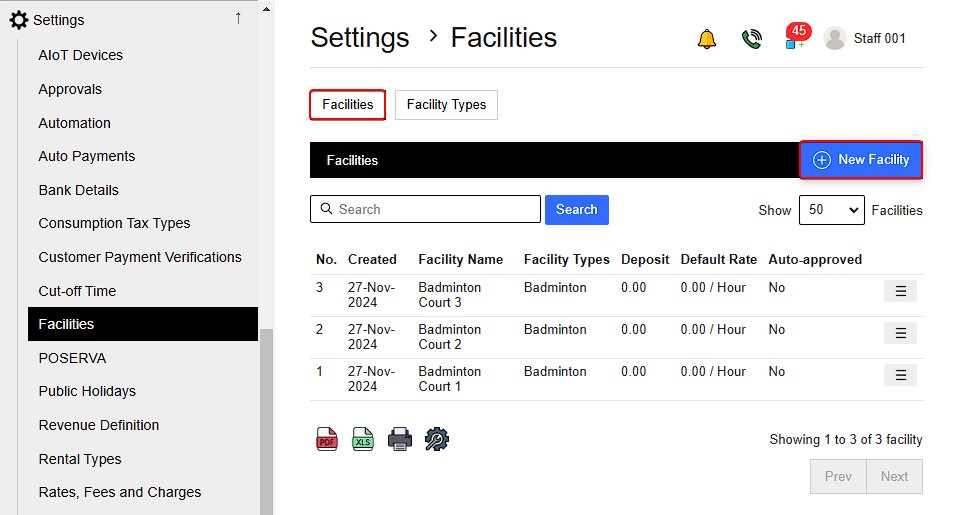
This feature enables you to add new facilities to the platform for user bookings.
Return to Facilities > New Facility.
 |
2.4. Fill in Details for Adding New Facilities
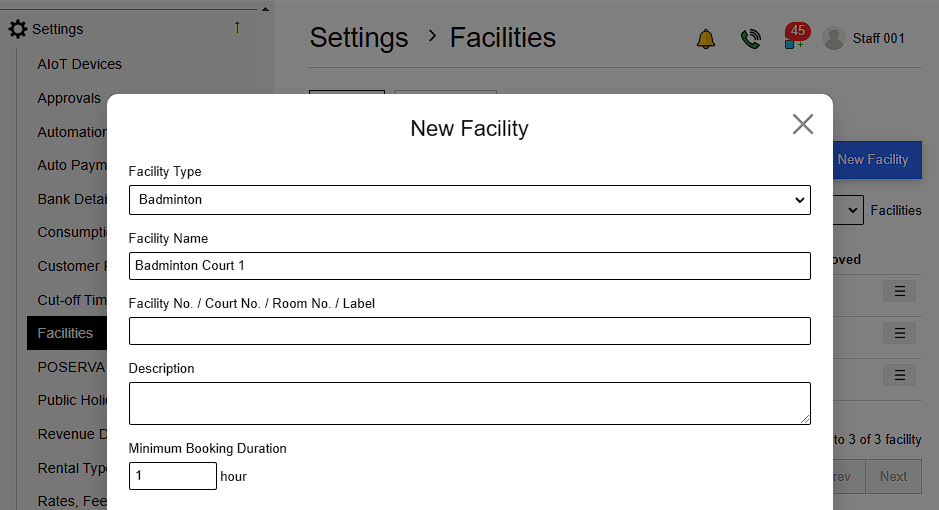
Complete the required fields for the new facility This allows you to categorize the facility based on its intended use (e.g., meeting room, gym).
2.4.1. Select Facility Type (e.g., badminton court, gym, pool).
2.4.2. Enter Facility Details such as Name, Number, and a Description.
2.4.3. Specify the Minimum Booking Duration (e.g., 1 hour, 30 minutes).
 |
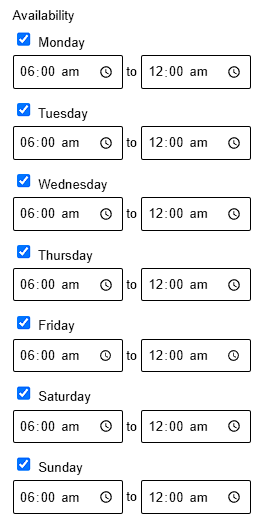
2.5. Set Facility Availability and Operating Times
- Management can define the days (e.g., Monday to Friday) and operating hours for the facility's availability.
 |
2.6. Configure Booking Policies and Operational Settings
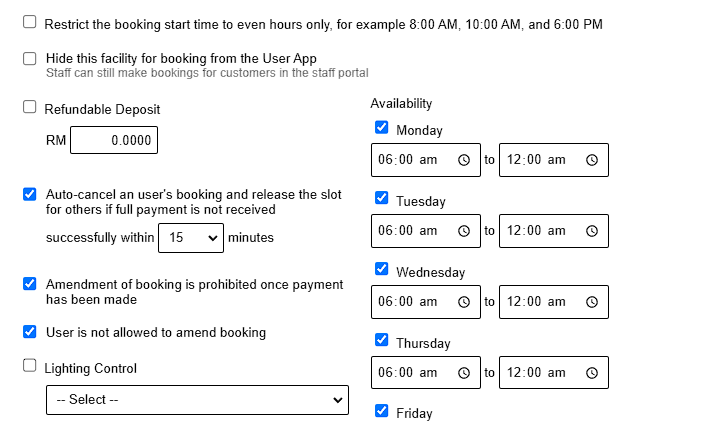
Management can choose to :
2.6.1. Restrict Booking Start Time to specific intervals (e.g., even hours such as 8:00 AM, 10:00 AM, 6:00 PM).
2.6.2. Hide Facility from User App
- Management can hide the facility from the user-facing app, making it accessible only to staff for bookings via the staff portal.
2.6.3. Select whether a refundable deposit is required and specify the amount and conditions.
2.6.4. Enable Auto-Cancellation for Unpaid Bookings
- Automatically cancel a user’s booking if full payment is not received within a specified time frame.
- The slot will be released for other users to book.
2.6.5. Prohibit Amendments to bookings after Payment
- Management can disallow changes to bookings after payment has been made, ensuring confirmed bookings remain unchanged.
2.6.6. Enable Lighting Control
- Link the facility to a lighting control system for automated or manual control based on booking schedules.
 |
2.7. Setting up lighting control
To add lighting control
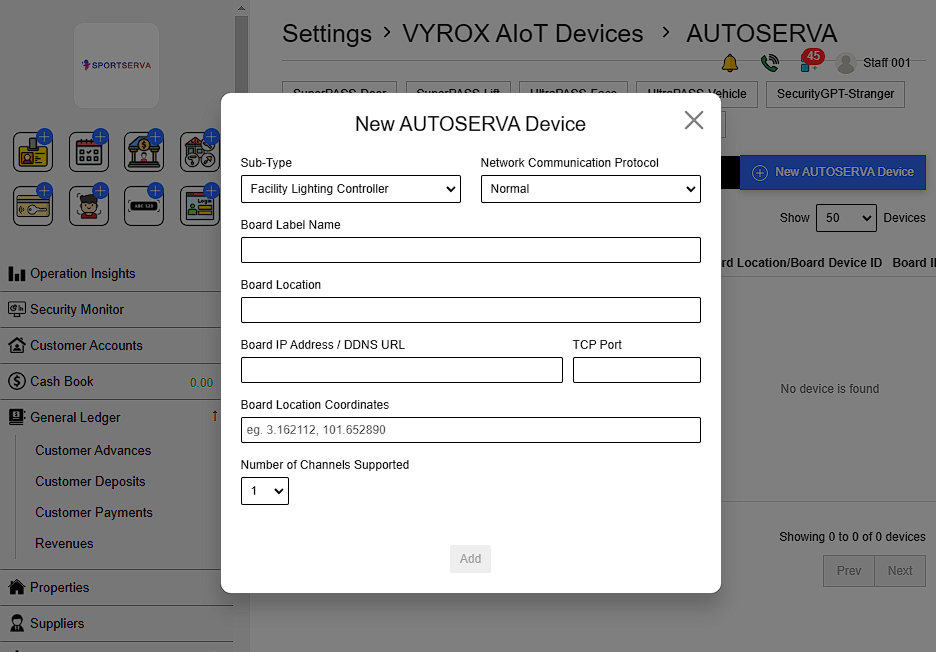
Go to Settings > VYROX AIot Devices > AUTOSERVA > New AUTOSERVA Device
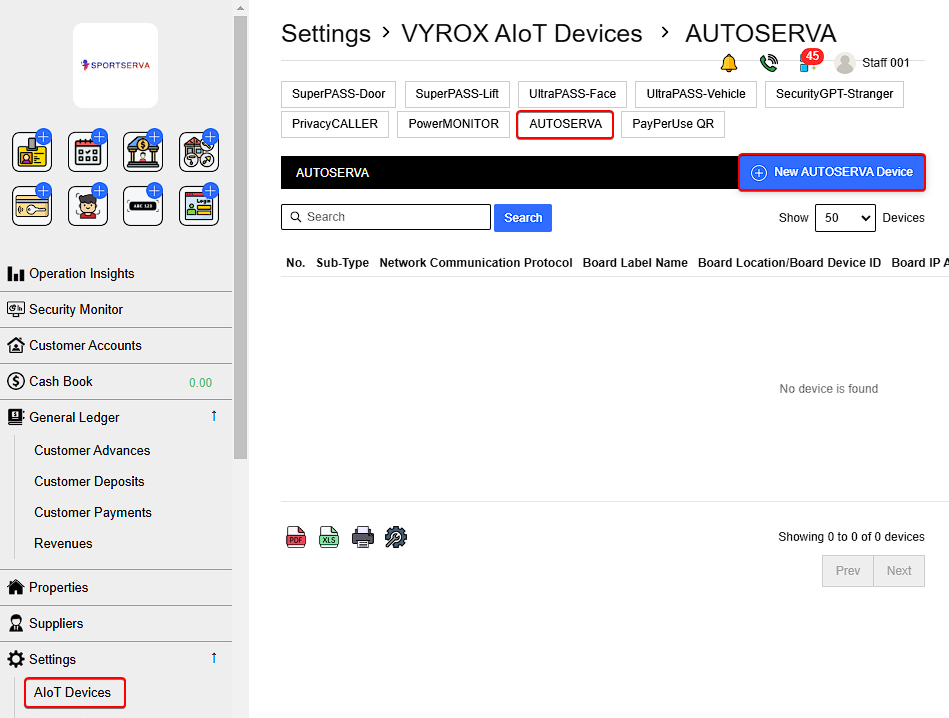 |
Fill in details such as Sub-Type, Network Communication Protocol ,Board Label Name, Board Location, Board IP Address / DDNS URL,TCP Port , Board Location Coordinates and Number of Channels Supported. Click add when finish.
 |
2.8. Standard & Member Booking Windows
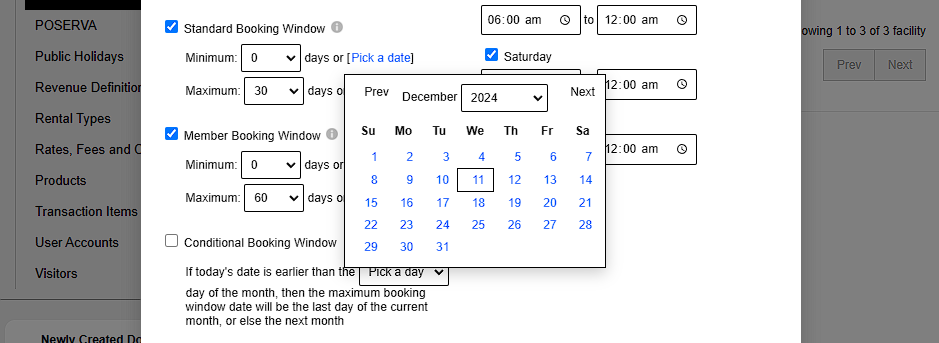
2.8.1. Set Standard Booking Window
- Define the minimum and maximum days customers can book in advance.
- Alternatively, set a specific start and end date for bookings.
- Staff can override this restriction to make bookings on behalf of customers.
2.8.2. Set Member Booking Window
- This setting limits customers’ ability to make bookings themselves on the user app, but it does not affect staff.
- Staff can make bookings without being restricted by the booking window.
 |
2.9. Customize Booking Rules and Access Restrictions
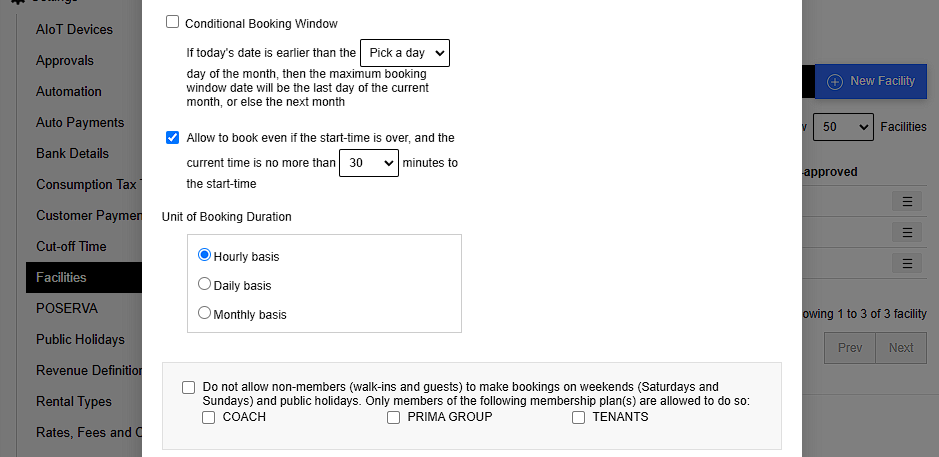
2.9.1. Set Conditional Booking Window
- If today’s date is earlier than a specific date in the current month, the maximum booking window is the last day of the current month.
- Otherwise, the window extends to the next month.
2.9.2. Allow Late Bookings
- Management can permit bookings to be made after the scheduled start time if the current time is within a specified number of minutes past the start time.
2.9.3. Set Unit of Booking Duration ( e.g. Hourly, daily, or monthly)
2.9.4. Restrict Non-Members on Weekends and Holidays
- Management can restrict bookings on weekends (Saturday and Sunday) and public holidays to specific membership plans.
- Non-members, walk-ins, and guests will not be allowed to make bookings during these times.
 |
2.10. Payment Plans
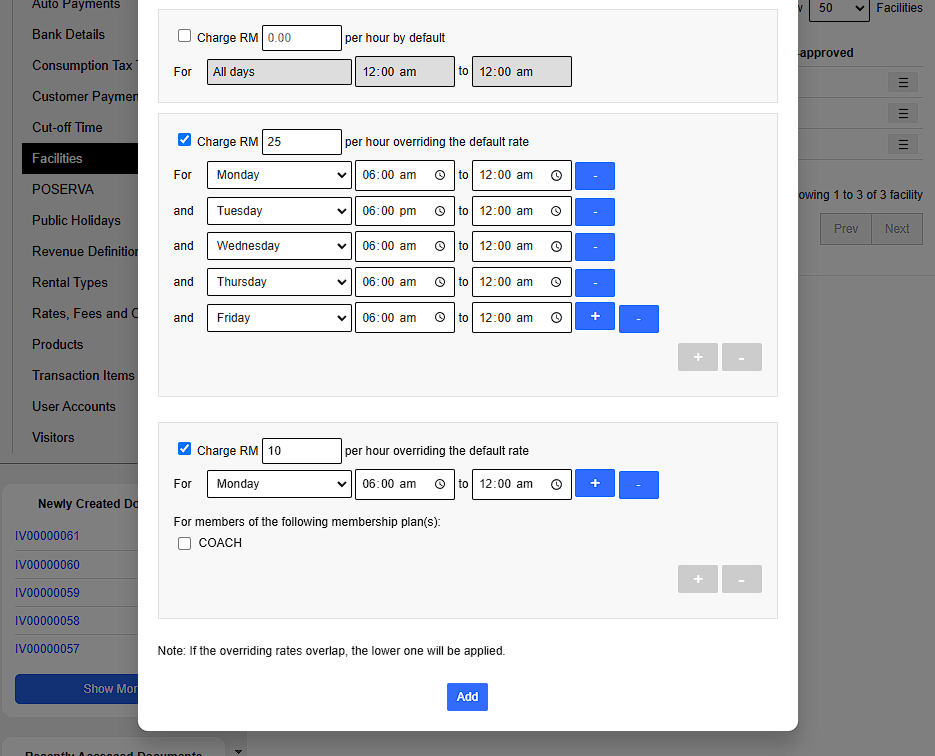
Select Payment Plans from three different payment plans:
2.10.1. Default Plan
- Payment applies for the entire day for all days (12:00 AM to 12:00 AM).
2.10.2. Customized Hourly Rate
- Set per-hour rates that override the default rate.
- Configure rates based on the type of day (e.g., Monday to Sunday, weekend, public holiday).
- Specify activation timing for payments (e.g., from 8:00 AM to 8:00 PM).
2.10.3. Membership-Specific Rates
- Define special payment plans exclusively for members of specific membership plans.
 |
Once finish customization , click Add to save it.
Key Notes!
Add each day individually from Monday to Sunday to ensure maximum accuracy for system application, rather than grouping them as weekdays (Monday–Friday) and weekends (Saturday and Sunday).
3. Manage Booking Slot
This guide is designed to help management assist walk-in customers with ease and confidence. Follow these simple steps to handle facility bookings efficiently.
3.1. Make Booking
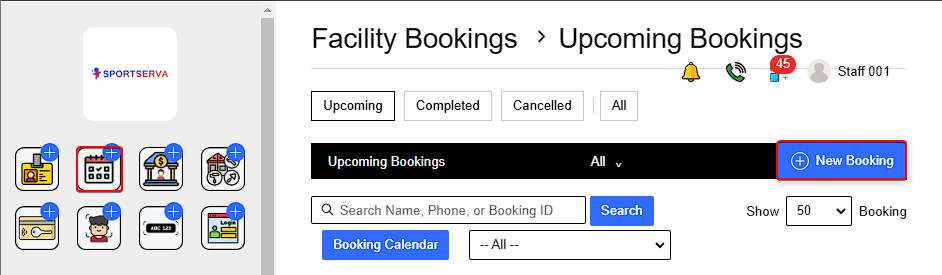
3.1.1. Start new booking
- Select Facility Bookings > New Bookings.
 |
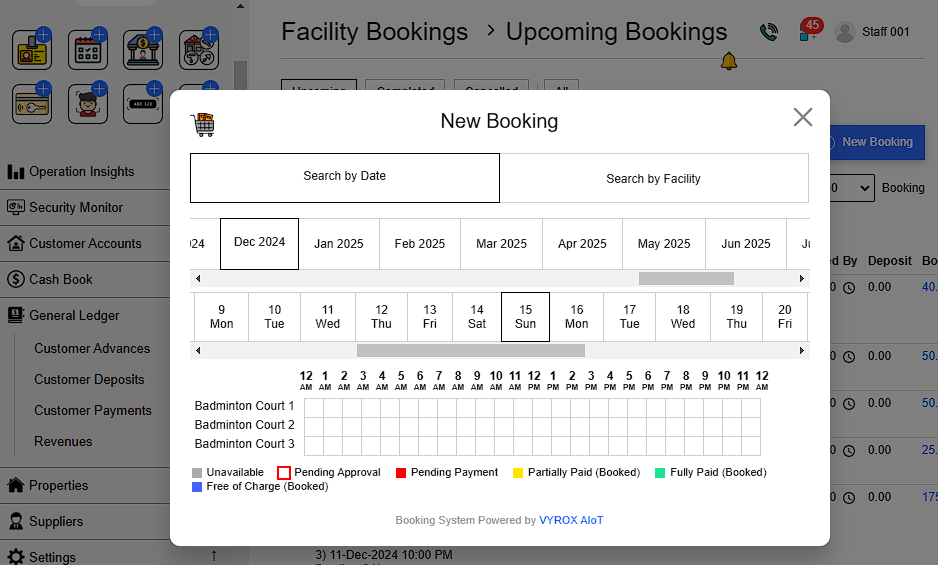
3.1.2. Search and Select Booking Slot
Booking slots can be searched by date or facility.
To book, click on the desired slot. The clots availability are color-coded.
 |
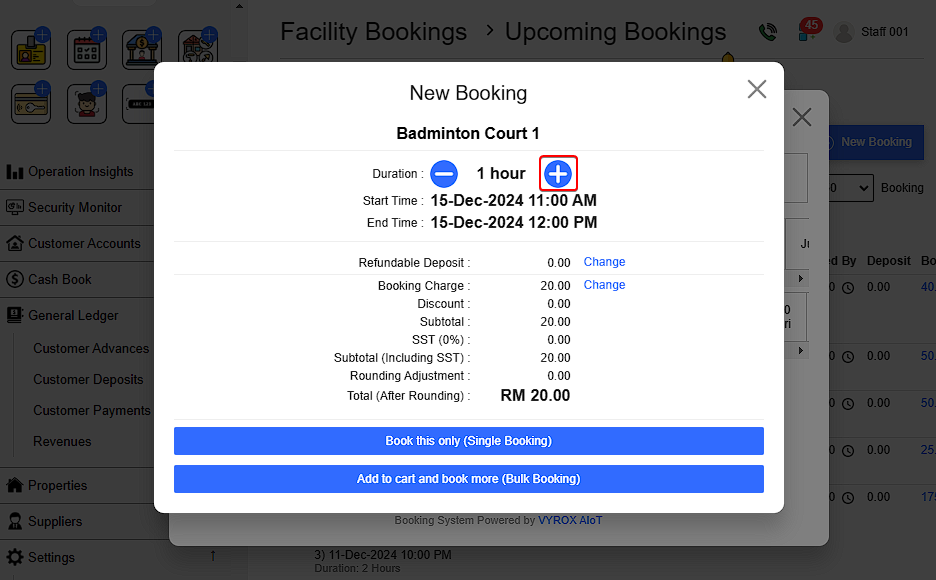
To increase booking hours , click the plus sign.
 |
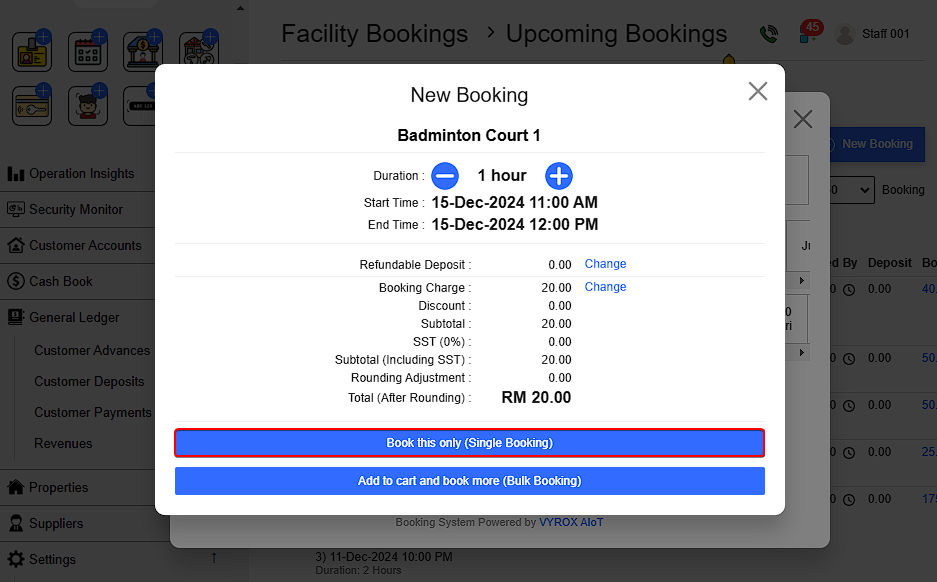
3.1.3. Single & Bulk Booking
For Single Booking
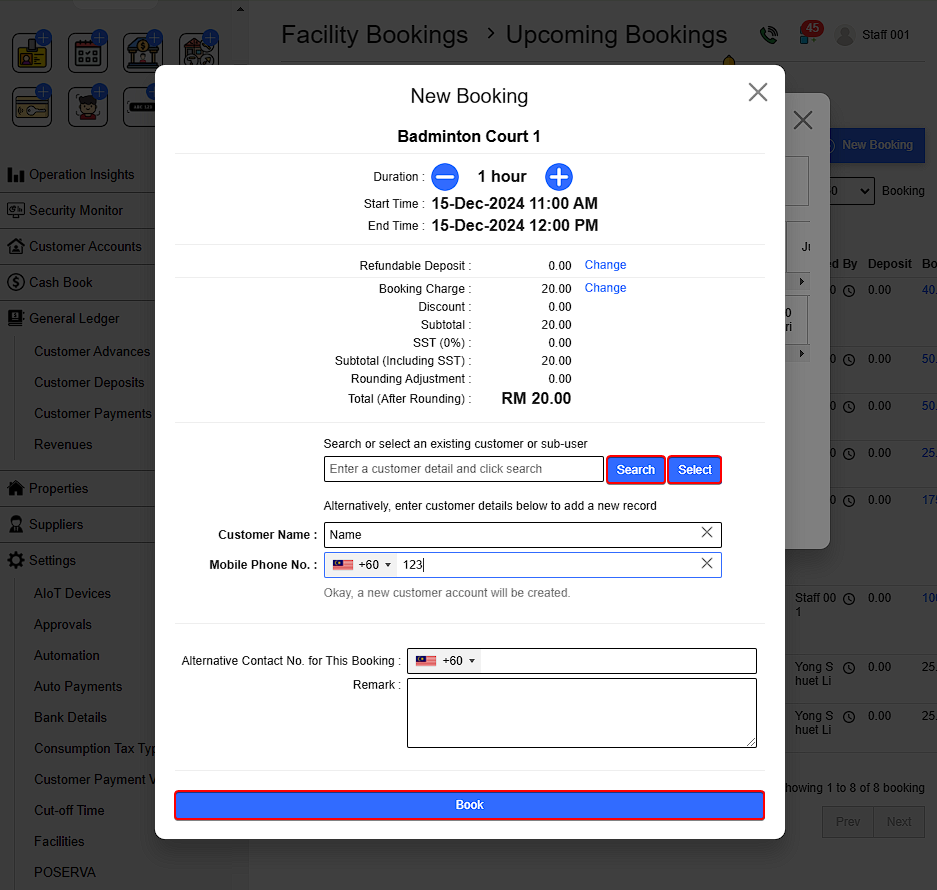
- Click Book This Only (Single Booking) .
 |
Handle customer details:
Existing Customer:
- Search by name or select a customer based on their category.
New Customer:
- Enter the customer’s name and mobile number.
- (Optional) Add alternative contact info or remarks.
Click Book to complete.
 |
For Bulk Bookings
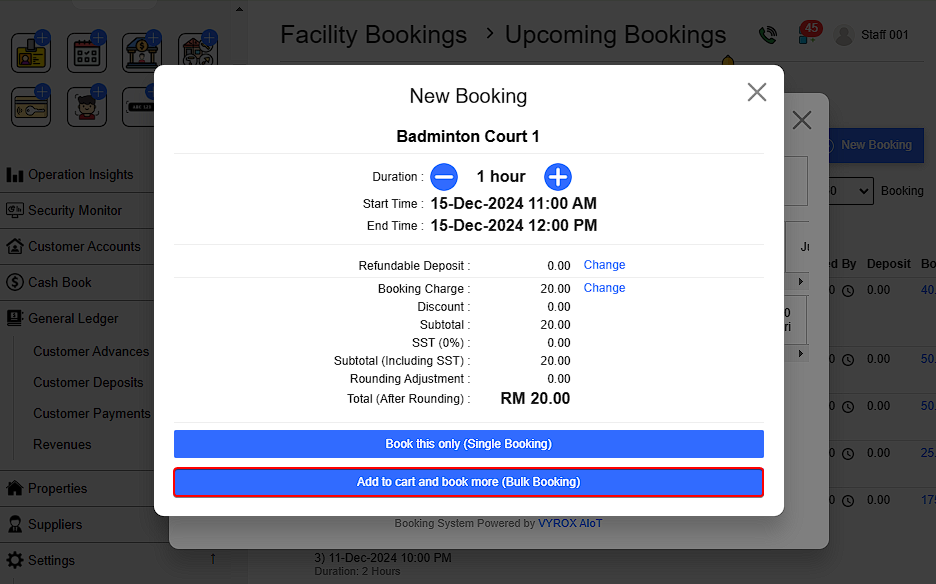
Add multiple slots to the cart by clicking Add to Cart and Book More (Bulk Bookings) .
- Slots in the cart will turn red, indicating pending payment.
 |
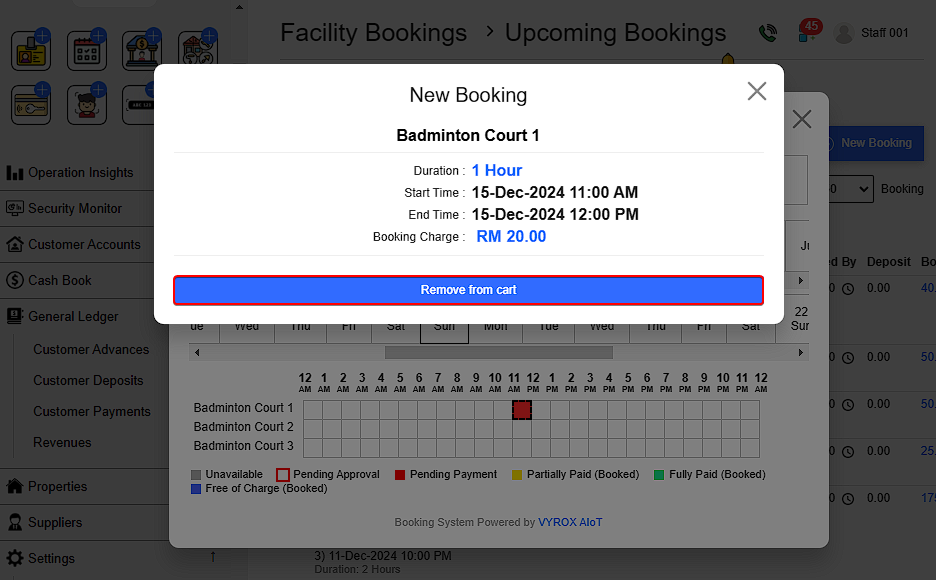
To remove a booking:
- Select the slot and click Remove from Cart.
 |
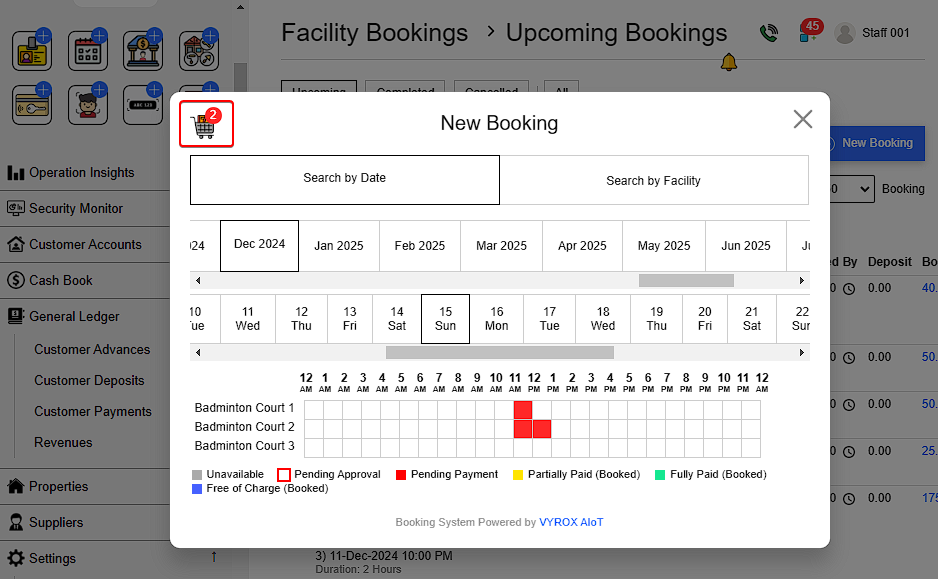
To confirm and proceed with payment:
- Click Cart icon on the left > Fill in customer details > Click Book.
 |
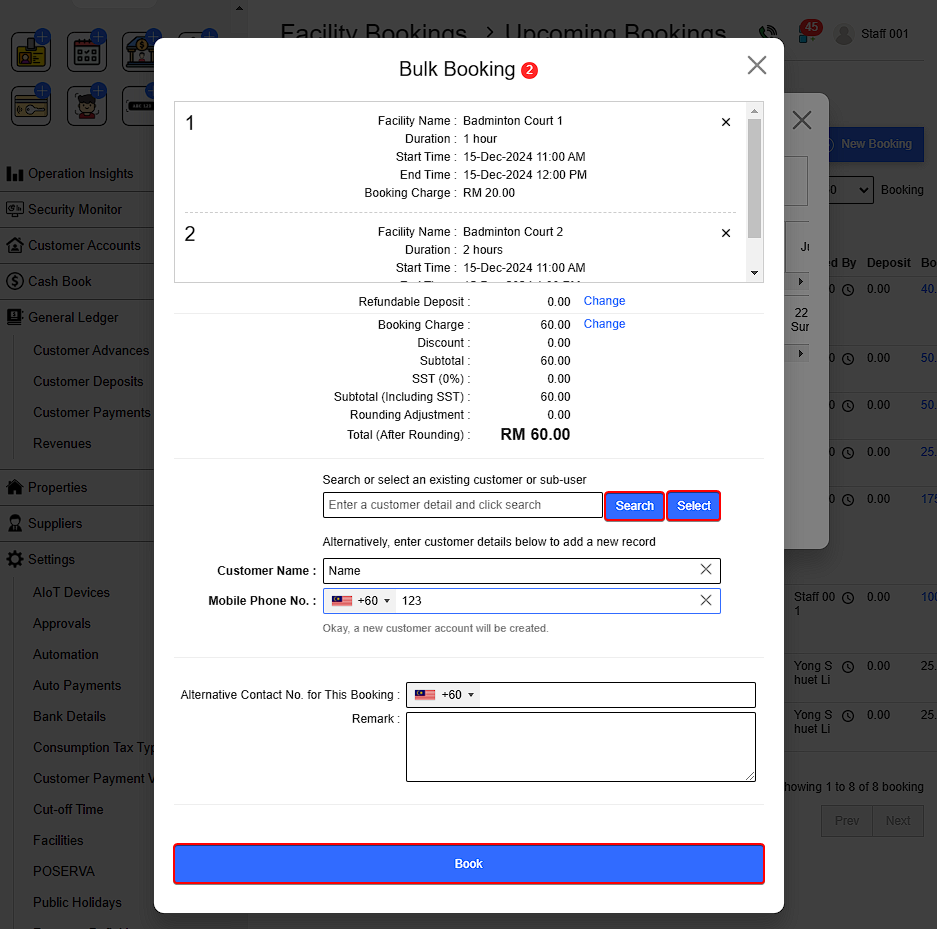 |
Once all bookings are confirmed, proceed to payment options. After payment, slot is officially booked.
3.2. Change Booking Slot
Click Change > Select new booking slot > Confirm when done.
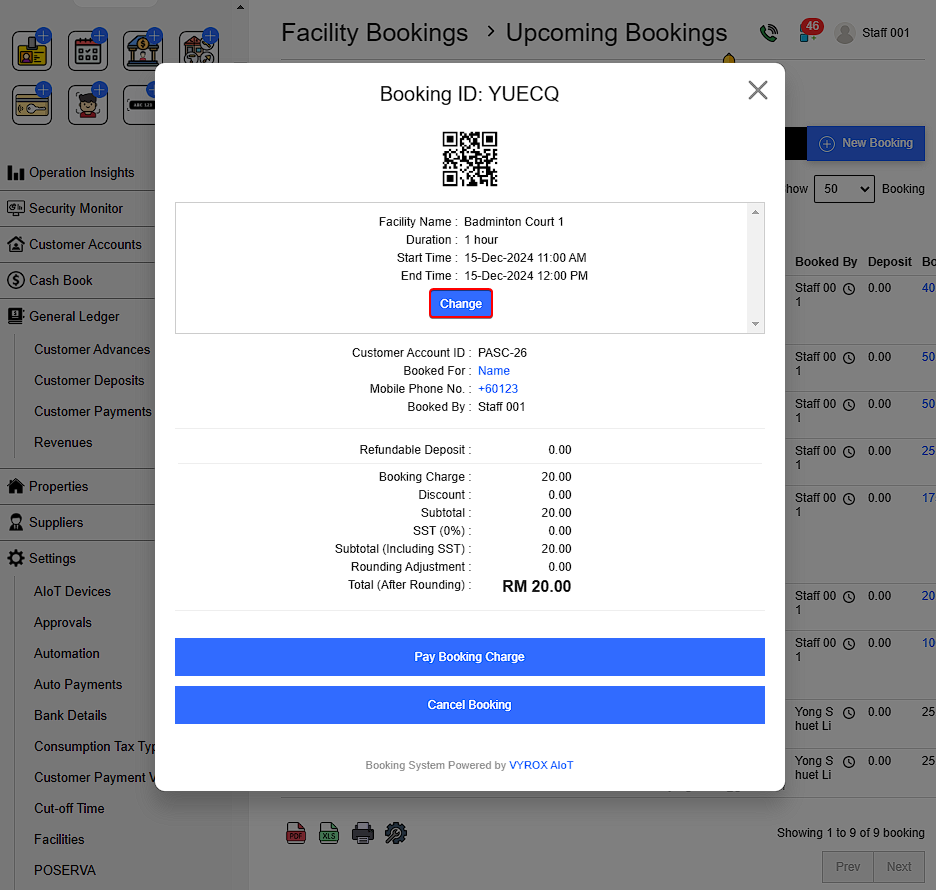 |
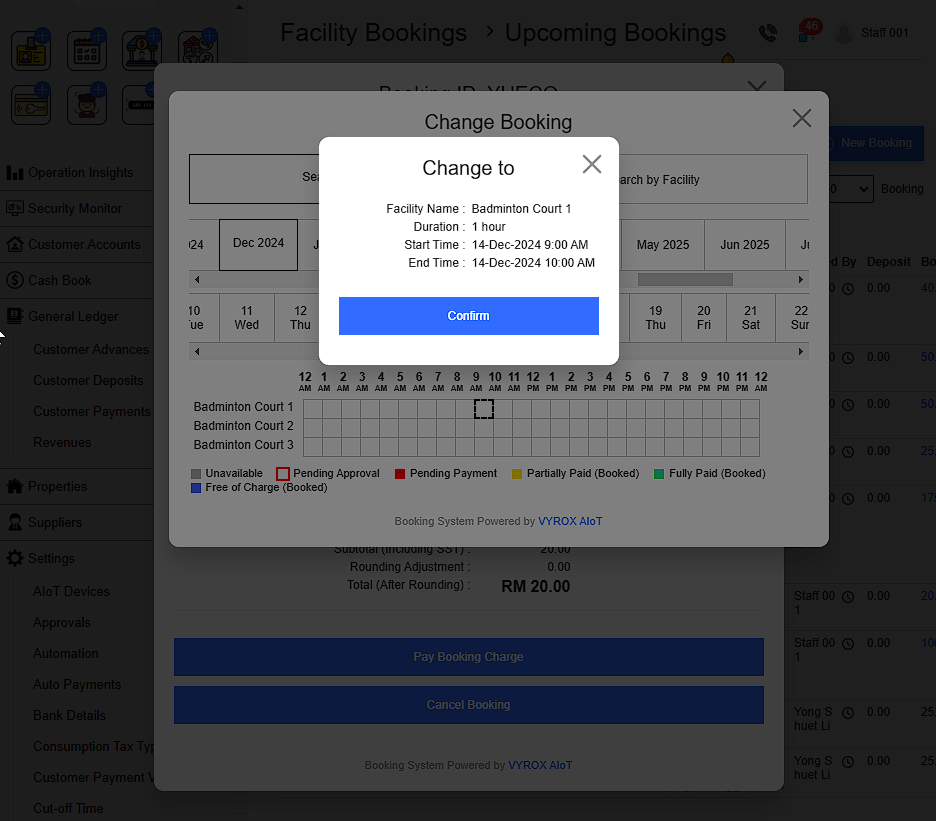 |
3.3. Cancel Booking Slot After Booking
Click on Booking slot > Cancel Booking > State reason > Comfirm
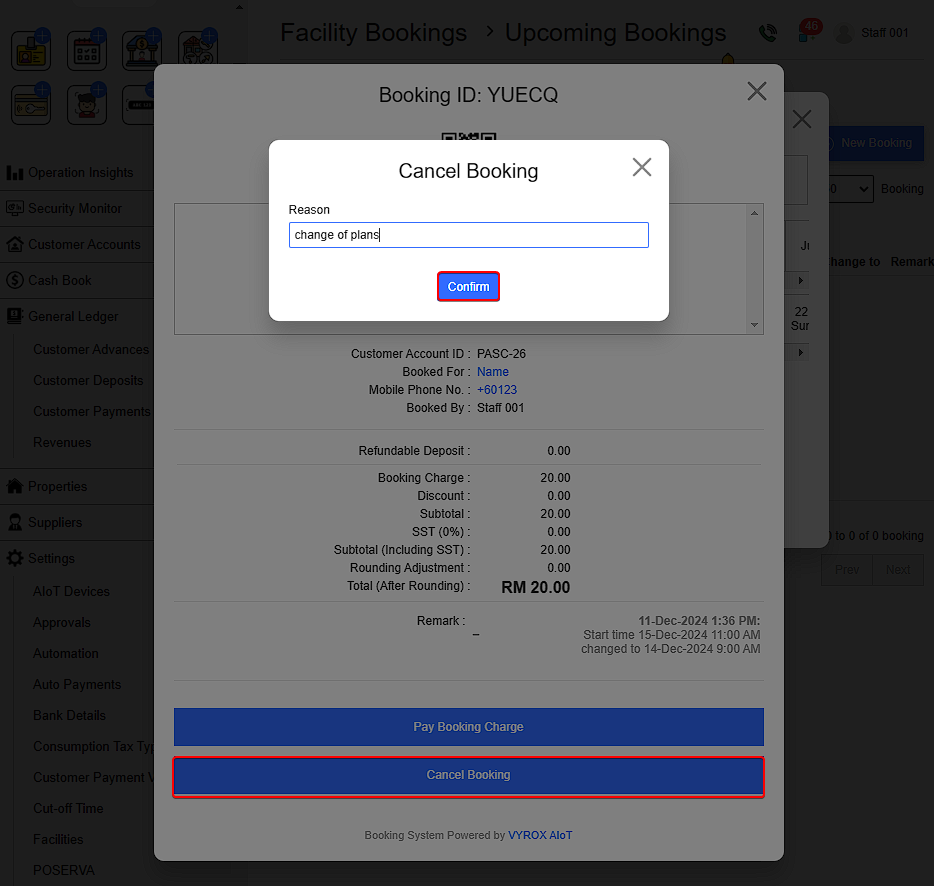 |
3.4. Change Court Booking Charge
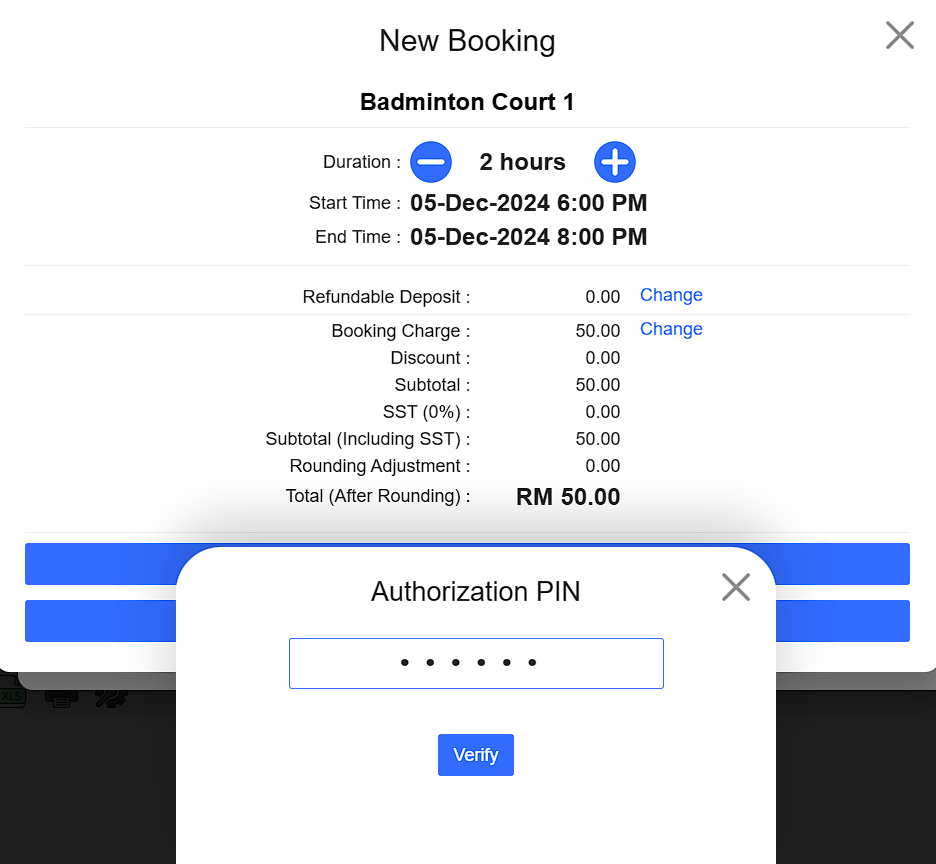
To change the refundable deposit or booking charges,Click Change > Enter the final charges > Enter authorization PIN > Verify to complete the process.
 |
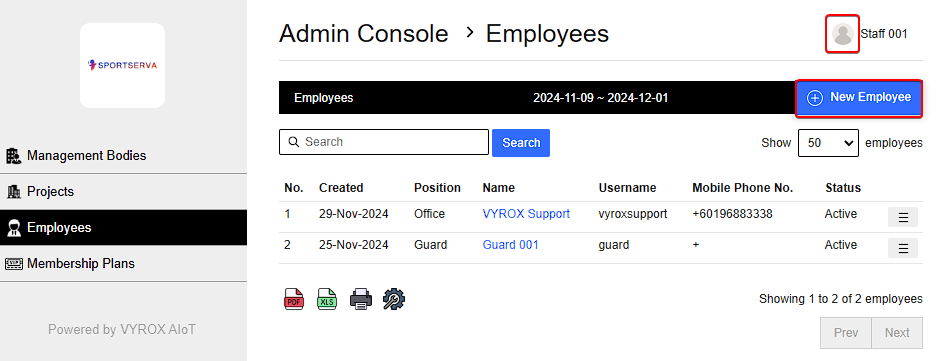
The Authorization PIN Code are unique to each employees and is set by going to Profile > Admin Console > Employee > New employee
 |
3.5. Booking Payment
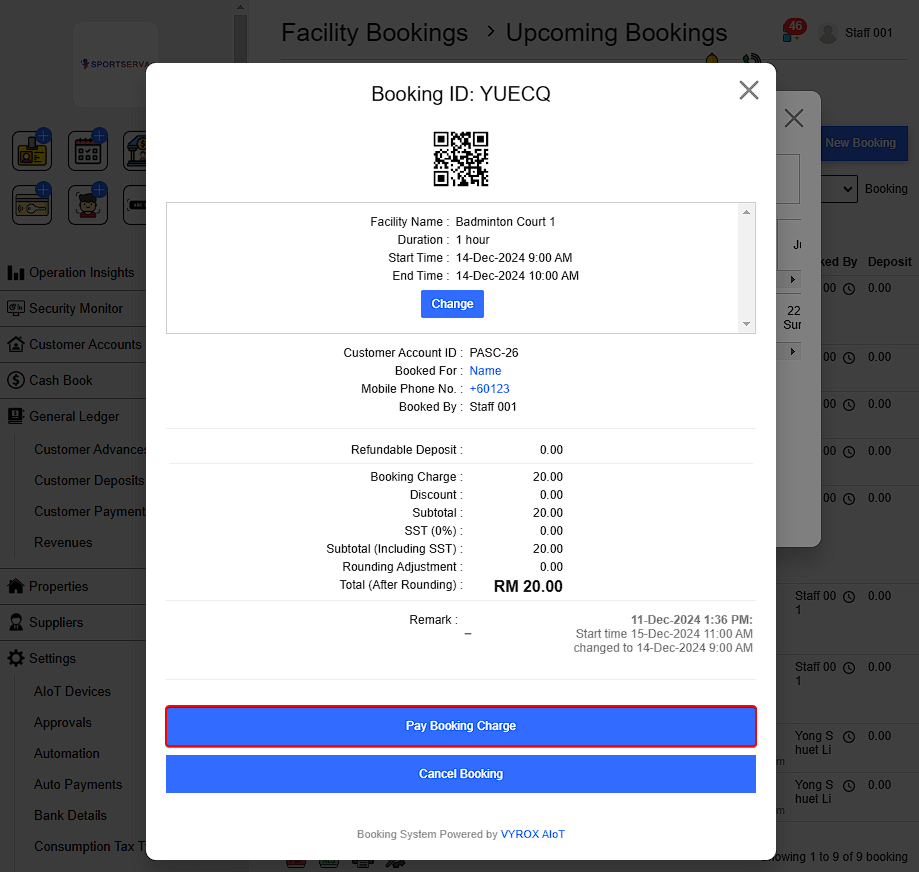
To pay the booking slot, click Pay Booking Charge.
 |
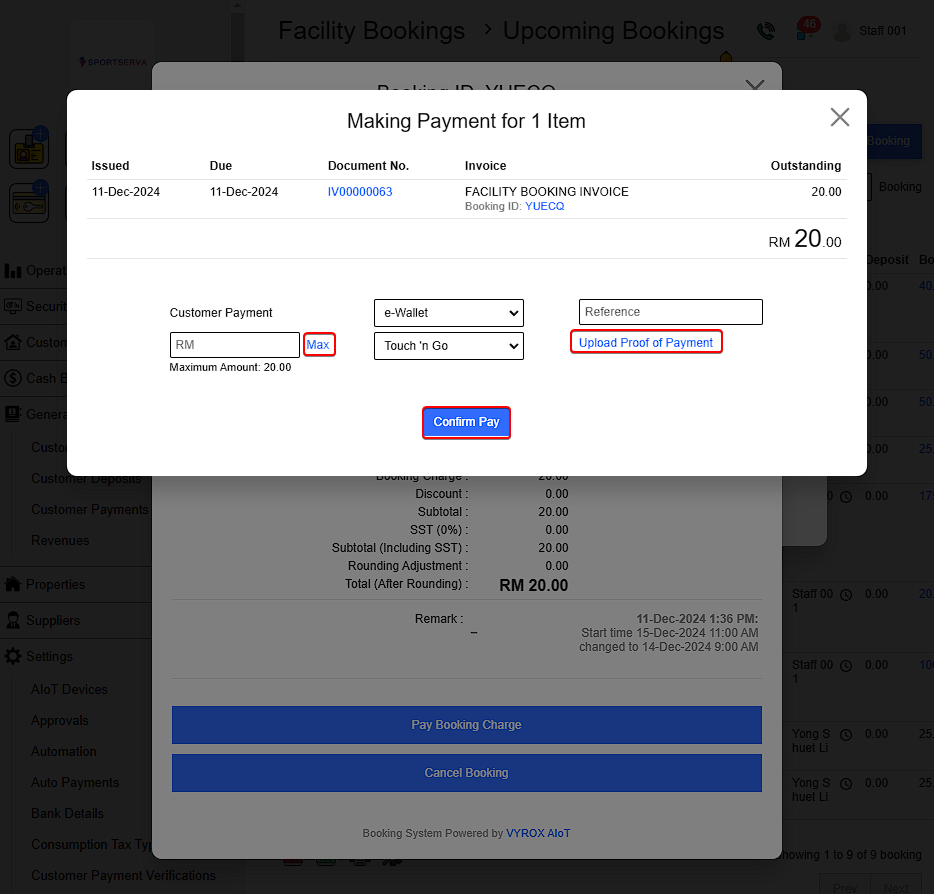
Click Max for customer to pay maximum amount of charged booking
Select Payment option > Upload proof of payment > Click Confirm pay
 |
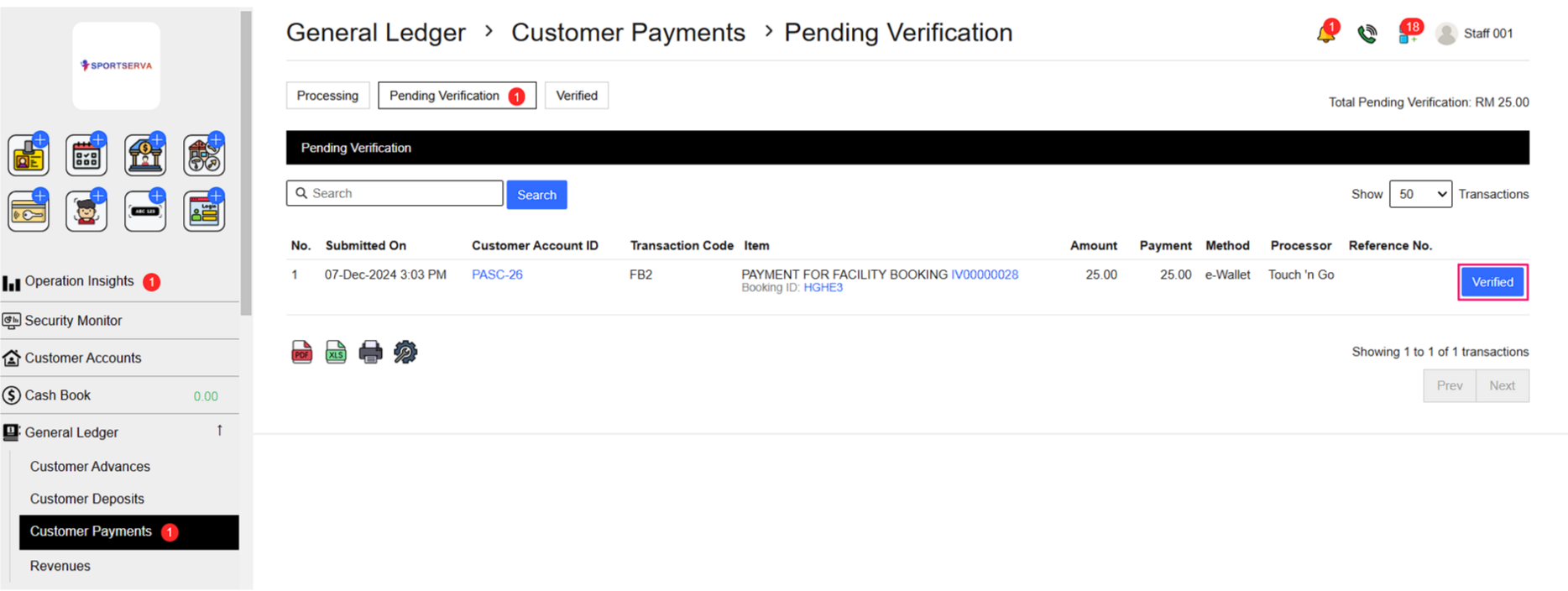
Verify payment receive by going to Customer Payents > Pending Verification
 |
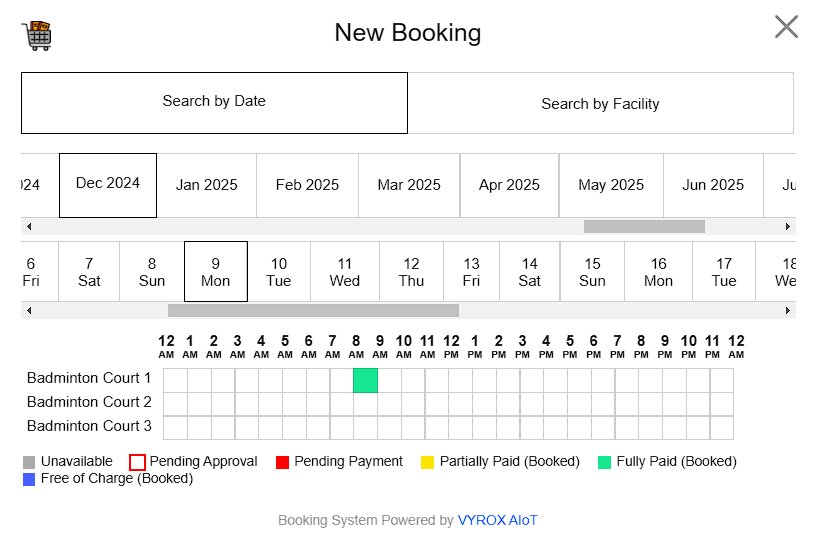
Once payment is verfified, slot will turn green indicating its officially booked.
 |
3.6. Refund & Booking Cancellation After Payment
If a booking is made with payment but the customer requests a refund and cancellation, follow these steps:
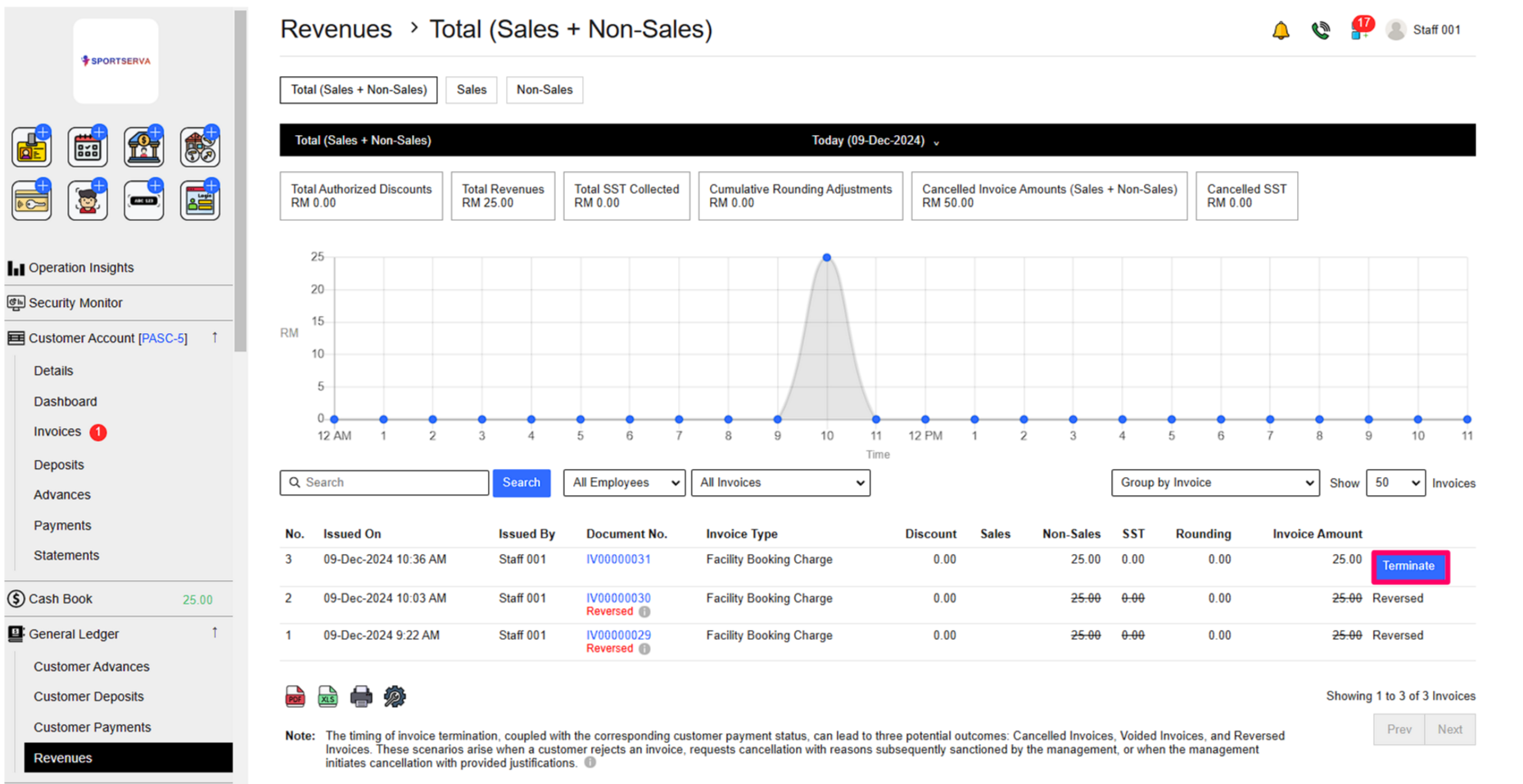
Go to Revenue and terminate the customer invoice. This will reverse the customer invoice and free up the booking slot.
 |
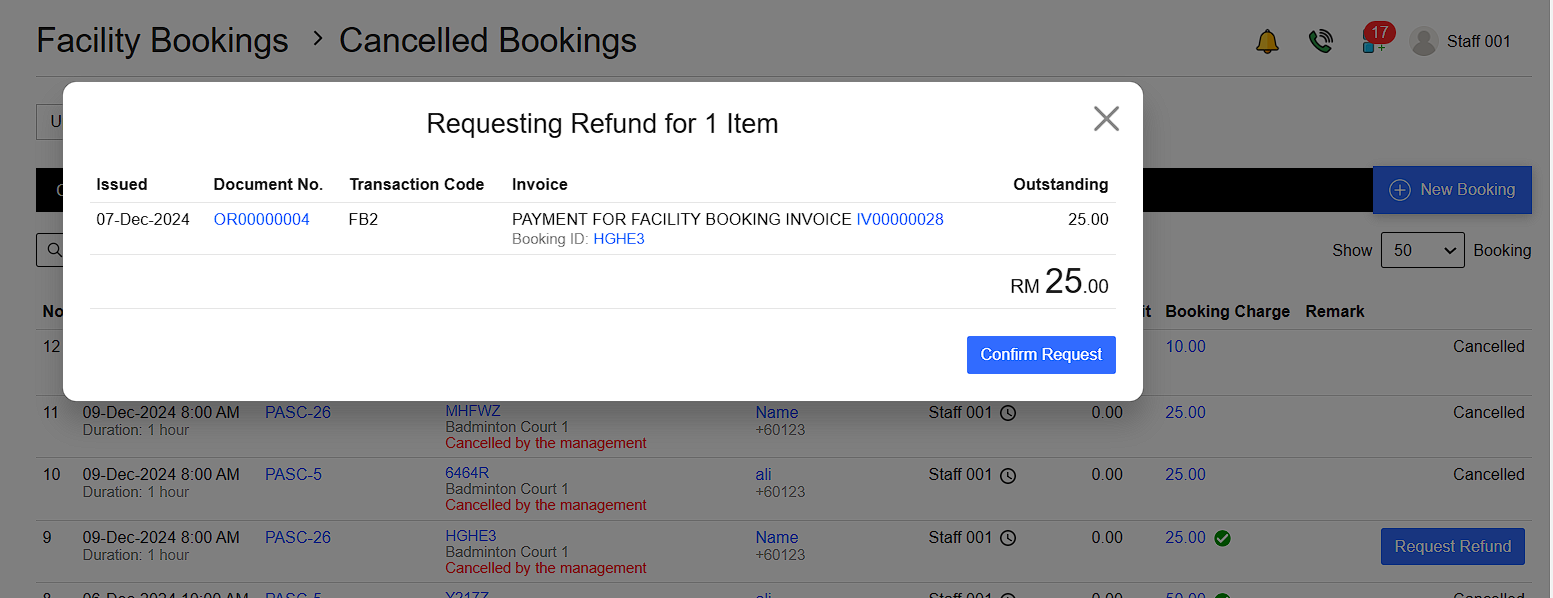
To update the cash book and reflect the refund:
Navigate to Facility Booking > Cancelled > Request Refund > Confirm Request > Refund > Confirm Refund.
 |
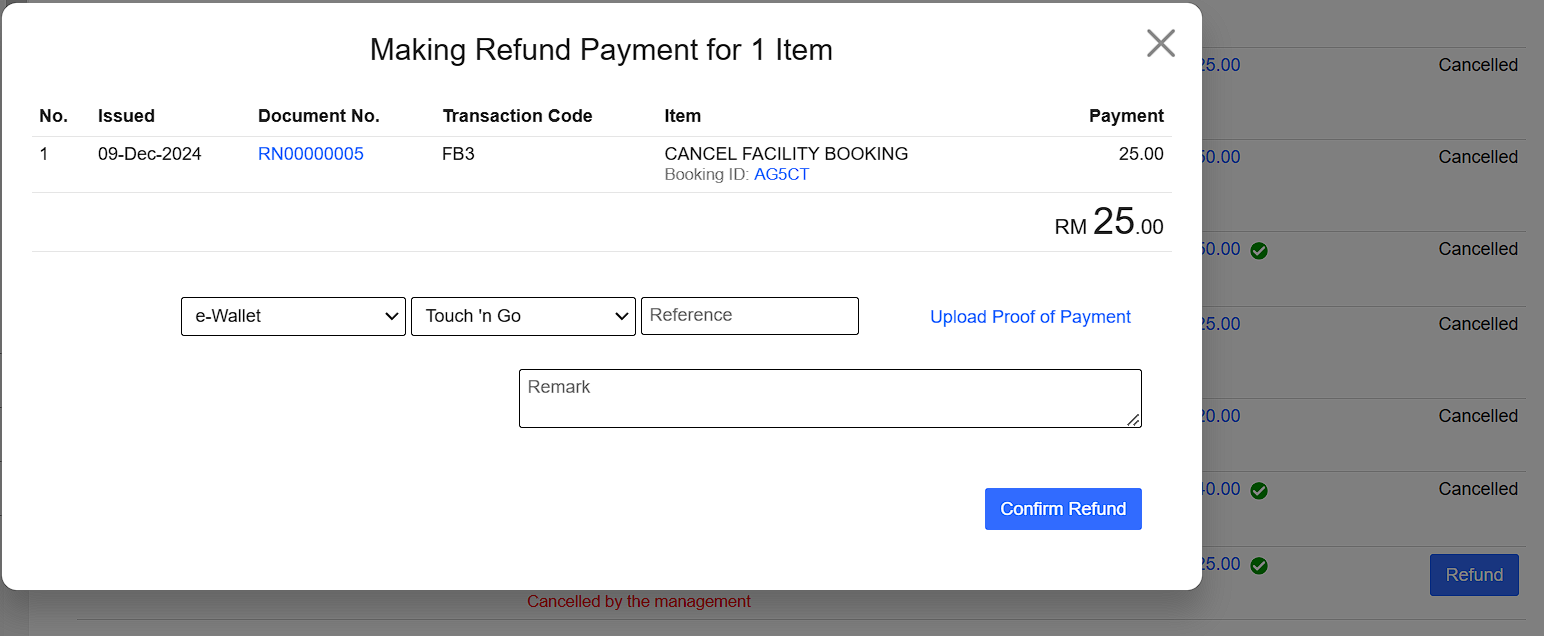 |
Once completed, the cash book will be updated to reflect the correct amount.