
offline_reservation_booking_sc
6. Offline Reservation and Booking System
Read this chapter to learn how to book and reserve court. 1. Click “Booking” page to book courts.
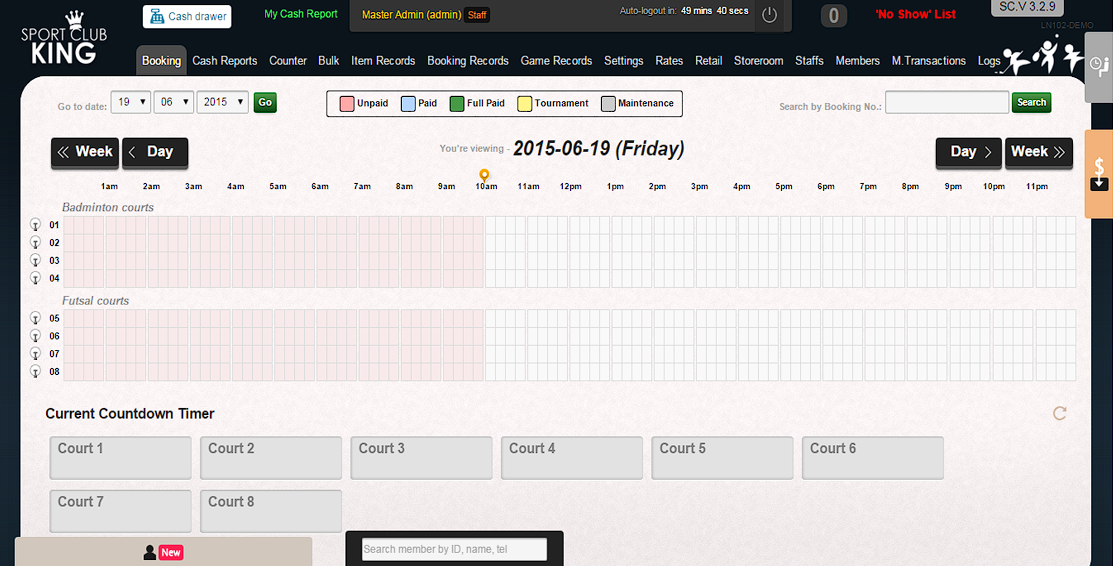 |
2. Click the start time of desired slot.
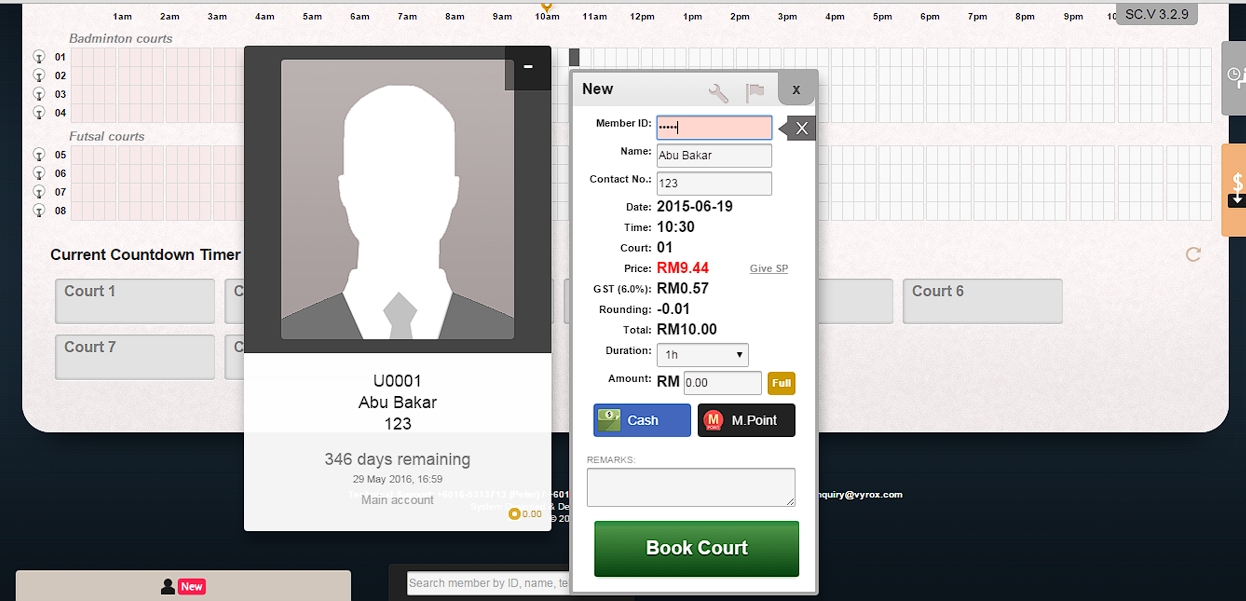
3. A booking page will popup. Scan membership card on card reader. Member’s name will be displayed automatically. The default status is “Unconfirmed”. “Confirmed” means member will show up & “Unconfirmed” means member might not show up.
4. Click “Book Court” after confirm the identity of member.
 |
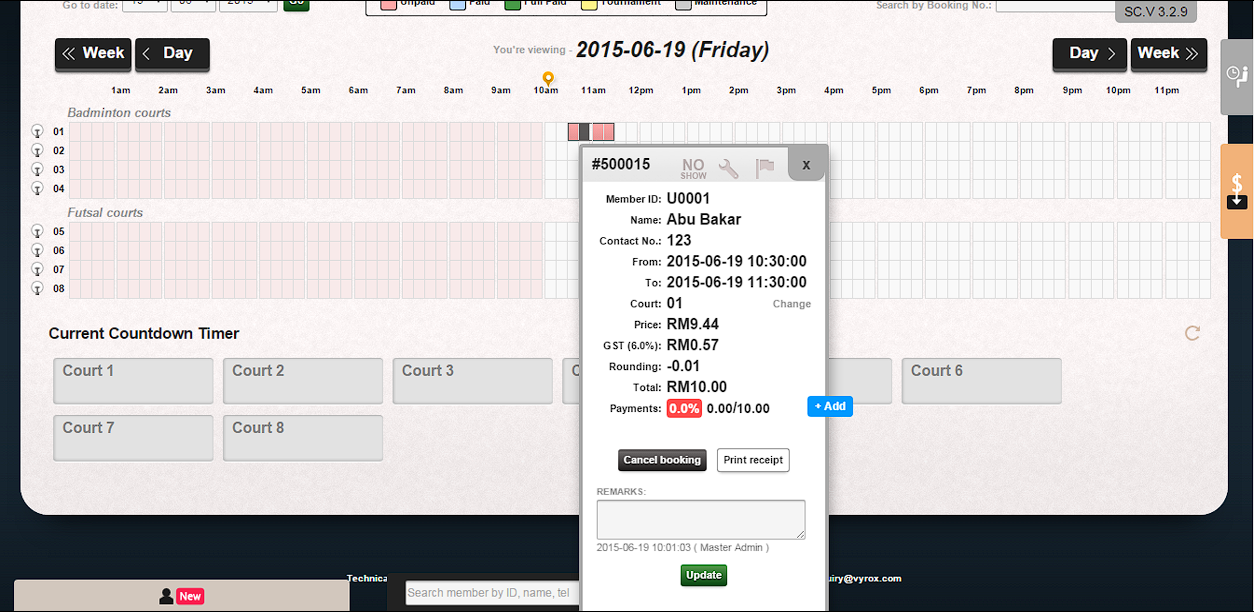
5. The booking slot is highlighted red if the court is not confirmed to turn on lights and highlighted blue if court is confirmed to turn on lights.
6. Click “Confirmed” after member has come and turn on the lights.
7. Then, click “Ok”.
 |
offline_reservation_booking_sc.txt · Last modified: by yong