
Table of Contents
2. Getting Started
Read this chapter, in order to learn how to set up initial software settings before operate the membership management software.
2.1 Login
1. Double click on the “Membership Software” icon at desktop.
 |
2. Then, you can see the following Login page:
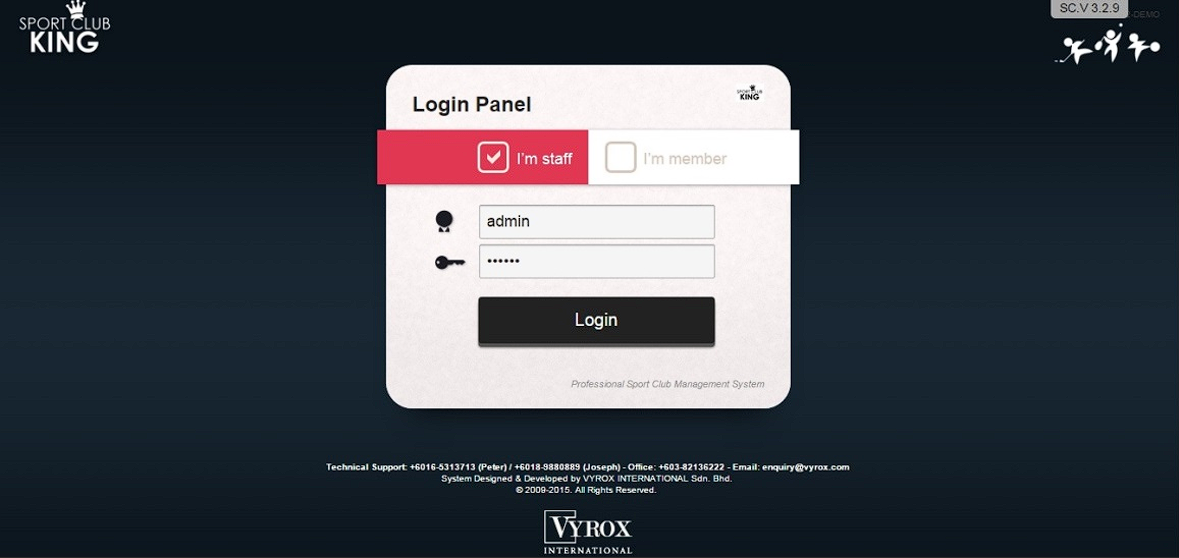 |
3.There are two options of user accounts: “I’m staff” (Personnel account) and “I’m member” (Member account).
If you are personnel, tick “I’m staff” to log in to personnel account.
If you are valid member of club house, tick “I’m member” to log in to member account.
4.Then, enter your ID and password.
By default, “Your ID” is admin and “Password” is aaaaaa.
Please make sure the tick is on the “I’m staff” option.
5.Click “Login” .
Warning: Please don’t forget your admin account password; only authorized programmers can regenerate a new password.
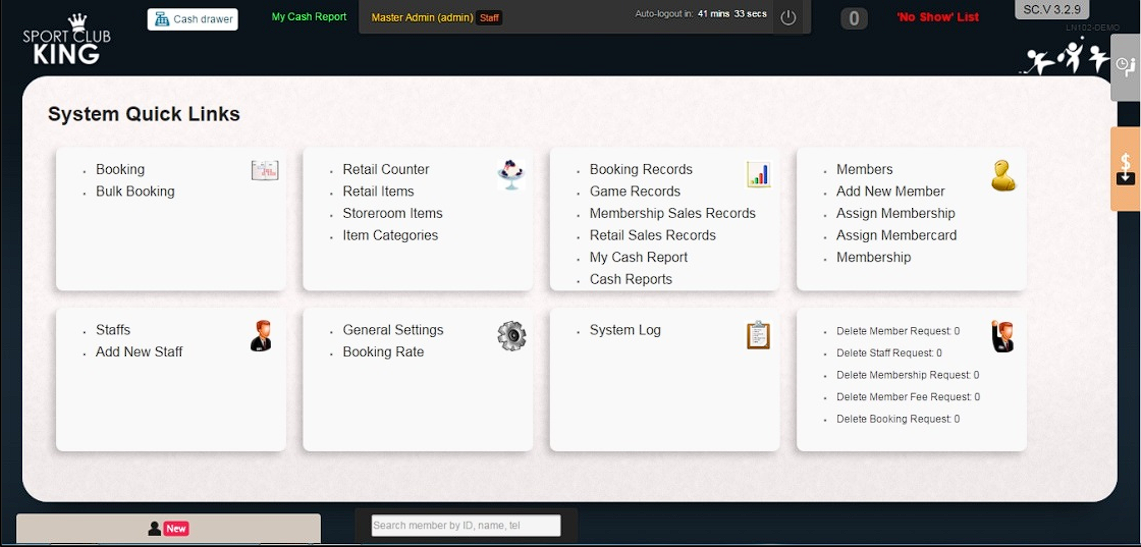
6.The following Main Interface will popup.
 |
2.2 Basic Settings
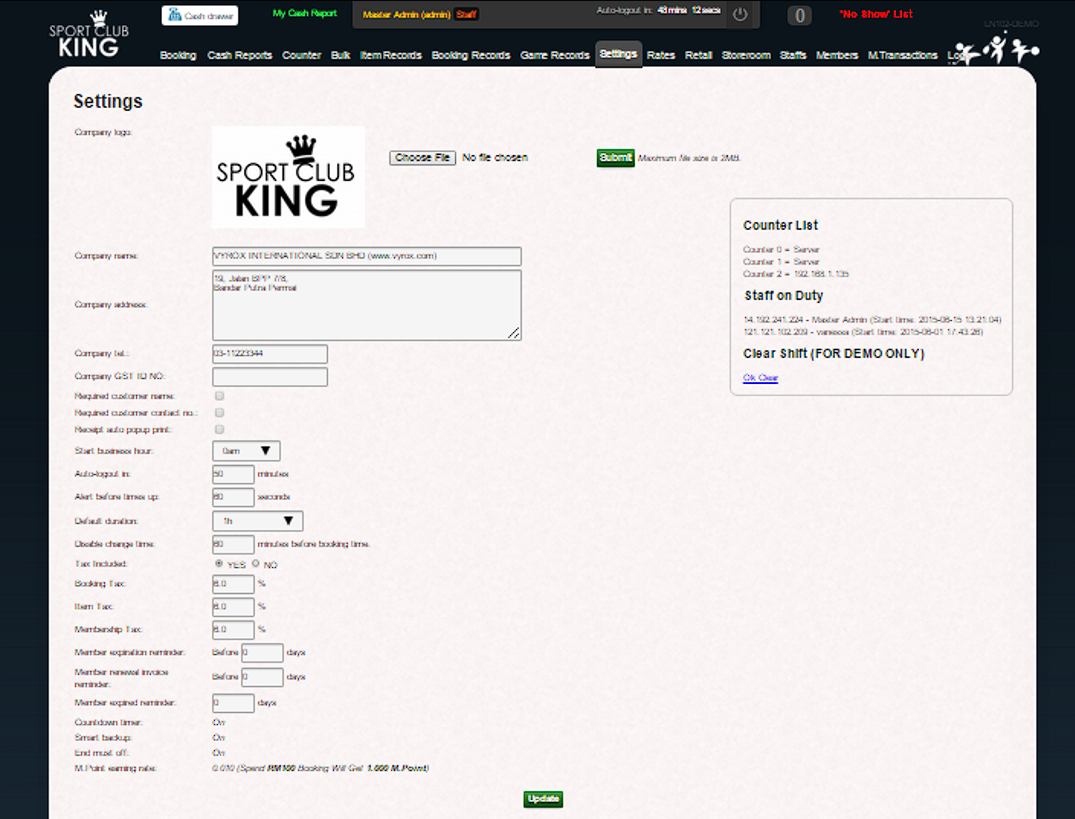
1. Go to General Settings > Settings.
2. Company logo: Click “Browse…” > Select company logo file with format jpg and png only >Click “Submit” to upload the picture file into the software.
3. Company name: Enter company name >Click “Update” to save. Company name will show in invoice and receipt.
4. Required customer name: Tick to show customer name in booking process.
5. Receipt auto popup print: Tick to confirm an automatic popup a receipt on every checkout.
6. Start business hour: Select business start time> Click “Update” to save. For example: If your business hours are from 8 am to 11 pm, then you should select business start time at 8 am; the software will then set 8 am as the opening time, from the next day.
7. Auto logout in: You can define a time for software to automatically logout.
8. Alert before: You can define an alert time for software, to remind cashier, that particular courts will be finished soon.
9. Default duration: Fixed at 1 hour, you can neglect it.
10. Disable change time: Define the minimum time to forbid operator or user to change booked time. Range is 15 minutes to 99999 minutes
11. Item Tax: Set the tax rate on purchase item price. Range is 0-100 %.
12. Membership Tax: Set the tax rate on membership fee. Range is 0-100 %.
13. Member expiration reminder: You can define a reminder time to notify admin which membership is going to expire. Range is 1 to 9999 days.
14. Member Renewal invoice reminder: You can define a reminder time to notify the admin, to print out an invoice to collect membership renewal fee from expiring members.
15. Member Expired Reminder: You can define a reminder time to continuously notify admin which membership is already expired. You can freeze their account or continue waiting for their response.
16. Countdown Timer: Always On, you can neglect it.
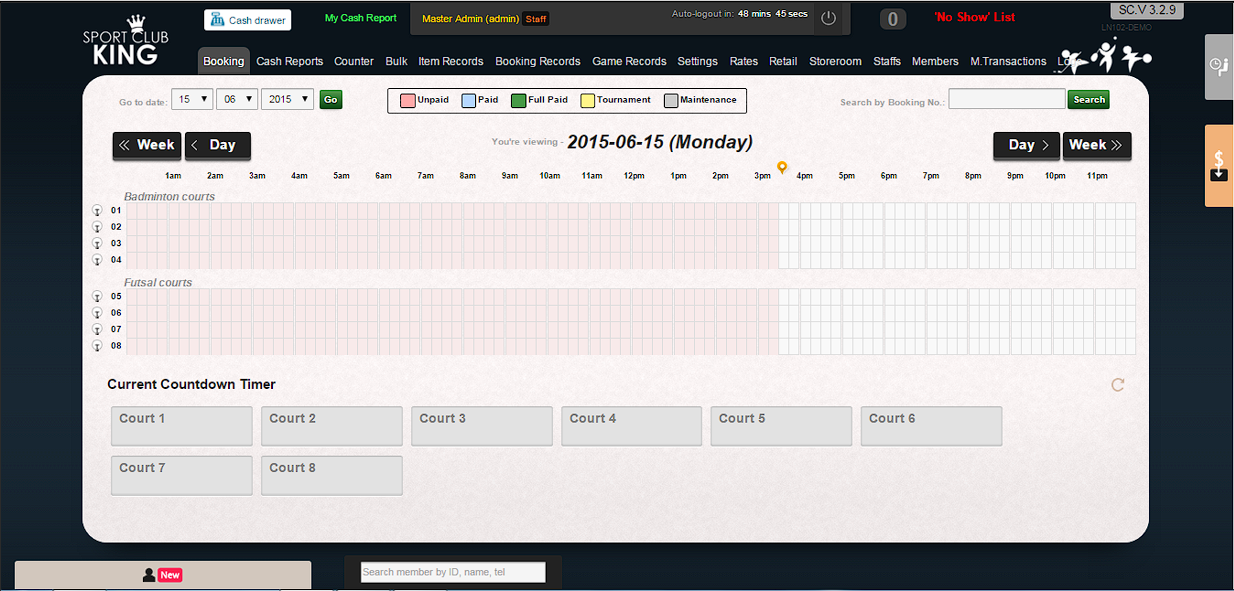 |
Sample: Countdown Timer is on.
17. Smart Backup: Always On, you can neglect it.
18. Remember to click “Update” to save your changes.
 |