
This is an old revision of the document!
Table of Contents
Management User Guide: VYROX Point of Sales POS System (POSERVA)
1. Introduction
This guide is designed to help you effectively manage and operate the POSERVA system. It provides step-by-step instructions for utilizing this advanced POS system to handle payments, manage transactions, and ensure a seamless checkout experience for customers and staff.
2. POSERVA
POSERVA is an advanced IoT-driven POS system for the F&B industry, leveraging cloud computing to optimize operations, enhance customer experiences, and boost profitability. Features include real-time analytics, smart inventory, and seamless cloud storage, revolutionizing F&B business management.
2.1 How to add New Stock Group
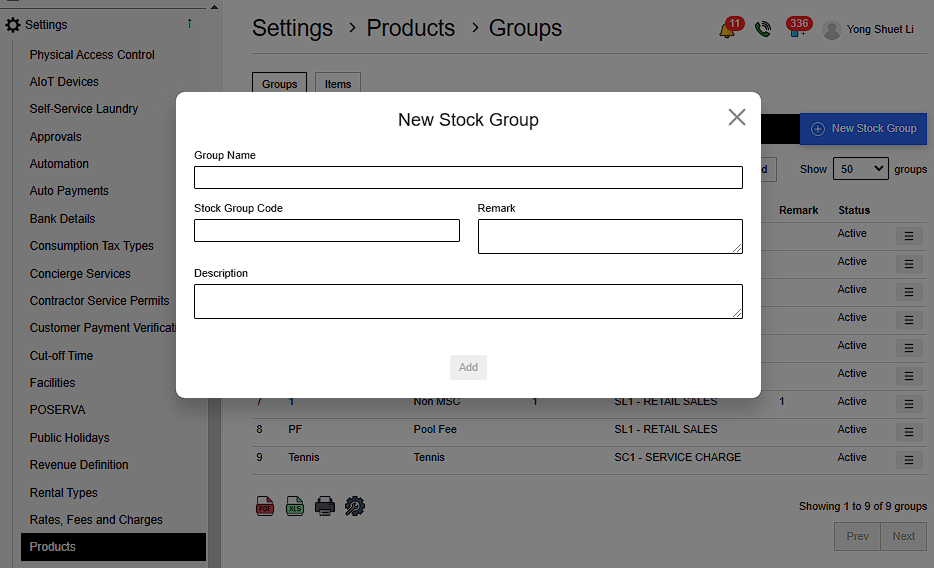
Go to Settings > Product > Groups > New Stock Group > Fill in details > Add
Details include:
- Name
- Stock Group Code
- Remark Description
 |
2.2 How to Add New Item
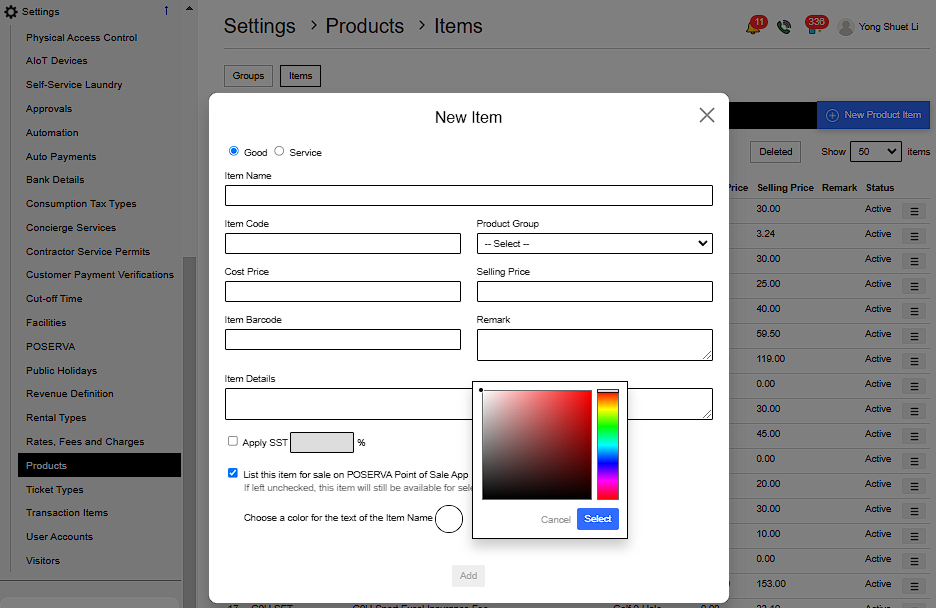
Go to Settings > Product > Item > New item > Fill in details > Add
- Goods: Physical items that can be owned and used.
- Services: Actions or activities performed to fulfil
Details include:
- Choose either item is Good or Service
- needs or desires.
- Item Name ,Code & Cost Price
- Product Group
- Selling Price
- Item Barcode
- Remark
- Item Details
- Apply SST amount
- Whether to List this item for sale on POSERVA Point of Sale App ( If left unchecked , this item will still be available for selection when creating a new invoice )
- Choose a color for the text of the item Name
 |
2.3 How to use POSERVA
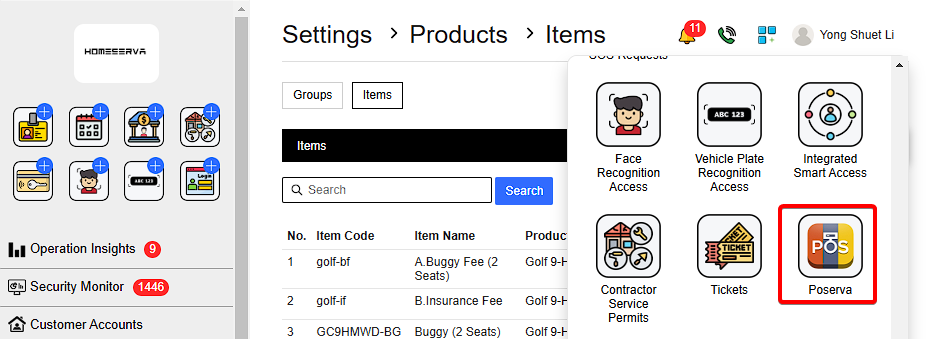
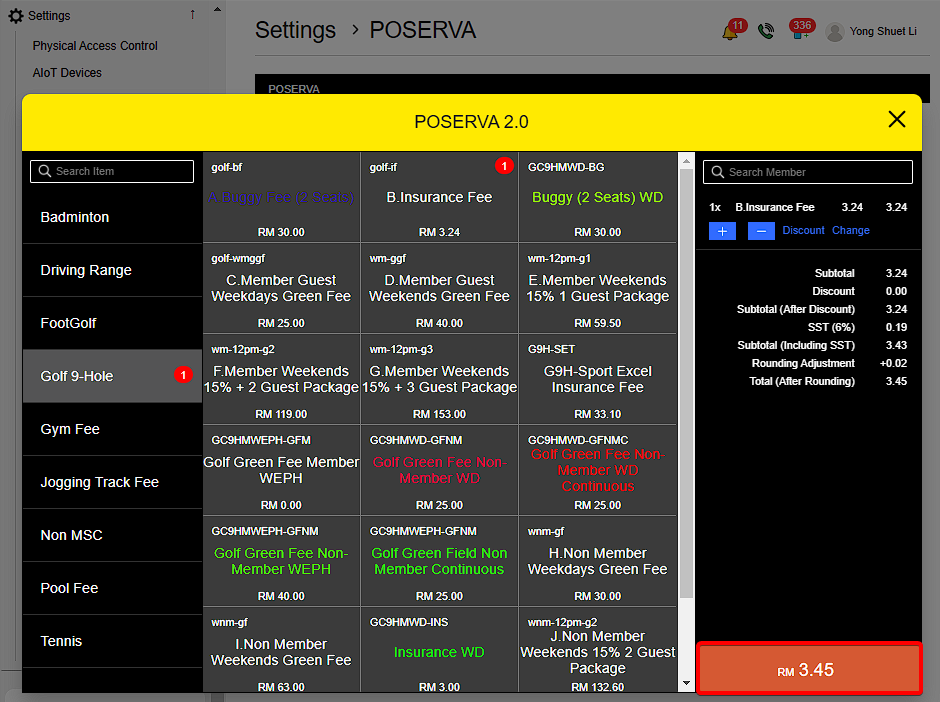
Go to More Options > POSERVA > Select items wanted > Select amount
 |
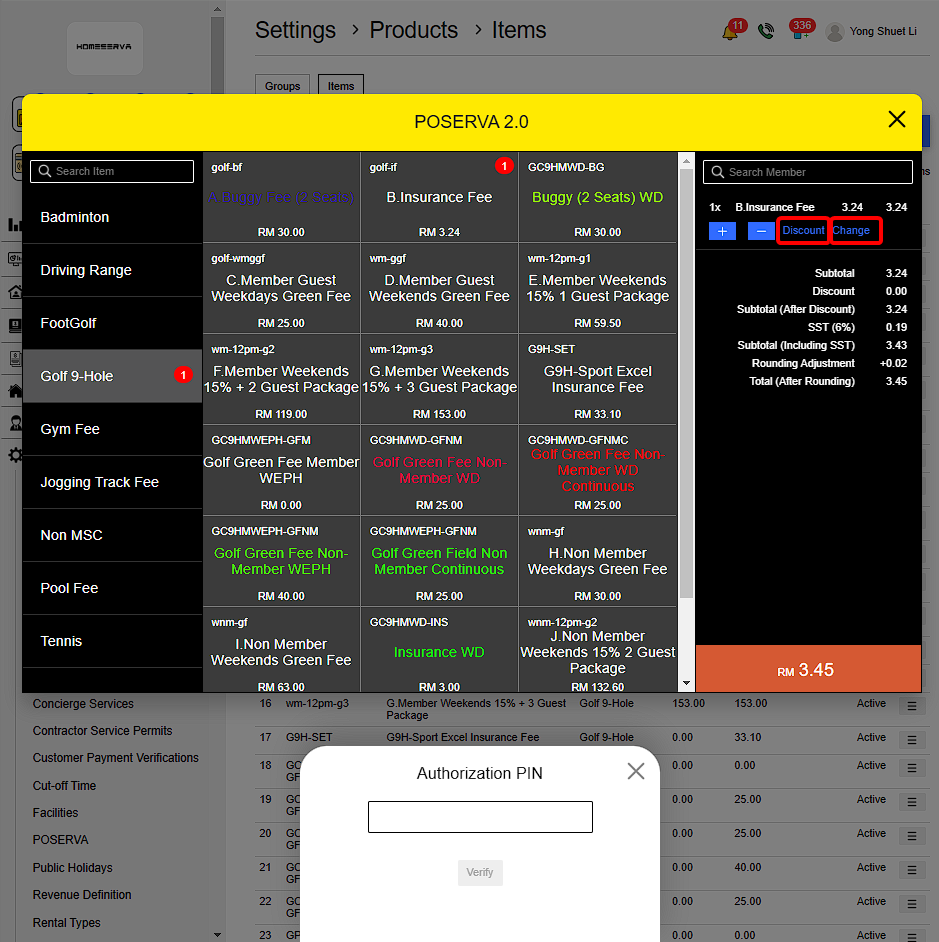
To change or give discount , Select Discount or Change > Enter Authorization pin
 |
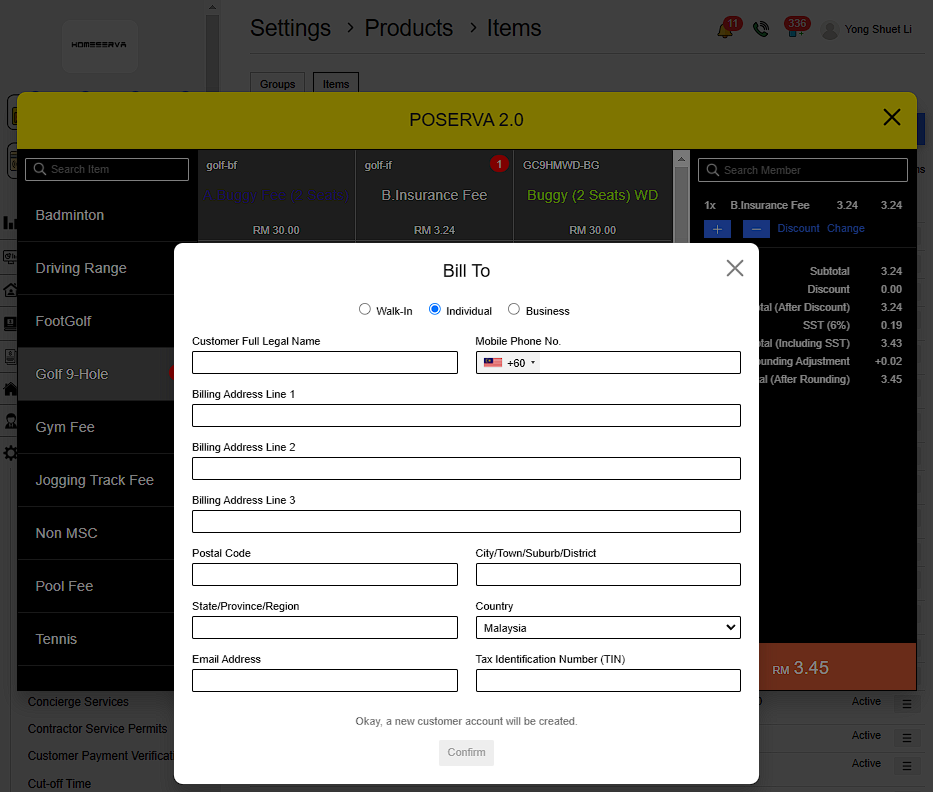
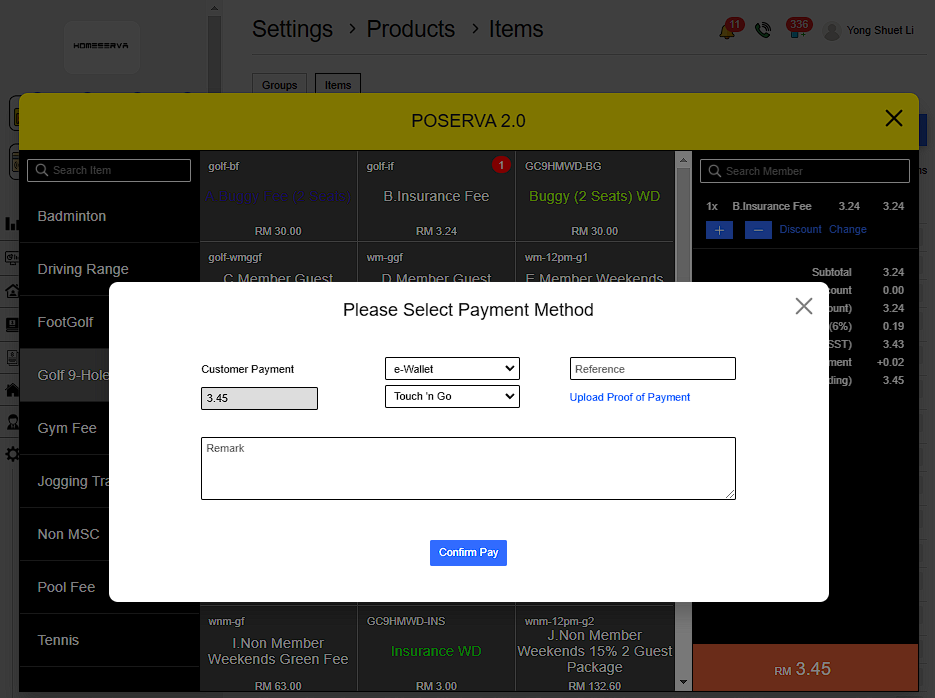
To pay , Click on total amount > Select Bill To > Fill in details > Confirm > Select Payment Option > Confirm Pay
Bill To options:
- Walk in = Immediately process to payment without account.
- Individual = New customer account will be created.
- Business = New business account will be created.
Bill To fill in details include:
- Name
- Phone no
- Billing address
- Email
- Tax Identification Number
 |
 |
 |
2.4 How to Automatically Print Receipts
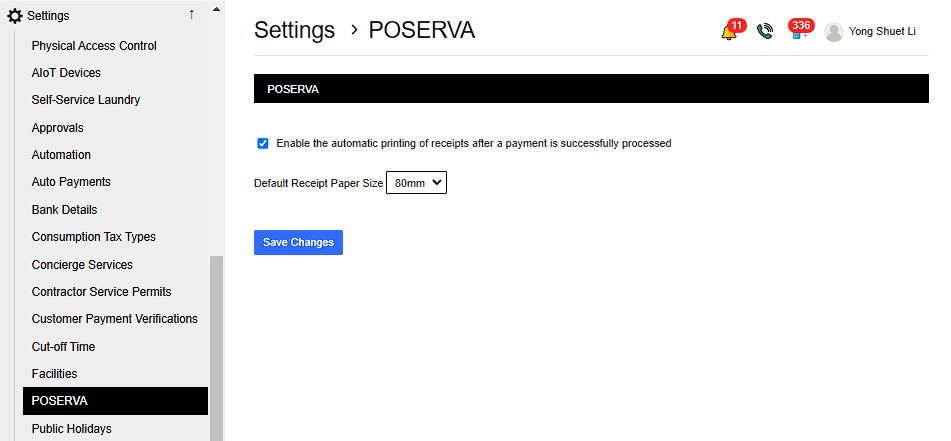
Go to Settings > POSERVA > Save Changes
Choose whether to enable the automatic printing of receipts after payment is successfully processed .Then Choose Receipt Paper Size.
 |