
This is an old revision of the document!
Table of Contents
Invoicing
1. Introduction
This guide provides a step-by-step instructions of managing invoicing processes efficiently and accurately. It outlines the essential steps for generating and managing invoices to ensure smooth financial operations. Follow the instructions in this guide to streamline your invoicing records, and maintain clear and organized billing information.
2. Invoicing
This section an overview of the tools and features available for generating invoices correctly. From entering accurate client and payment details to formatting invoices professionally and setting appropriate payment terms, each step is designed to help you create clear, error-free invoices that facilitate timely payments and effective financial management.
2.1 New Consumption Tax Types
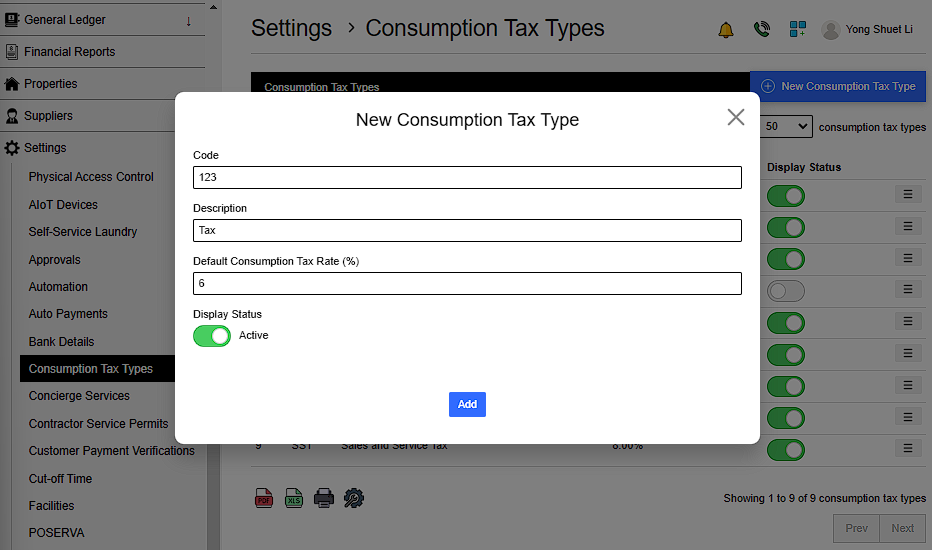
Go to Settings > Consumption Tax Types > New Consumption Tax Type > Fill in details > Add
Details include:
- Code
- Description
- Default Consumption Tax Rate (%)
 |
2.2. Add New Stock Group
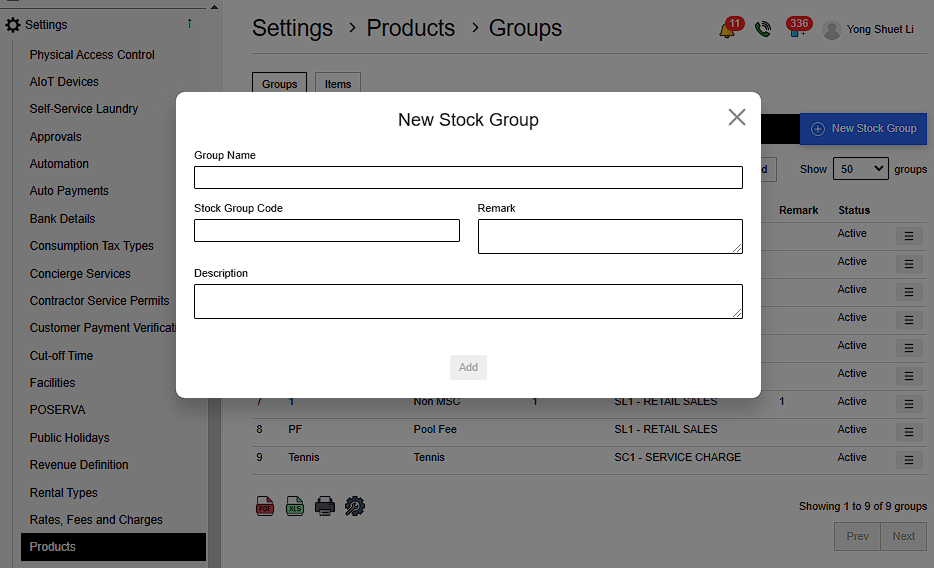
Go to Settings > Product > Groups > New Stock Group > Fill in details > Add
Details include:
- Name
- Stock Group Code
- Remark Description
 |
2.3. Add New Item
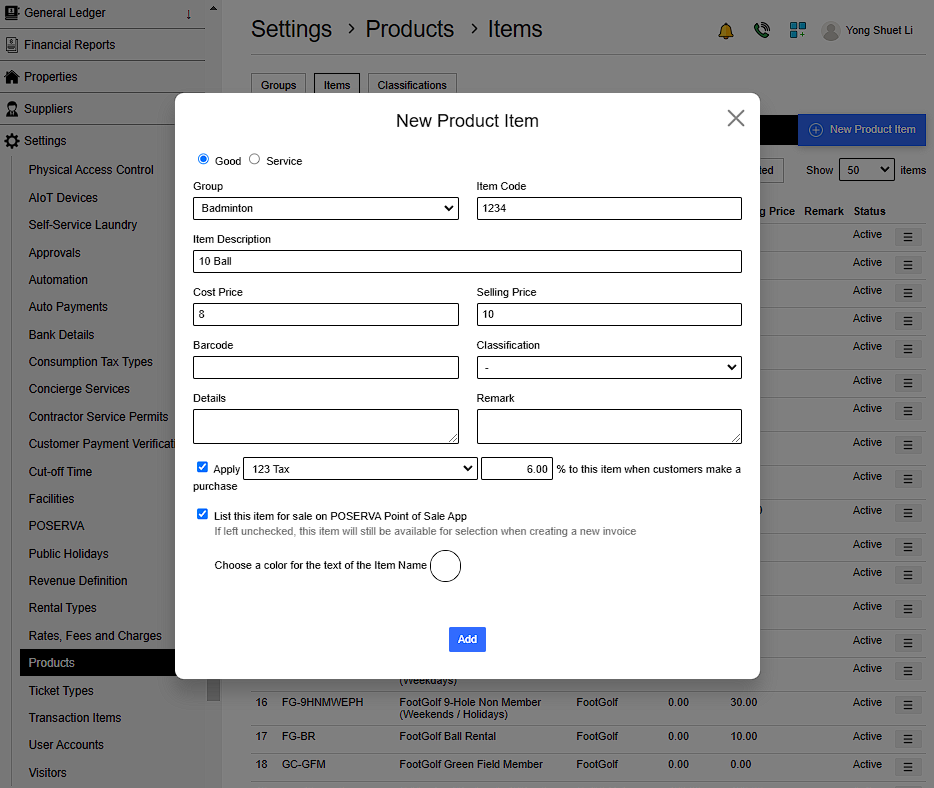
Go to Settings > Product > Item > New Product Item > Fill in details > Add
- Goods: Physical items that can be owned and used.
- Services: Actions or activities performed to fulfil needs or desires.
Details include:
- Choose either item is Good or Service
- Item Name ,Code & Cost Price
- Product Group
- Selling Price
- Item Barcode
- Remark
- Item Details
- Apply Tax amount created in Consumption Tax Types
- Whether to List this item for sale on POSERVA Point of Sale App ( If left unchecked , this item will still be available for selection when creating a new invoice )
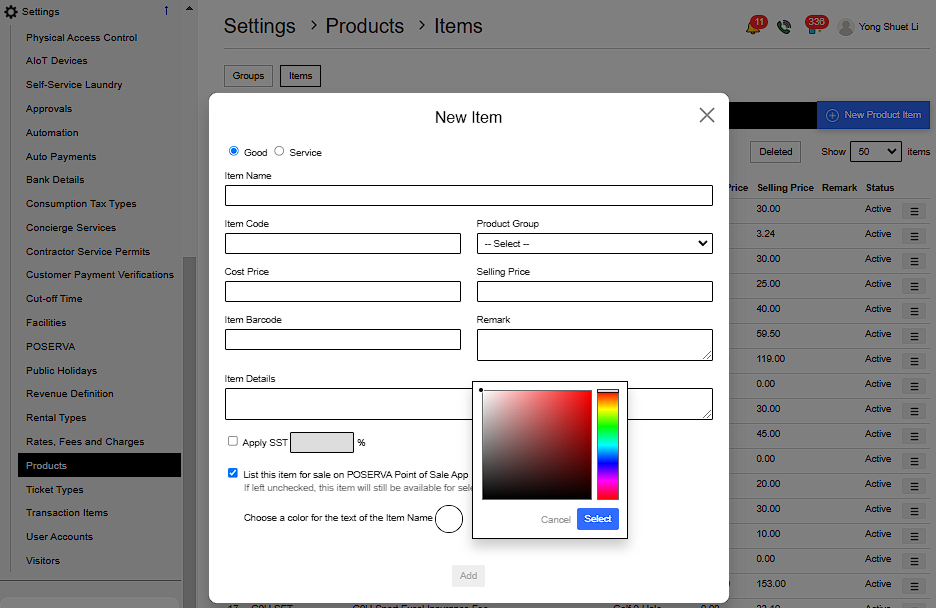
- Choose a color for the text of the Item Name
|  |
|
 |
2.4 New Invoice
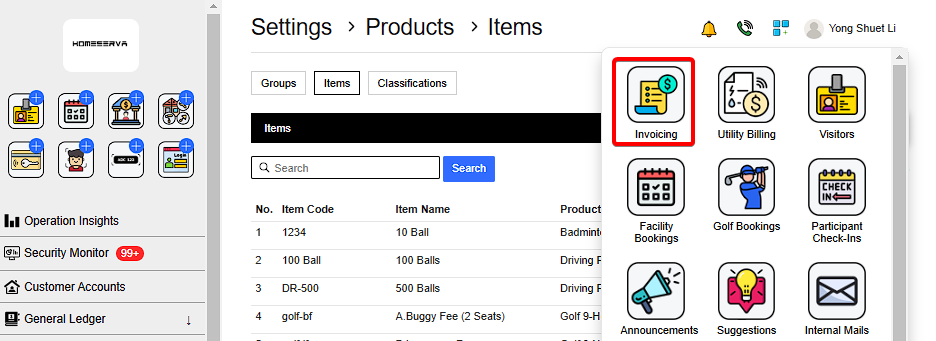
Go to Invoicing > New Invoice > Fill in details > Generate
 |
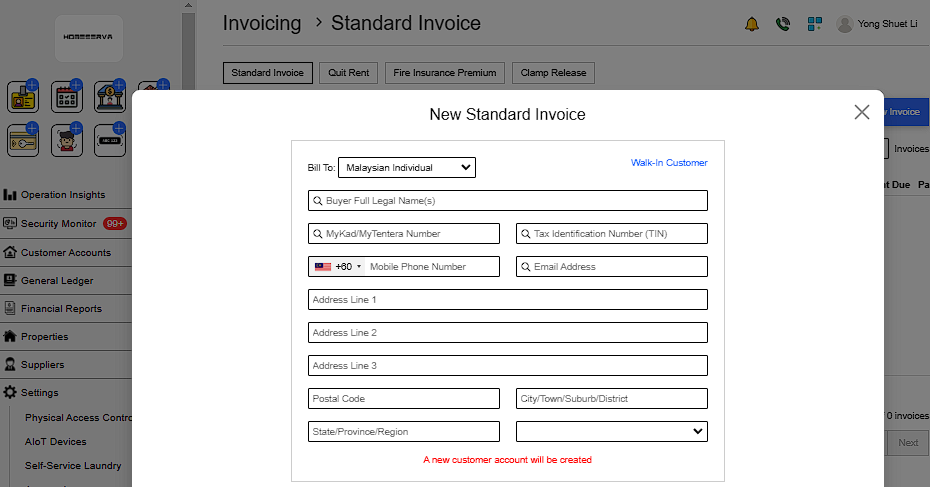
Details include:
1.Customer Information
- Name
- MyKad
- Tax Identification Number
- Phone no
- Email
- Address
 |
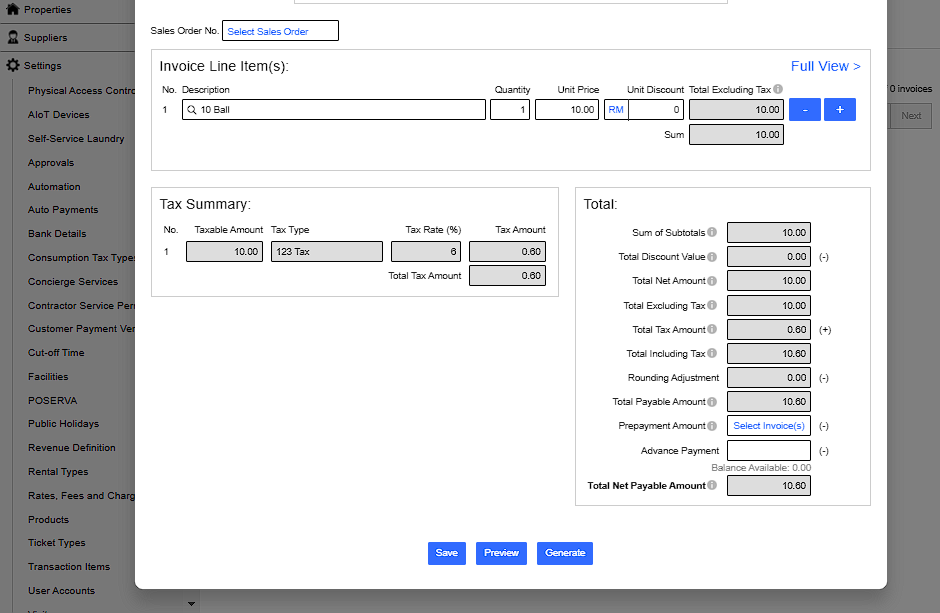
2.Invoice Line Item(s)
Type Name of product added
 |
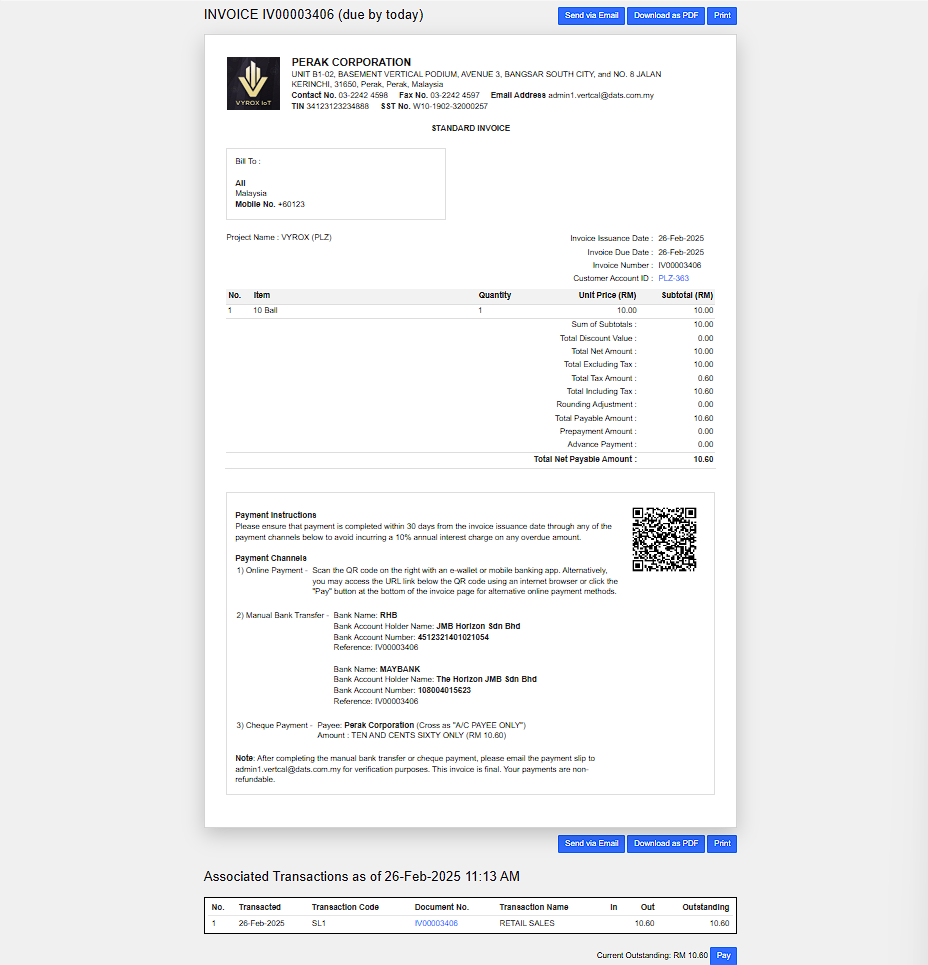
After the invoice is generated, scroll to the bottom of the invoice and click on the ‘Pay’ button to proceed with the payment.
 |