
This is an old revision of the document!
Table of Contents
Financial Reports
1. Introduction
This guide provides step-by-step instructions on generating financial reports based on each product and services. Learn how to create detailed revenue reports for each product and service, analyze financial performance, and utilize insights to make informed business decisions.
2. Financial Reports
This section offers an in-depth overview of the tools and features available for creating financial reports. From product-wise revenue tracking to maintaining accurate records, each feature is tailored to support efficient financial management and strategic planning.
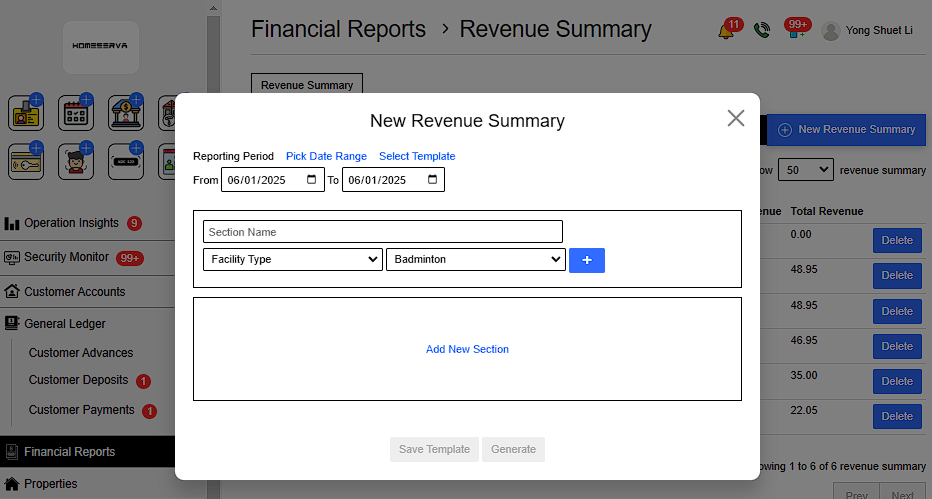
2.1 Add New Revenue Summary
Go to Financial Reports > New Revenue Summary > Fill in details > Generate
Details include:
- Pick Date Range
- Select Template (optional)
- Name of Product and Services
- Choose Product and Services Catagory
- Select Item
- Add New Section (optional)
 |
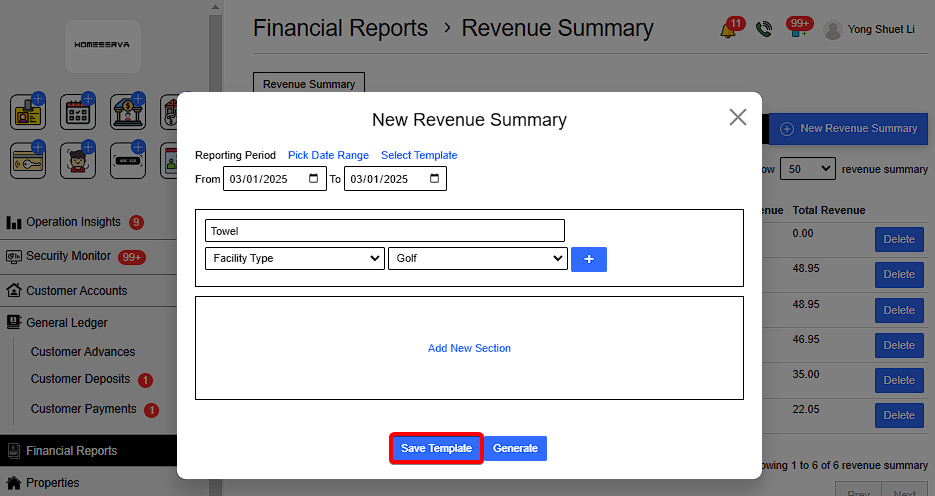
2.2 Add and Save New Template
Go to Financial Reports > New Revenue Summary > Fill in details > Save Template .
 |
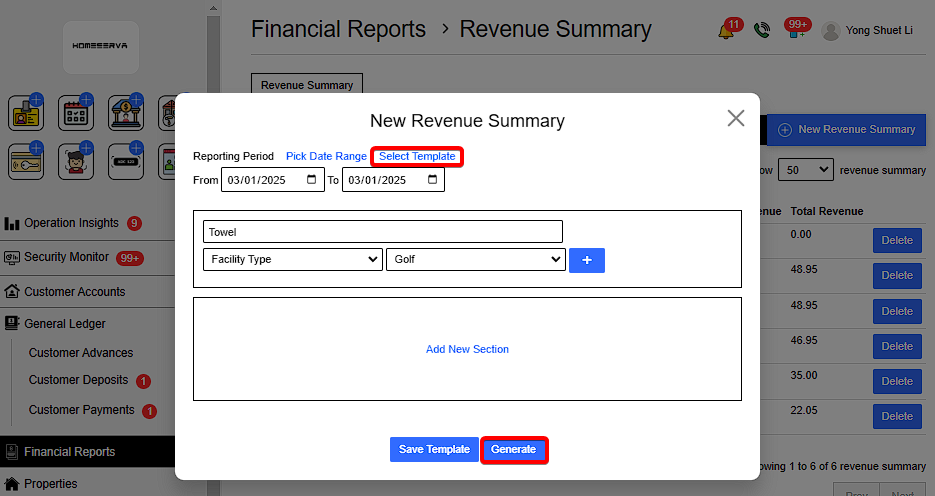
2.3 Add New Revenue Summary using template
After saving template , to use template again , Go to Financial Reports > New Revenue Summary > Select Template > Generate
 |
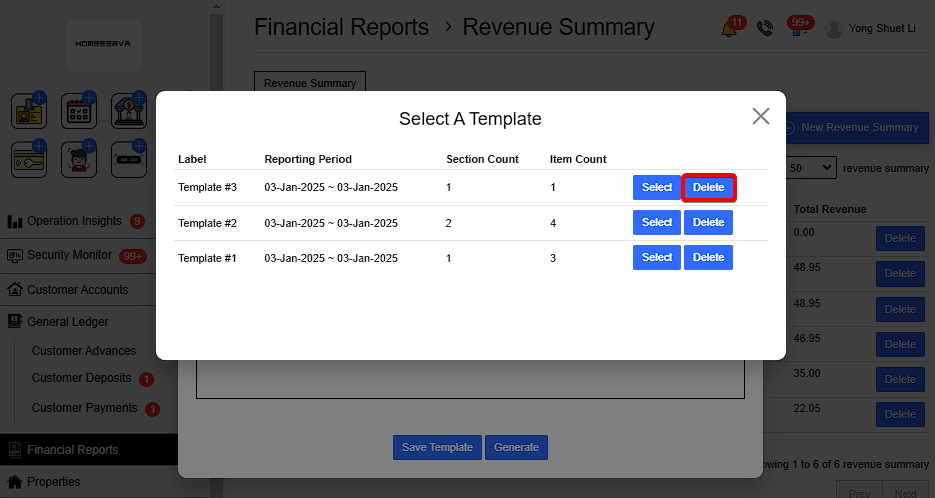
2.4 Delete Template
Go to Financial Reports > New Revenue Summary > Select Template > Delete
 |
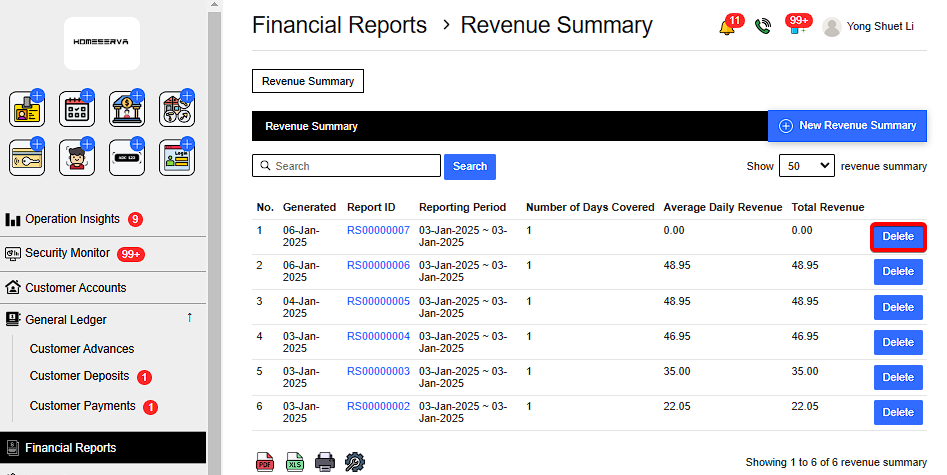
2.5 Delete Revenue Summary
Go to Financial Reports > Select Revenue Summary > Delete
 |
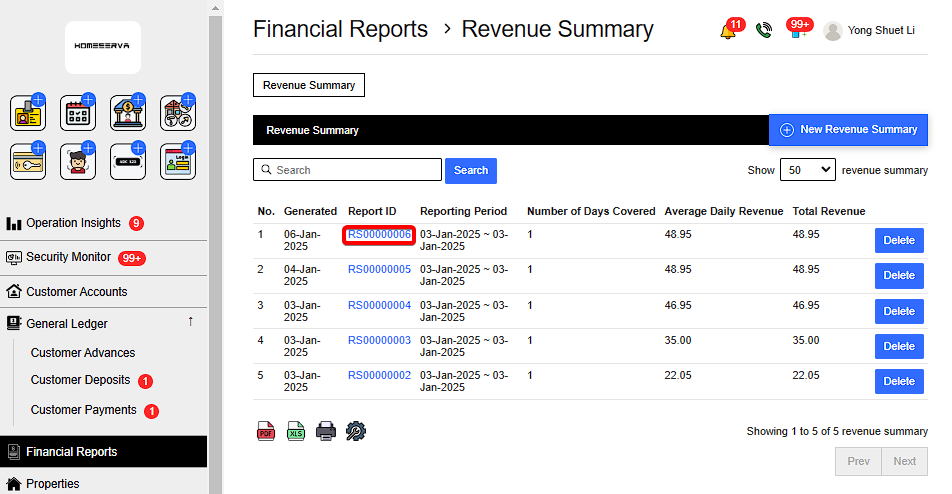
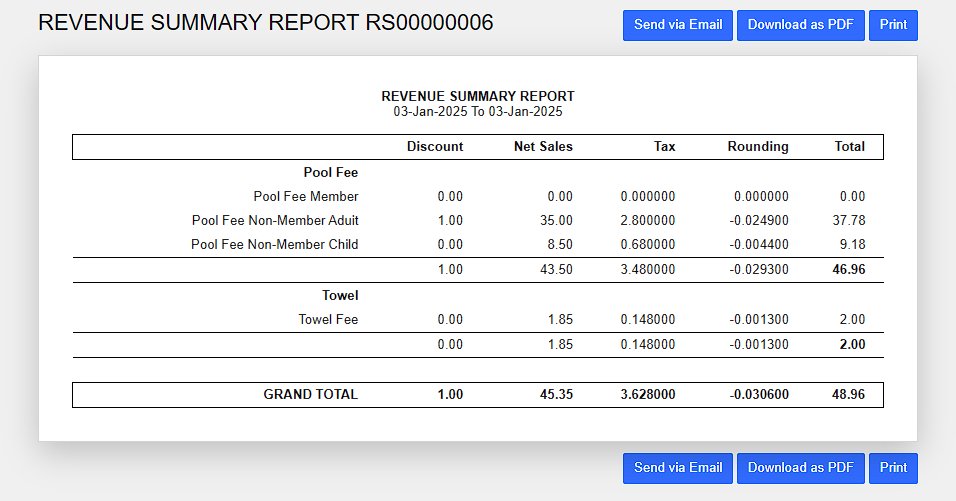
2.6 Revenue Summary Report
Go to Financial Reports > Click on the Report ID of the Revenue Summary
 |
 |
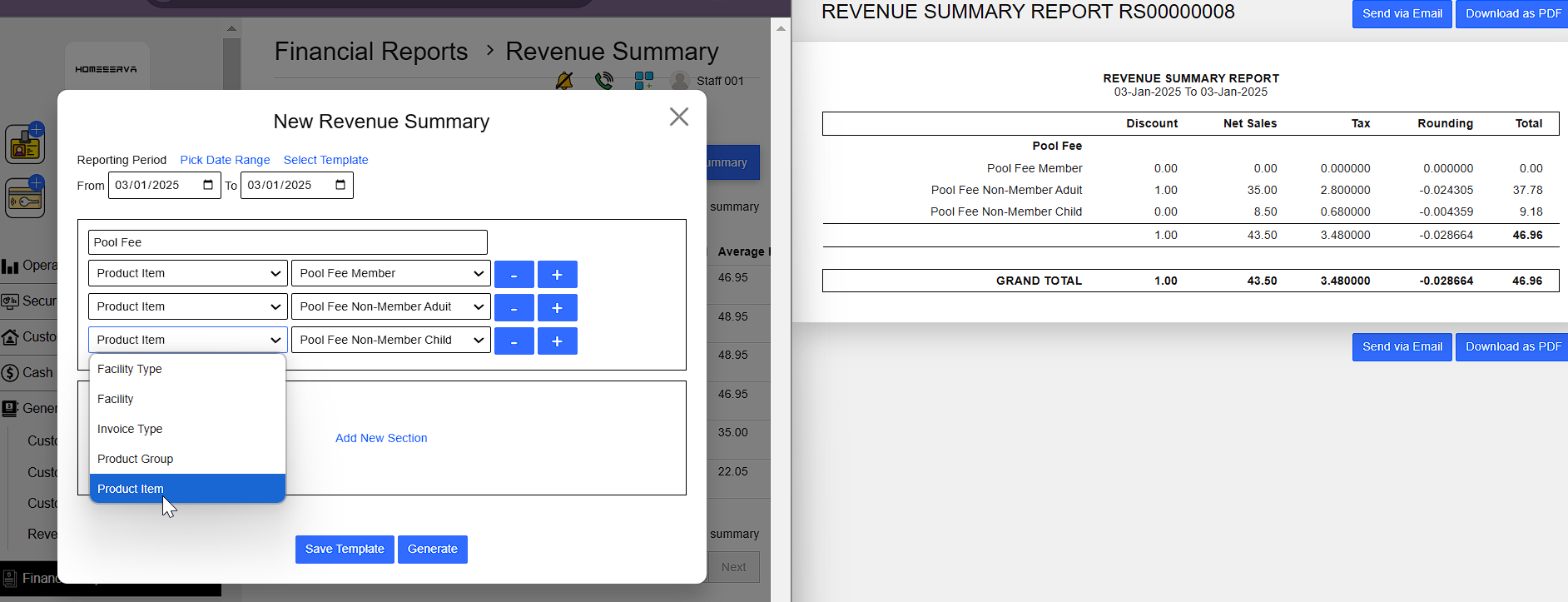
2.7 Add Template after accidentally delete template
If template is accidentally deleted , open back a previously generated Revenue Summary Report at the Report ID and copy the format.
- Section Name
- Select the Item or Service catagory
- Select the Item or Service
Remember to click Save Template first and then Generate. Otherwise the whole process need to be repeated.
 |
2.8 Edit Catagory and Items or Services
1) Facility Type and Facility can be edited at Facilities setting
Go to Settings > Facilities > Add ,Edit or Delete Facilities
 |
Go to Settings > Facilities > Facility Types > Add ,Edit or Delete Facilities Type
 |
2) Invoice type can be edited at Rates, Fees and Charges setiing
Go to Settings > Rates, Fees and Charges > Edit Rates, Fees and Charges
 |
3) Product Group and Product Item can be edited at Products setting
Go to Settings > Products > Groups > Add ,Edit or Delete Product Group
 |
Go to Settings > Products > Items > Add ,Edit or Delete Product Item
 |