VYROX Very Intelligent Platform (VIP) · Very Intelligent Platform: Management Guide
The Campaign feature represents a structured promotional and engagement initiative designed to communicate information, encourage participation, and increase feature adoption among residents, property owners, and stakeholders. Through targeted announcements, incentives, and time-based promotions, campaigns support activities such as promoting system features, encouraging timely payments, introducing new services, and enhancing community engagement. Integrated within the platform, this module enables administrators to plan, manage, and monitor campaigns efficiently, ensuring consistent messaging, measurable outcomes, and improved overall user experience across the property management ecosystem.
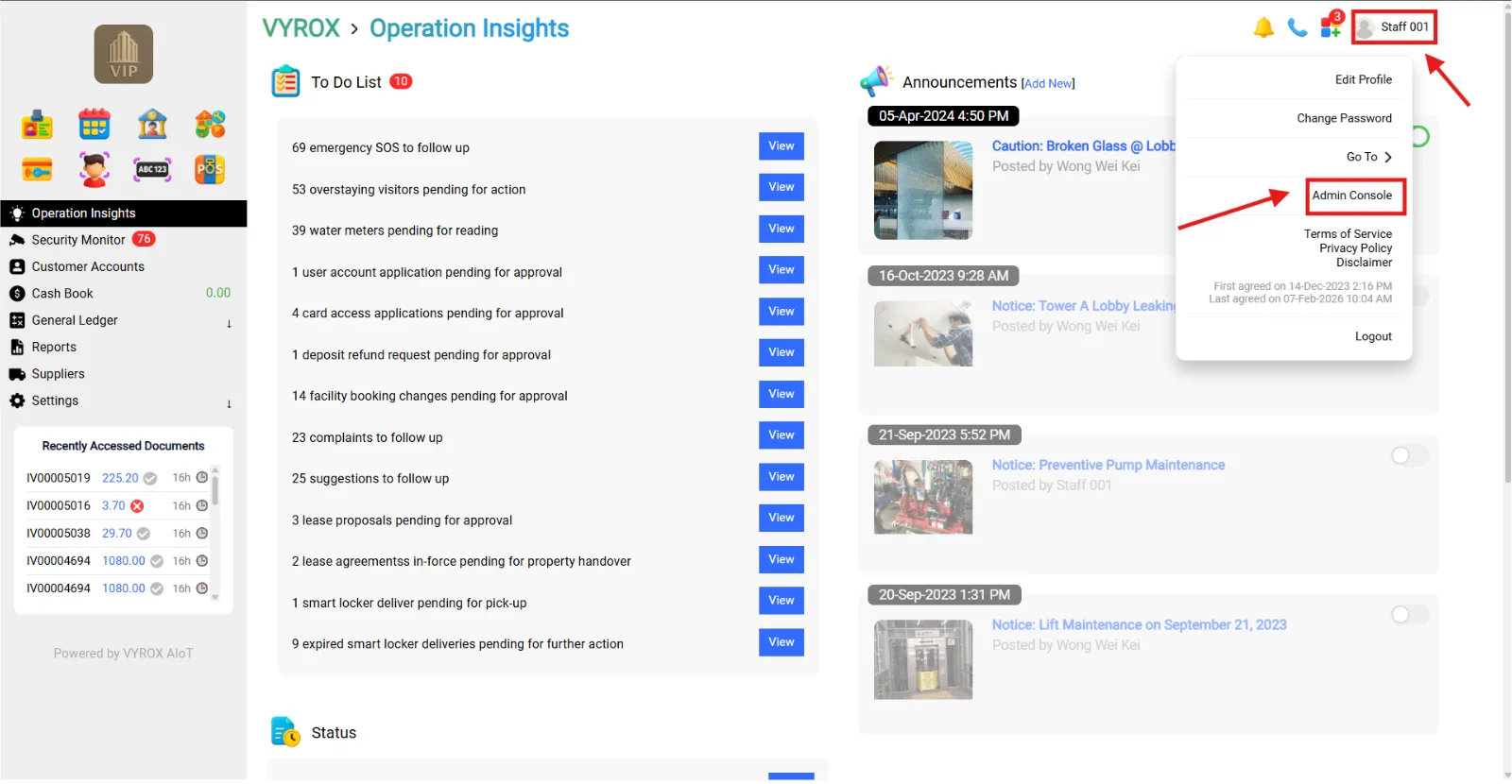
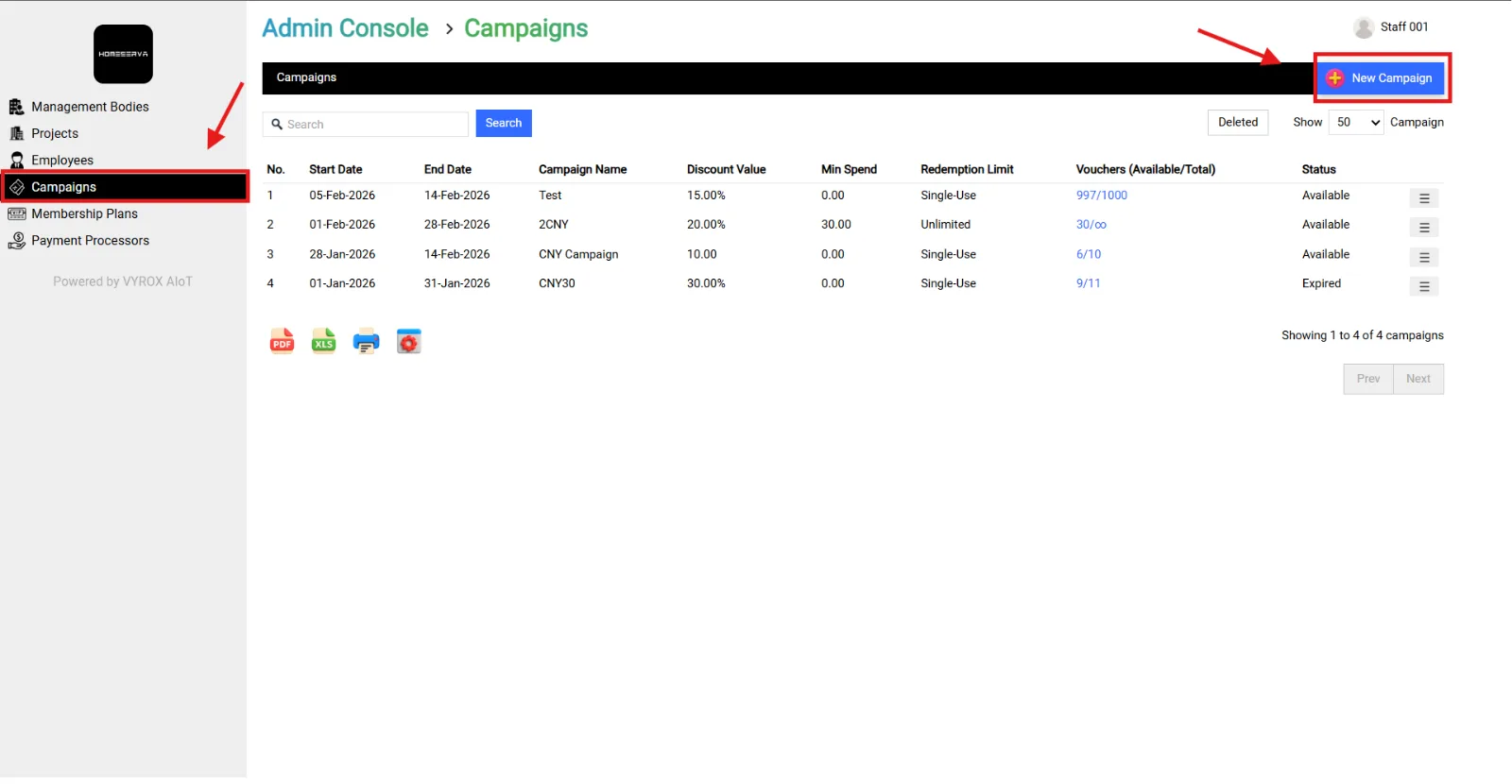
Go to Admin Console > Campaign > New Campaign.
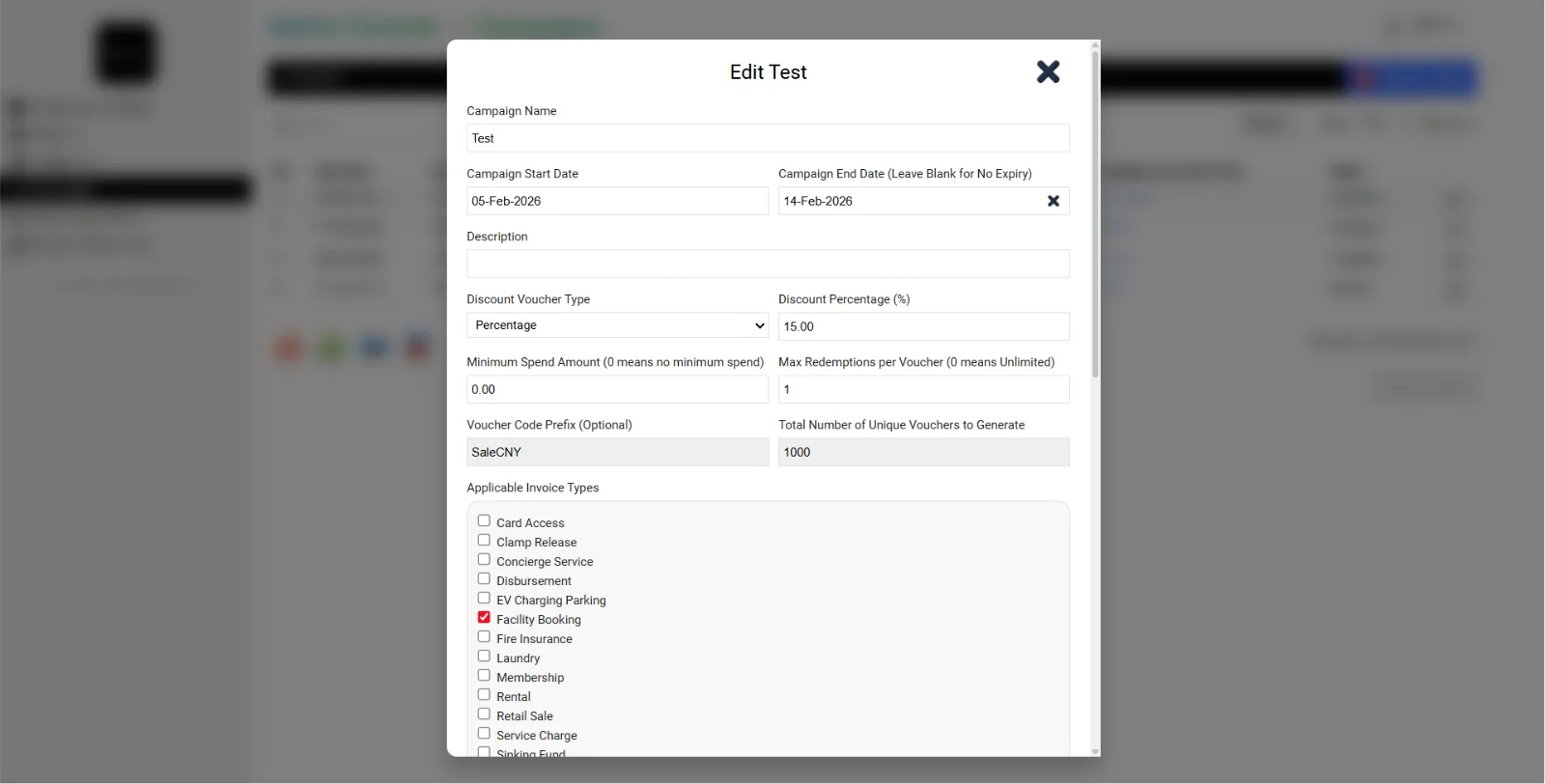
Details include:
This is an important part;
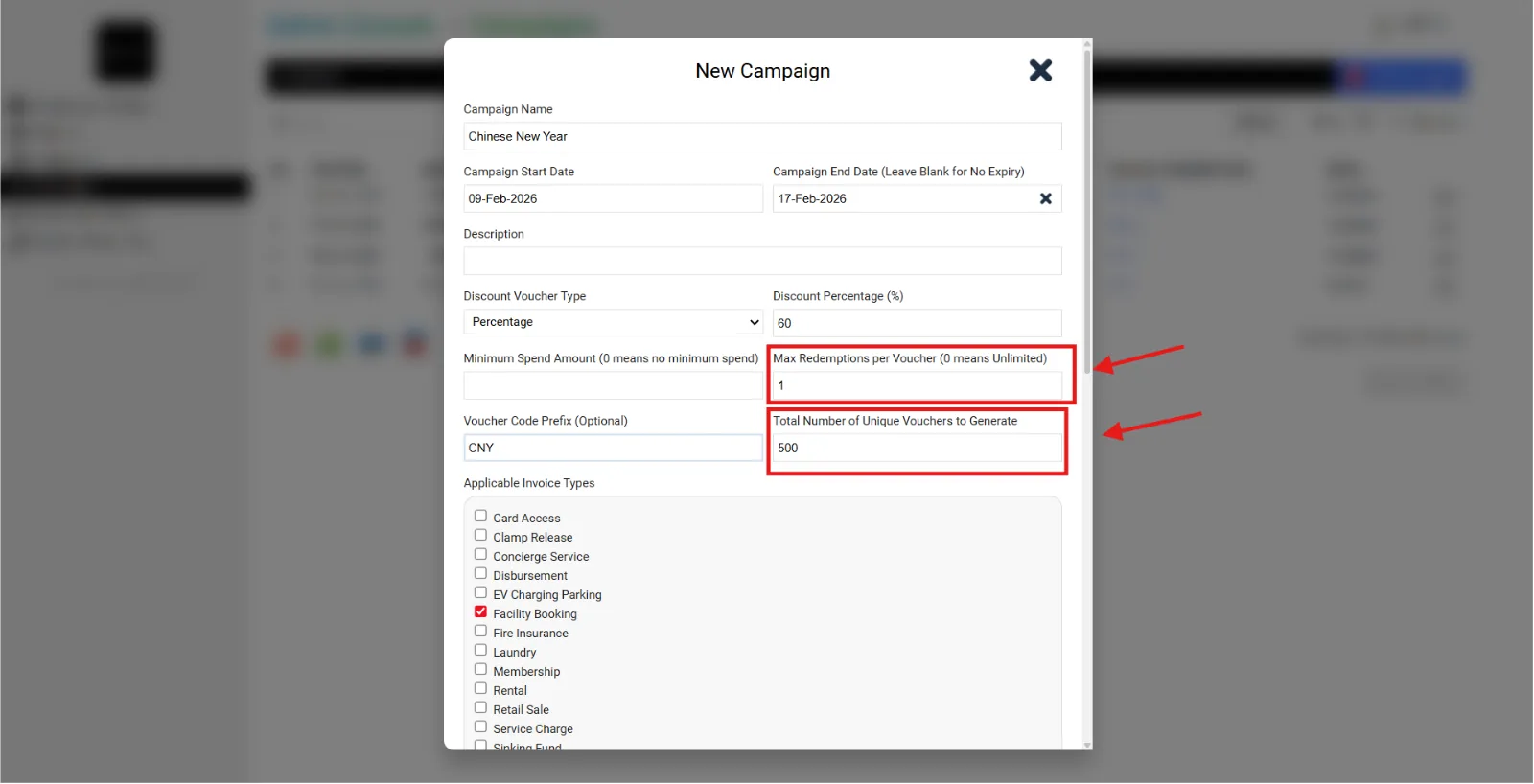
You need to fill in the details:
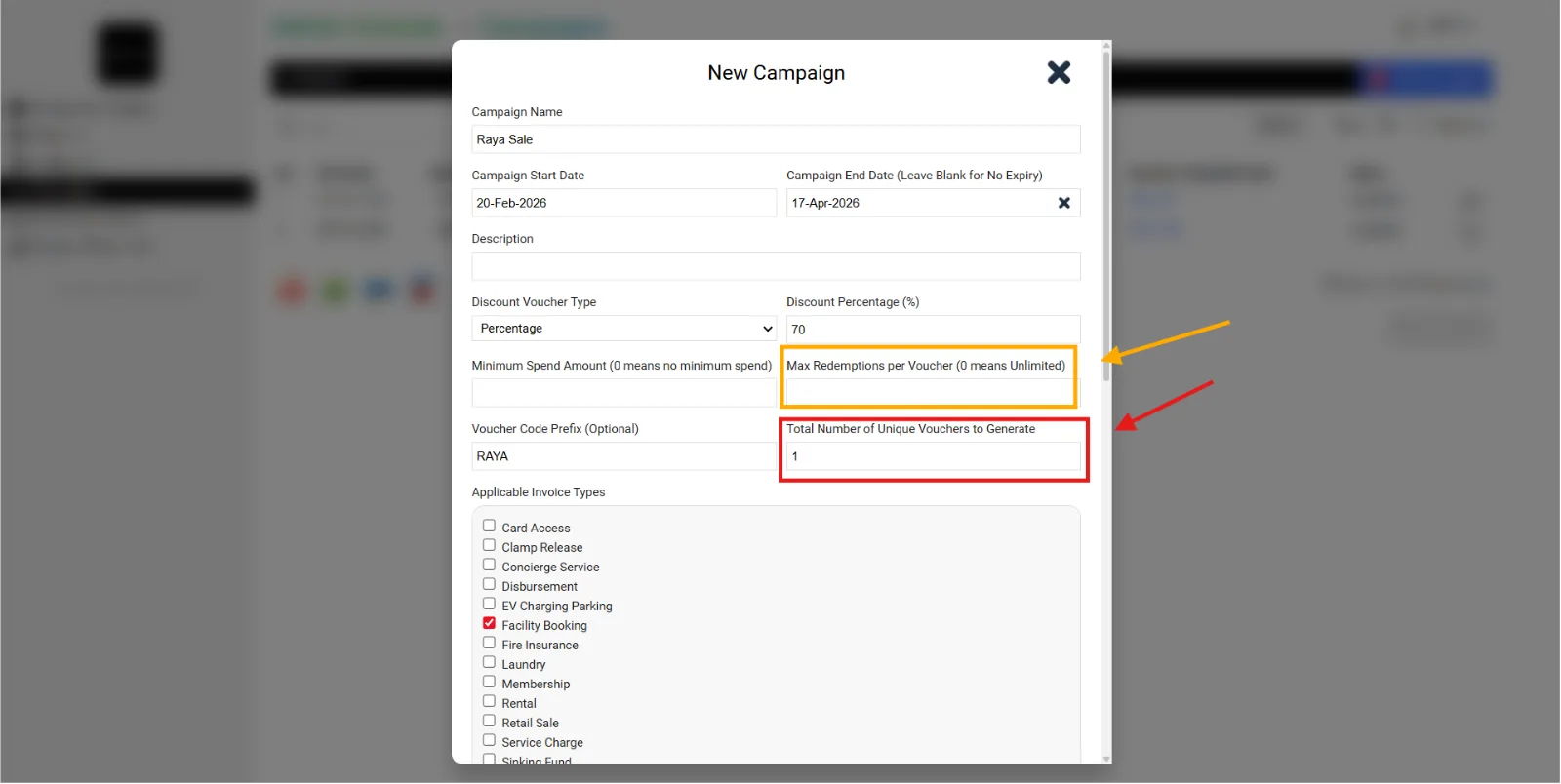
Must fill "Max Redemptions per Voucher" and "Total Number of Unique Vouchers to Generate"
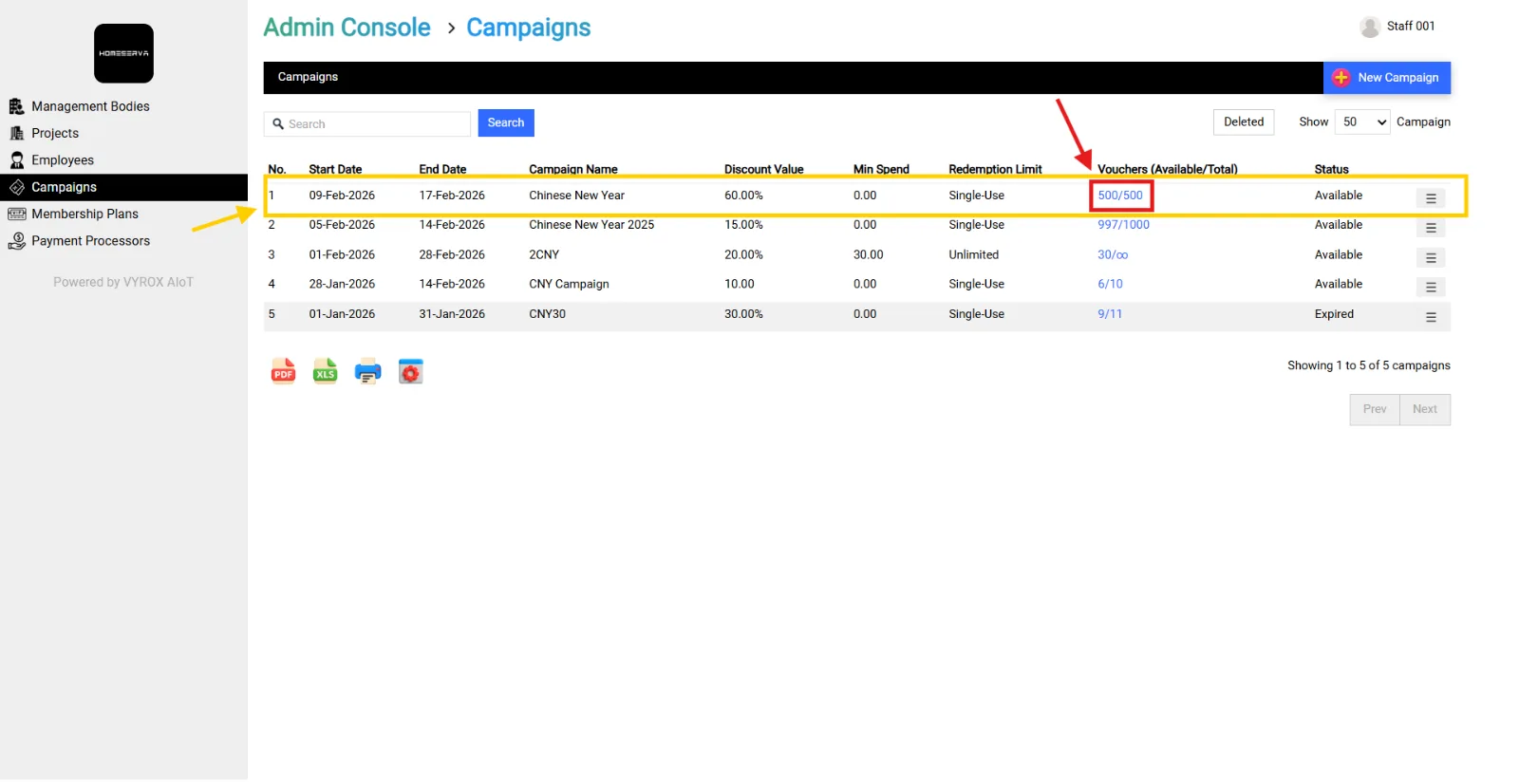
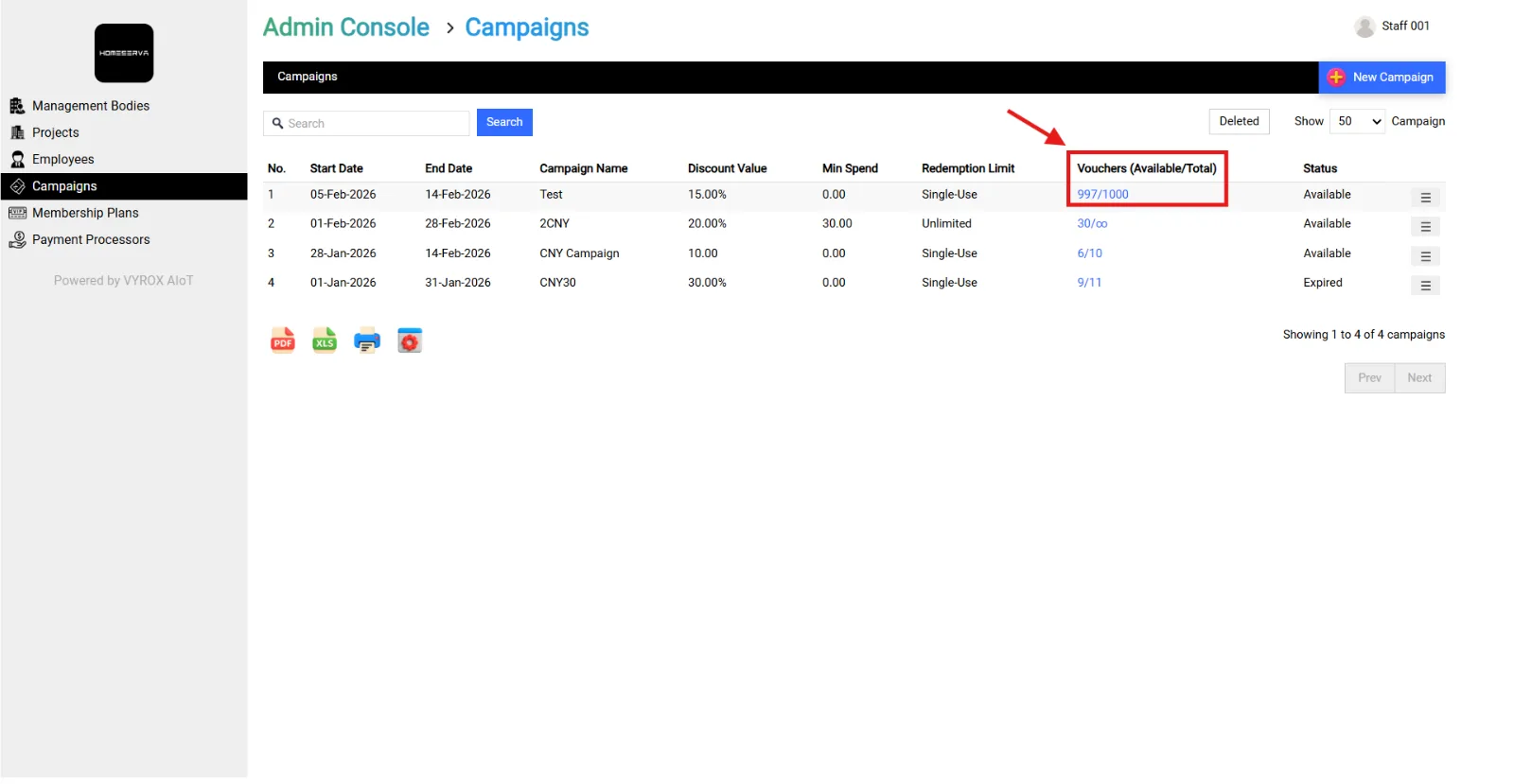
if customer use voucher, automatically deduct the voucher (Available/Total)
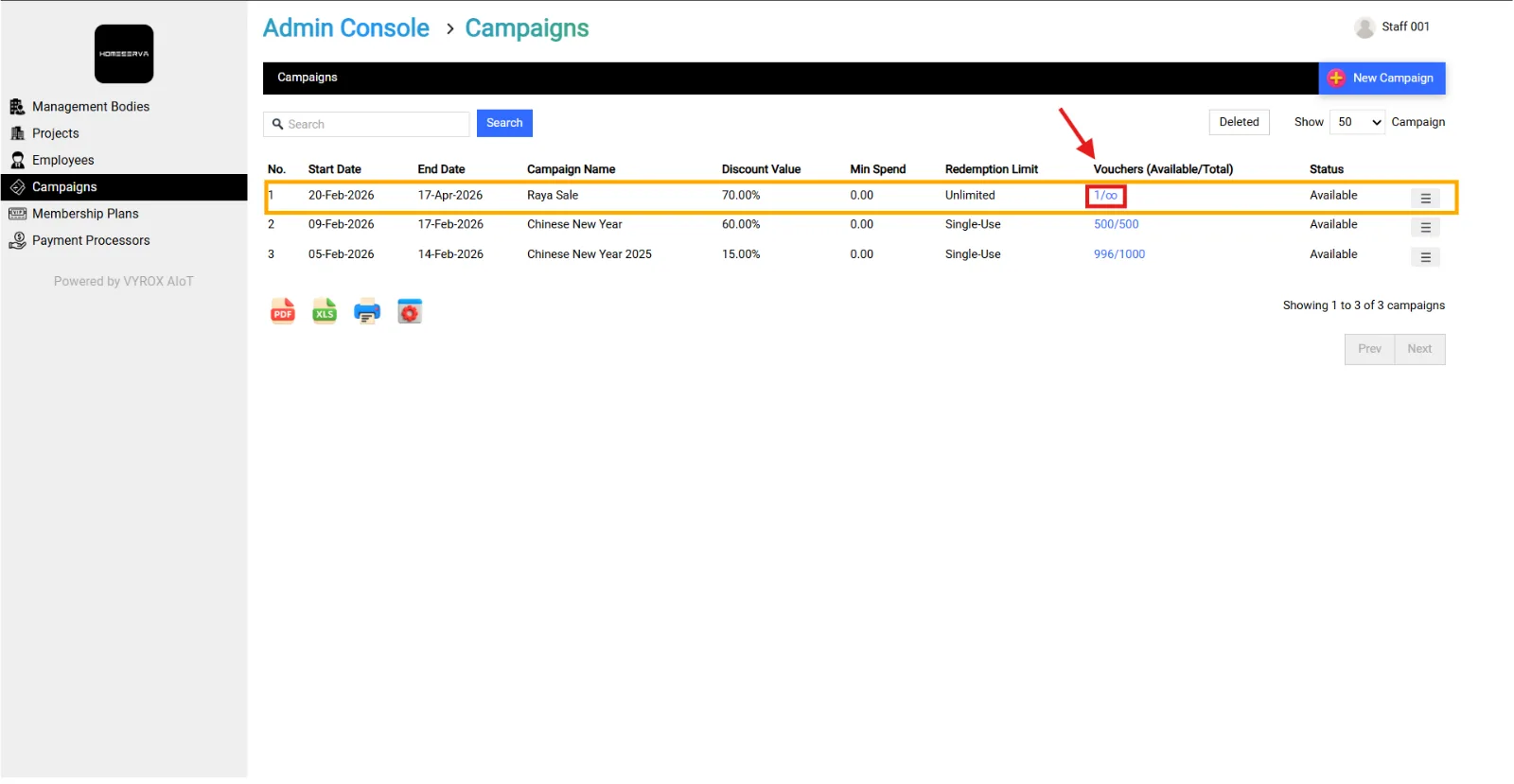
The "Max Redemptions per Voucher" field must be left blank or set to zero. The "Total Number of Unique Vouchers to Generate" field can be set to one, resulting in a single voucher that is valid for unlimited use.
if customer use voucher, automatically deduct the voucher (Available/Total)
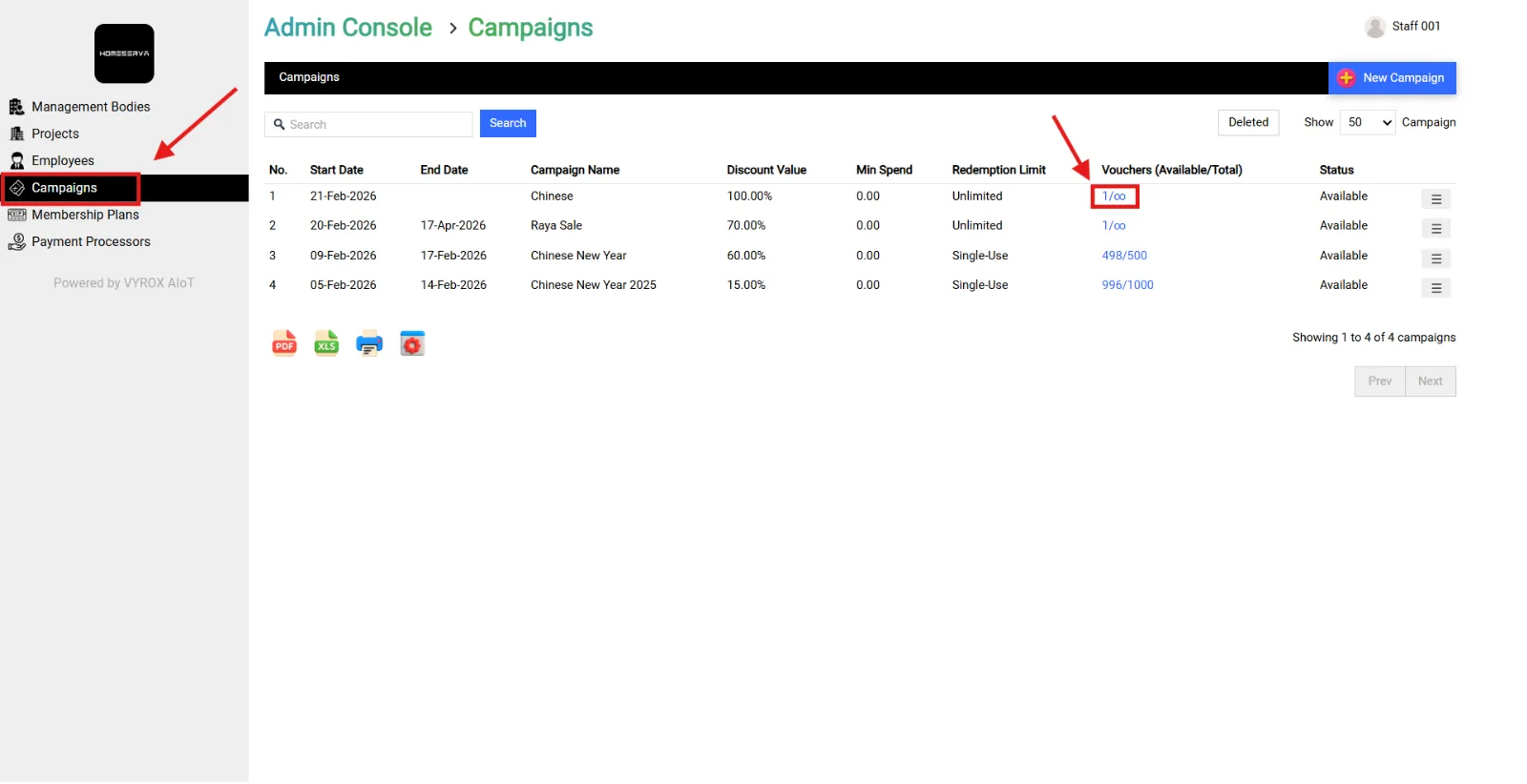
Go to Admin Console > Campaign
Step 1:
Click at "Vouchers (Available/Total)" as you create
Step 2:
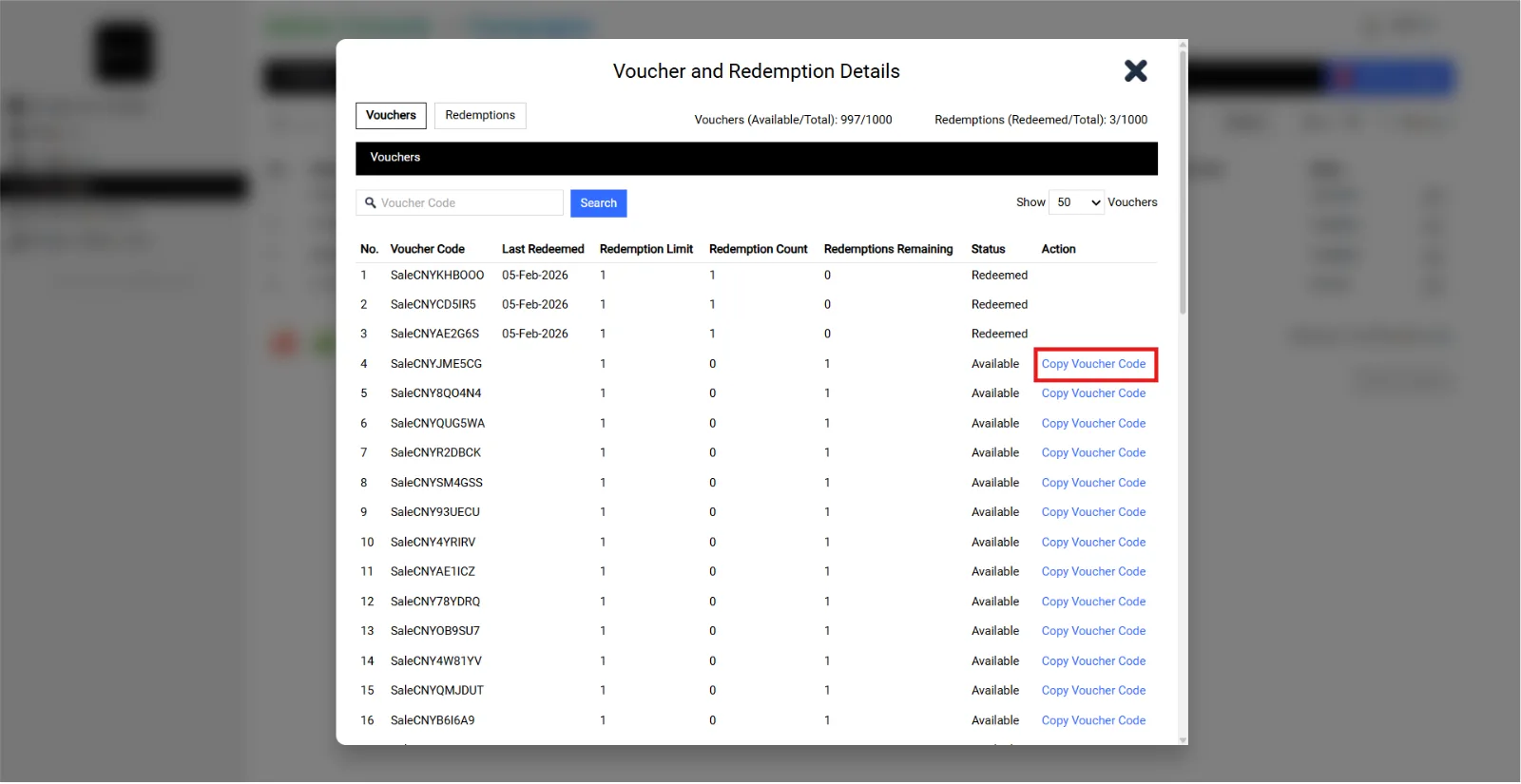
Copy "Copy Voucher Code"
Step 3:
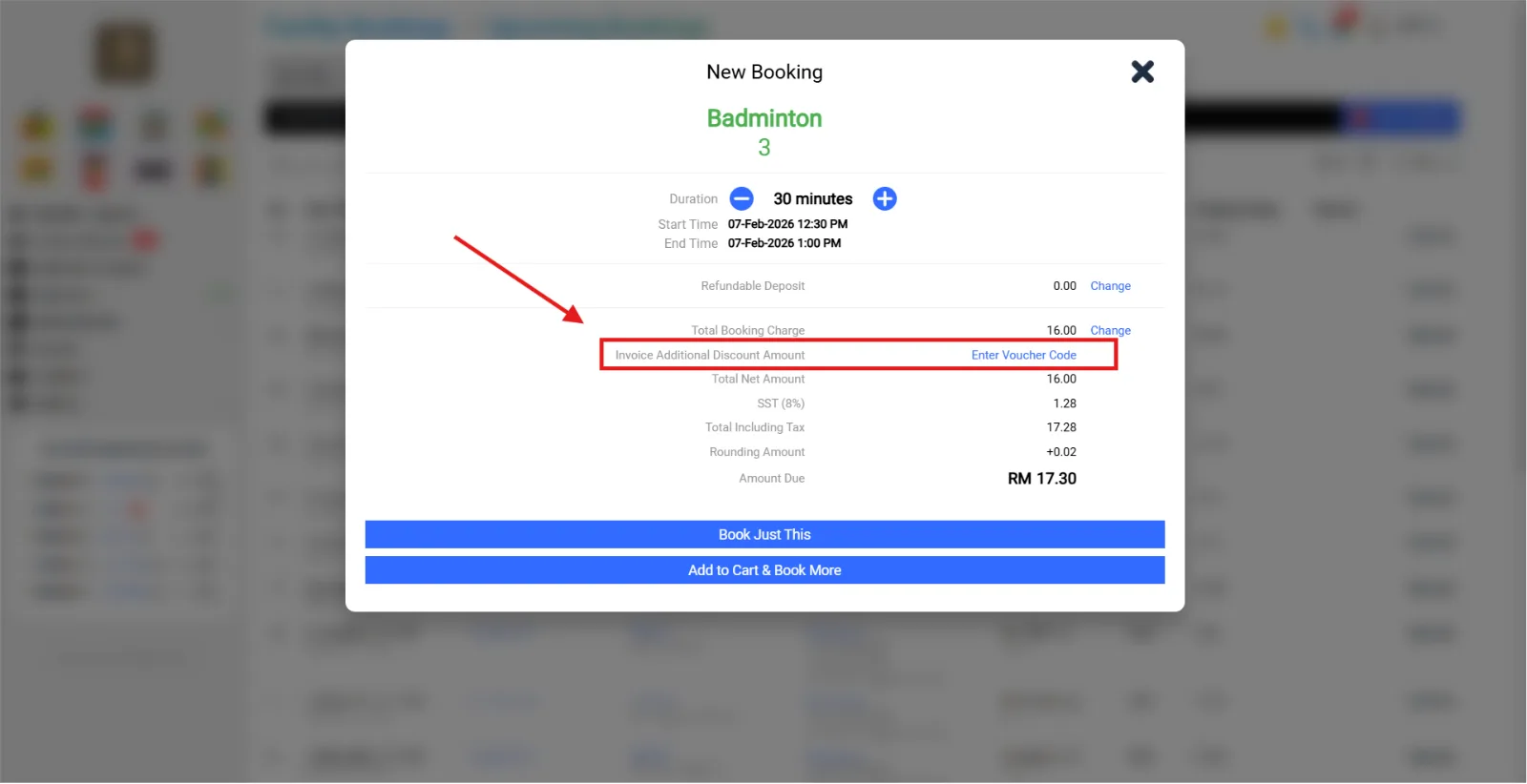
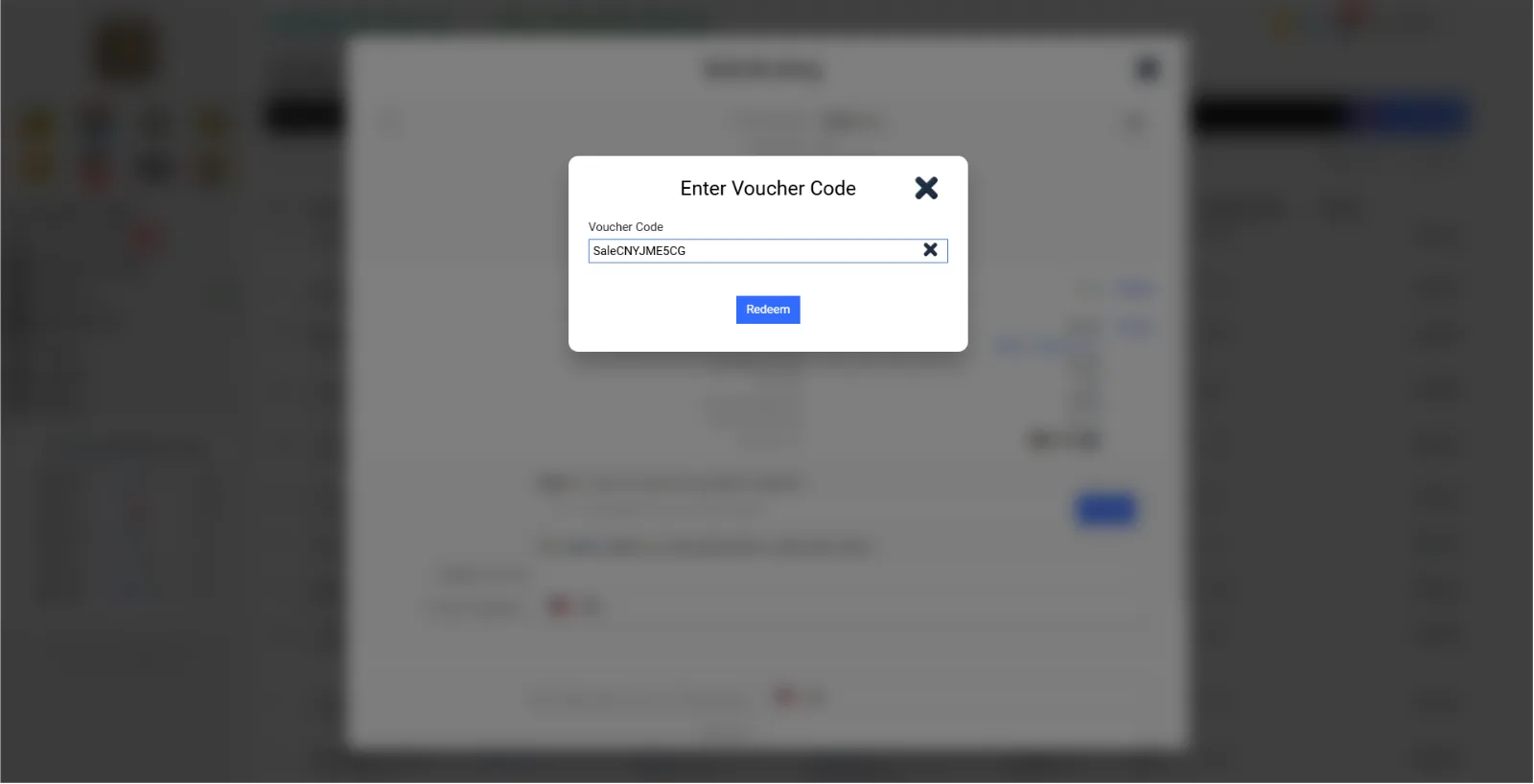
Go to Facility Booking at Bulk Booking > Find "Invoice Additional Discount Amount" > click "Enter Voucher Code" > paste the voucher and the discount will automatically calculate > after finishing, fill in the information click "Book"
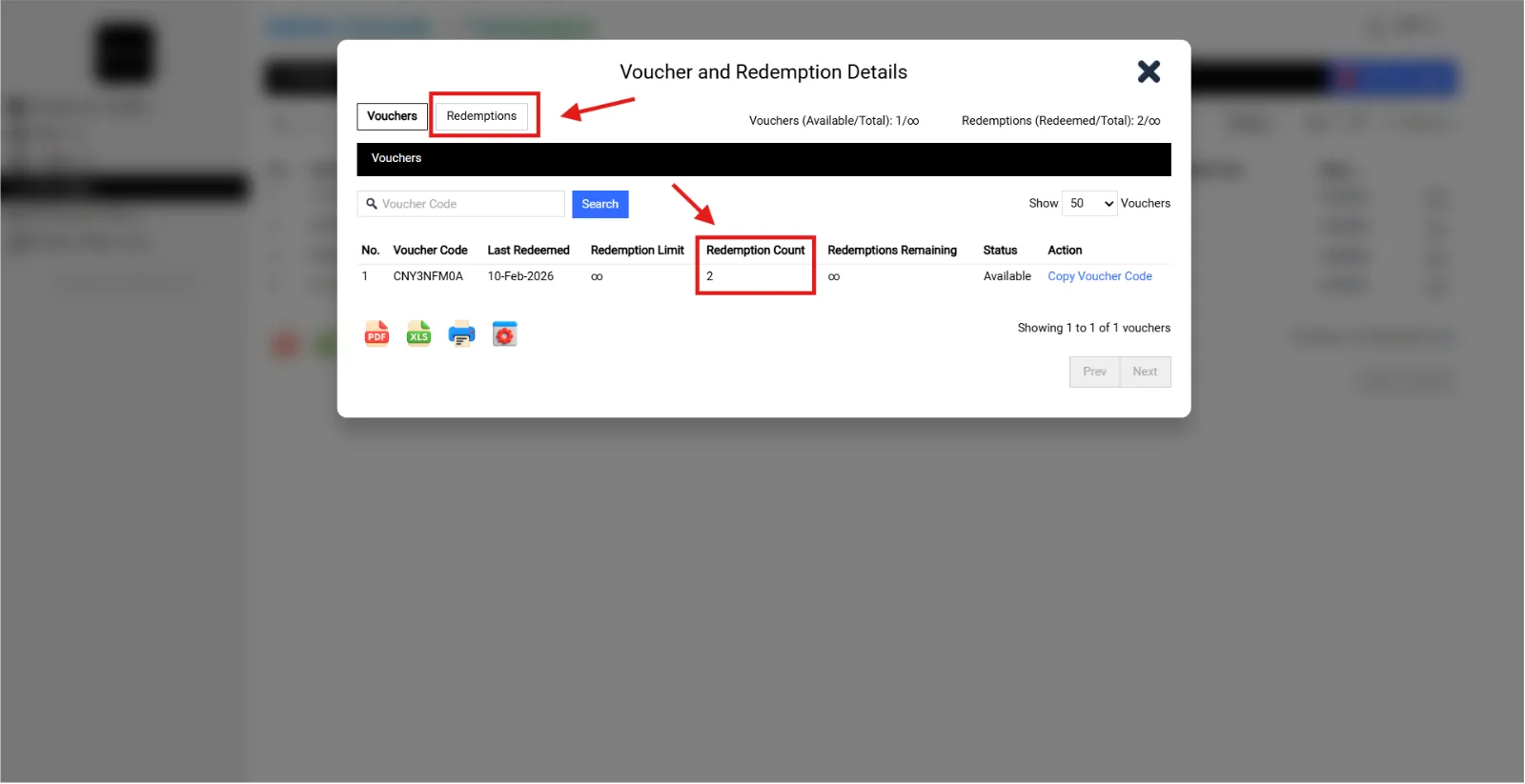
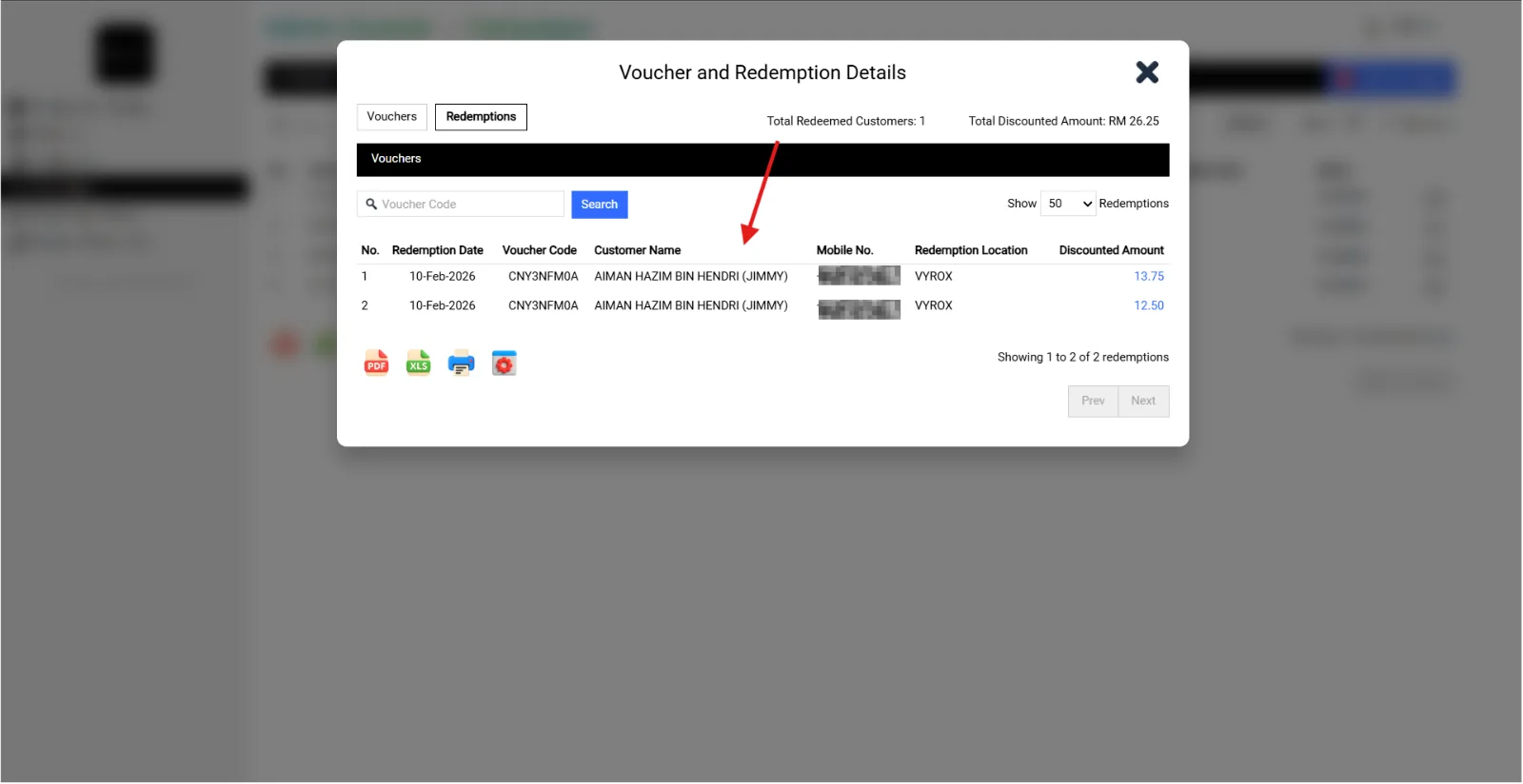
1. If the voucher is unlimited, I would like to know the number of customers who are actually using it, as well as the specifics of who is using it.
Go to Admin Console > Campaign > Click Vouchers > Look Redemption Count > Click Redemptions