VYROX Very Intelligent Platform (VIP) · Very Intelligent Platform: Management Guide
This guide is crafted to simplify the process of managing sub-users. It provides step-by-step instructions for using the sub-user management system, enabling you to register family members, tenants, and employees seamlessly and efficiently.
This section offers a comprehensive overview of the tools and features available for managing sub-users. It includes options for adding, editing, and removing sub-user accounts, ensuring that each sub-user is configured appropriately.
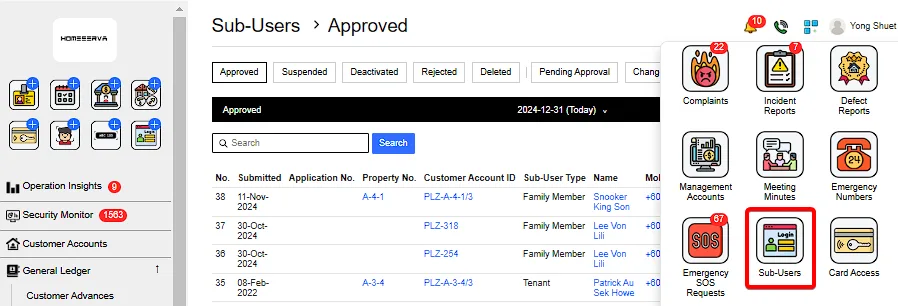
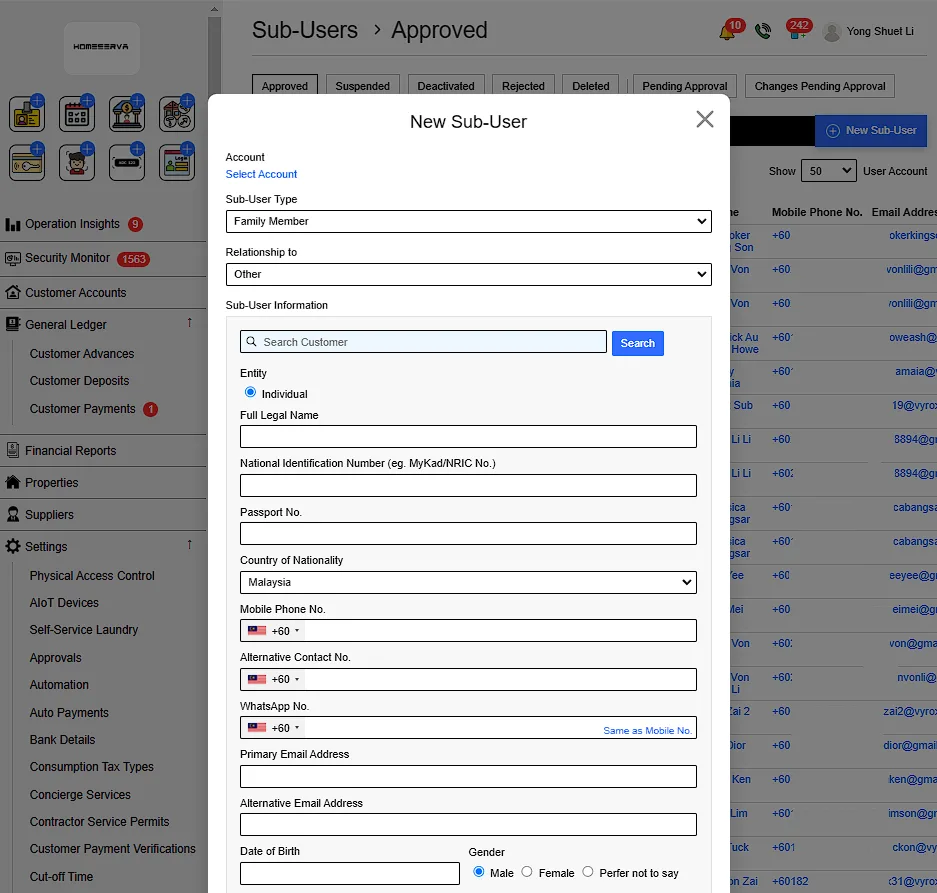
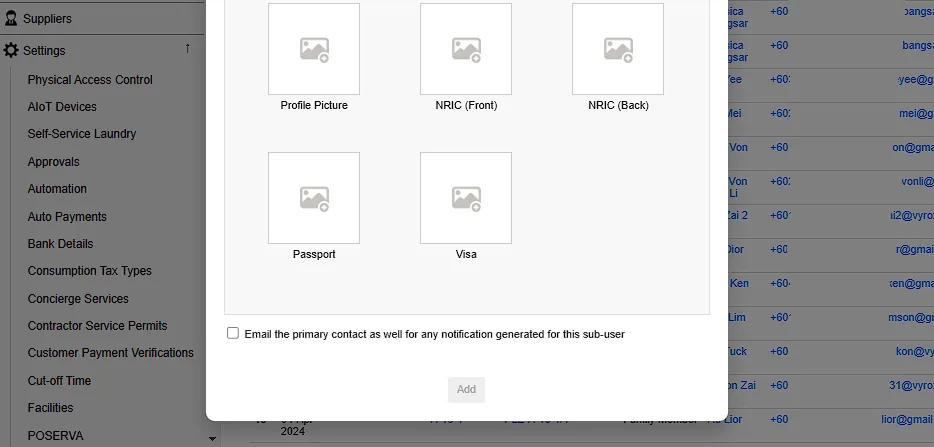
Go to Sub-Users > New Sub-User > Fill in details > Add
Details include:
If sub-user account already exist , the following information are autofilled. Otherwise , manual fill in details are required.
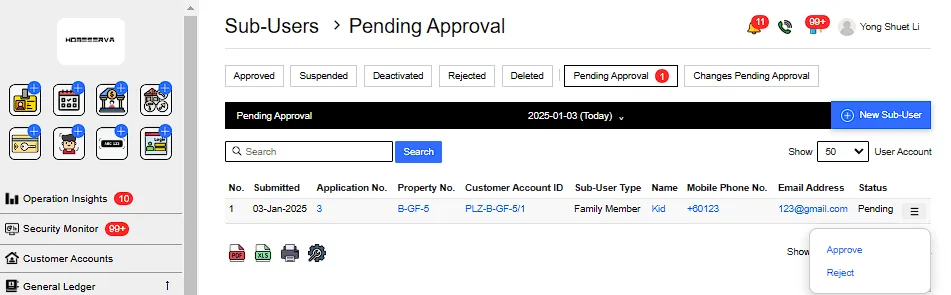
After this, management need to approve sub-user by going to Pending Approval page and click Approve to approve sub-user.
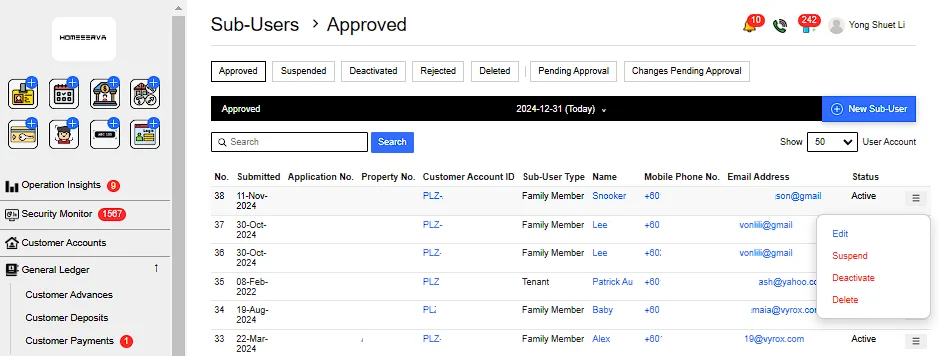
To edit , suspend , deactivate or delete sub-user , Go to Approved page > Click on the triple bar of selected sub-user > Select either to Edit , Suspend , Deactivate or Delete Sub-User.
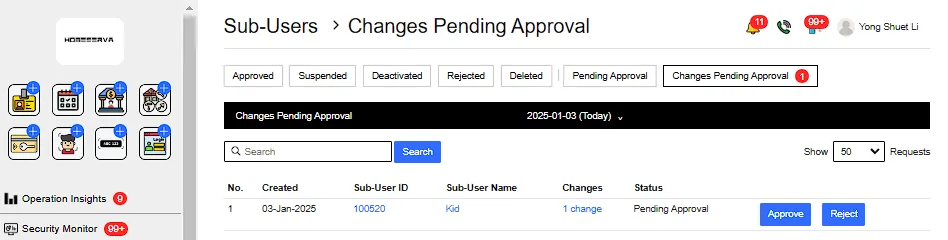
After sub-user account information is edited . Go to Changes Pending Approval page and click Approve .
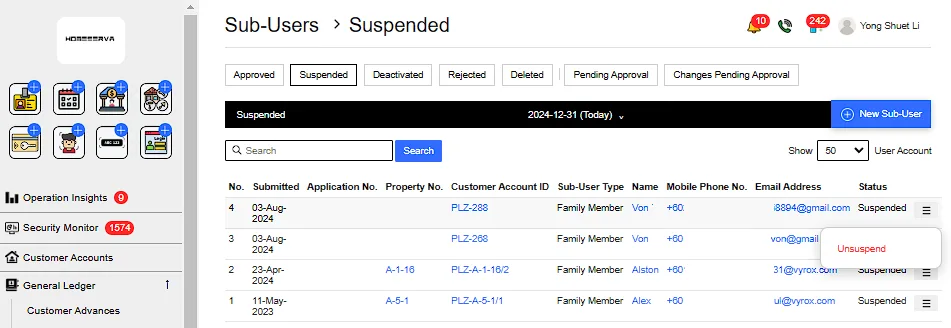
To unsuspend sub-user , Go to Suspended page > Click on the triple bar of selected sub-user > Select Unsuspend.
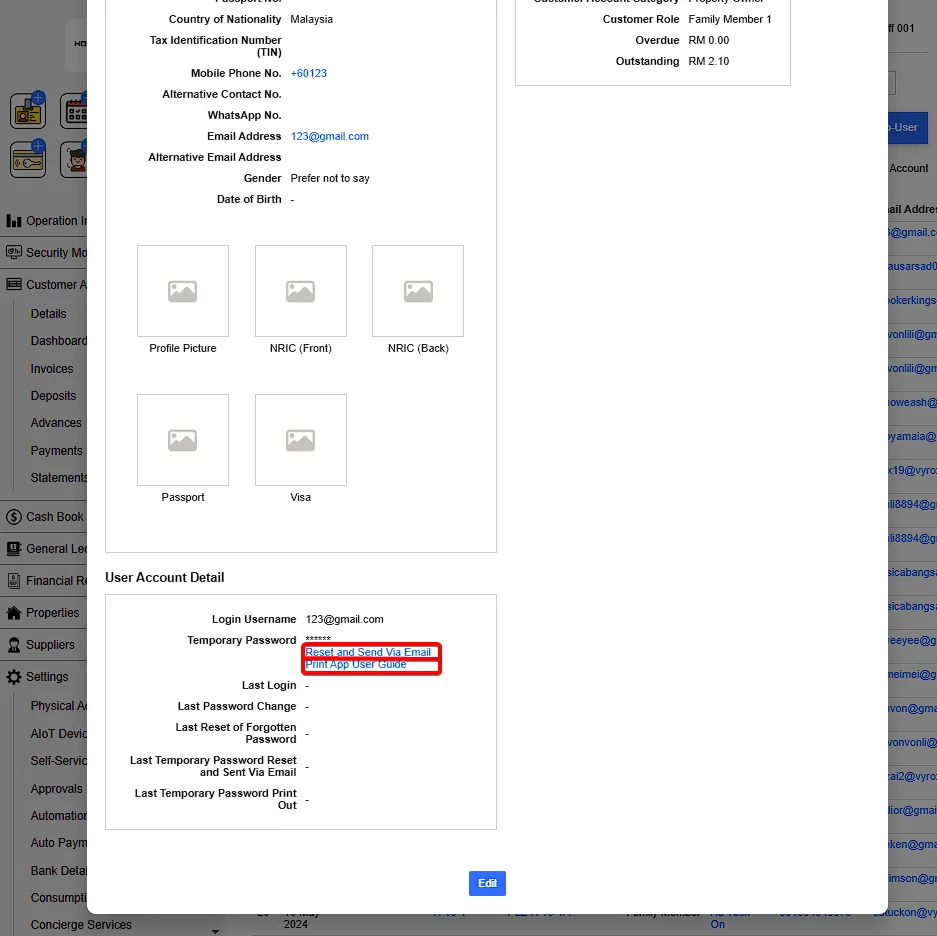
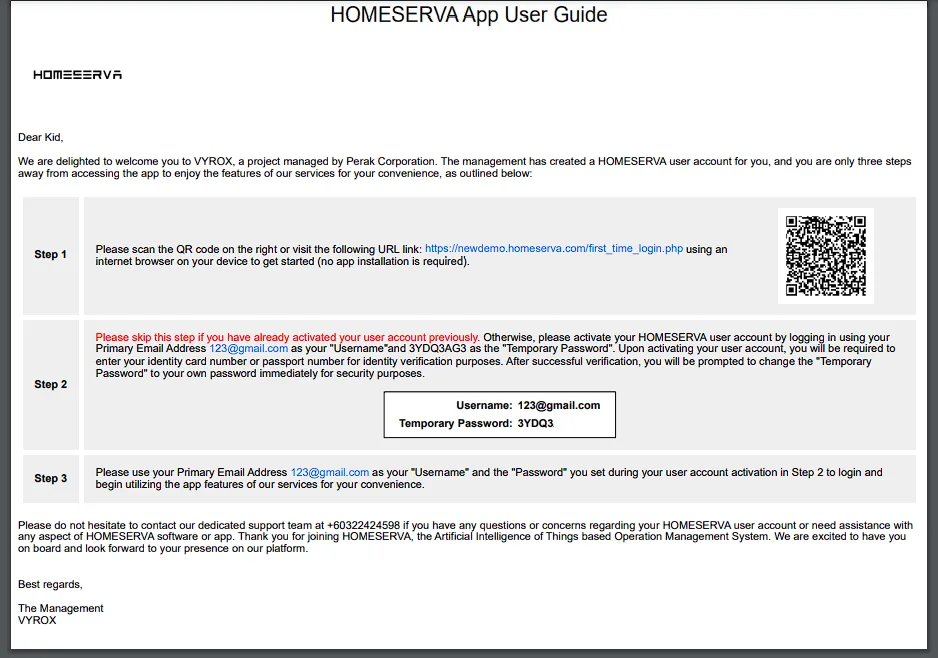
How to resend email if Sub-user email was not received by customer
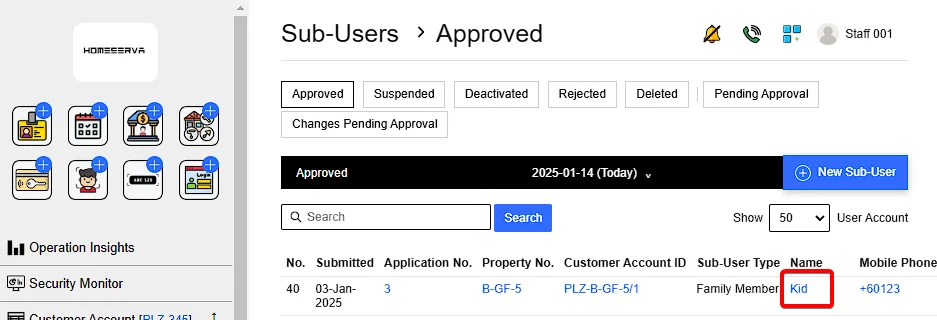
Go to Sub-User > Click on the sub-user account name > Choose options
Options include: