Snooker King · Snooker King AIoT Lighting & Billing System
14. Membership Management (M.Type)
VYROX Wiki · Updated 3 March 2025 · https://www.vyrox.com/wiki/membership-management
14.1. Add New Member Type
- Key in the name of the membership in the checkbox.
- Key in 0-100 number of Discount (%) in the check box.
- Click “Add” button to update the Member Type.
14.2. Add New Member Type for the member
- Choose the membership for the member.
- Please do not forget to click “Update” button.
14.3. Add new members
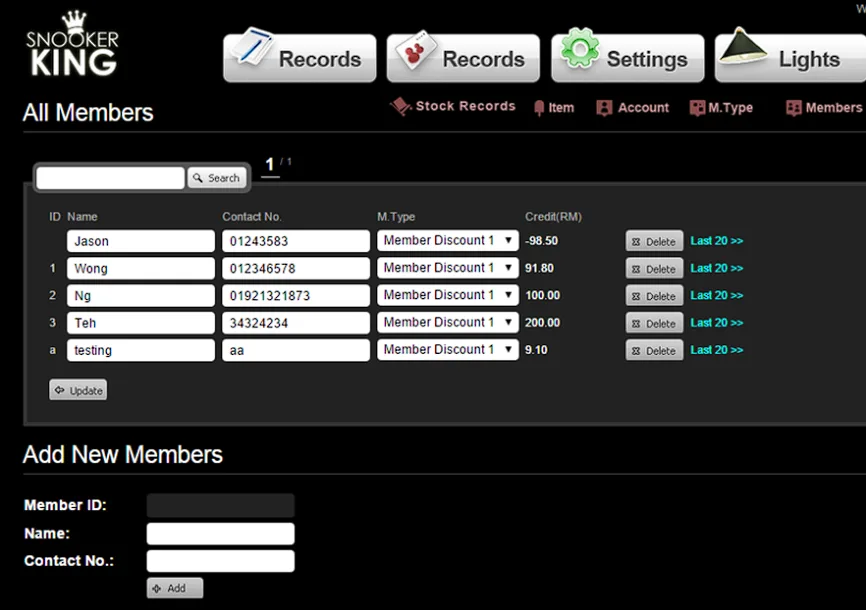
- Please key in the number or scan membership card number via card reader into the “Member ID:” checkbox.
- Please key in the name into the “Name:” checkbox.
- Please key in the phone number into the “Contact No:” check box.
- After member card is registered, it will automatically update at the top.
Sample:
14.4. Top up member card
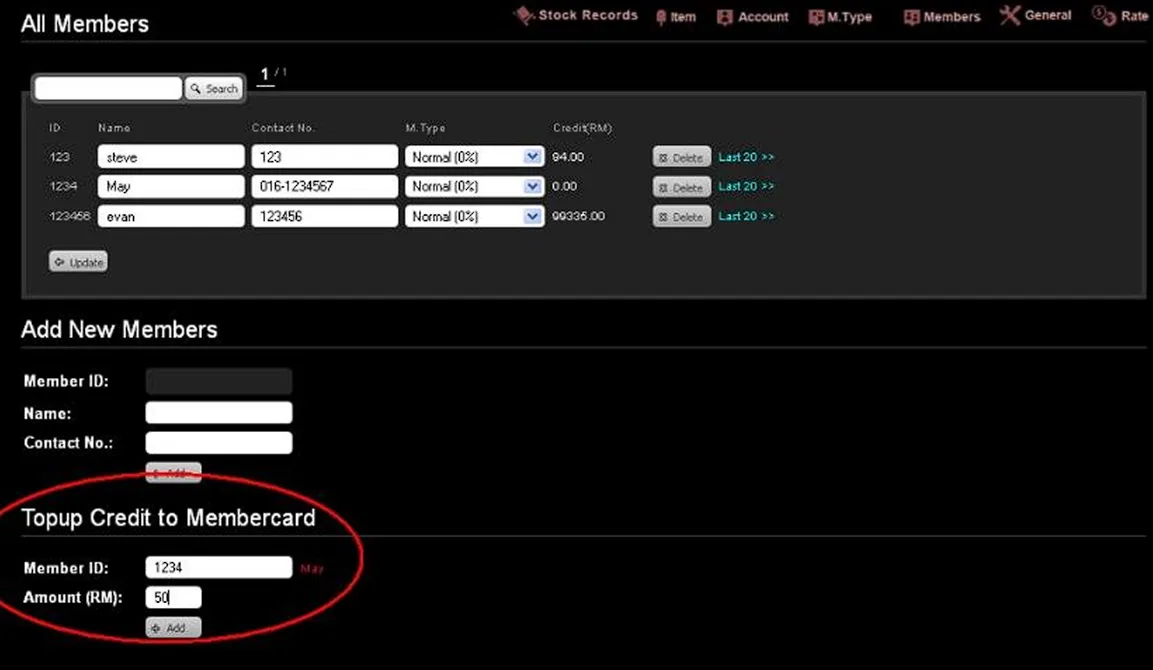
- Please key in the Member ID and check, see whether it is available or not.
- If yes it will show the name beside the checkbox.
- Then key in the amount of top up.
Sample:
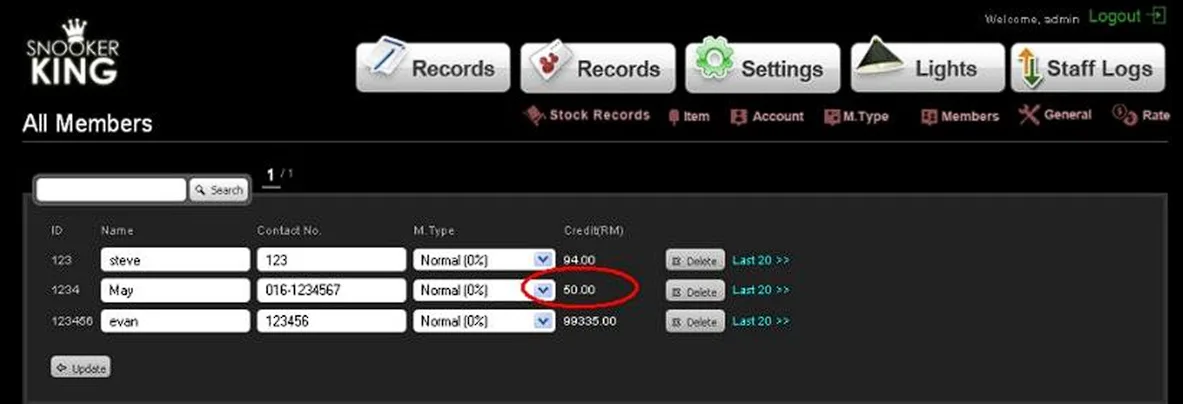
Effect: