VYROX Very Intelligent Platform (VIP) · Very Intelligent Platform: Management Guide
Access control systems are security solutions designed to regulate and monitor entry to physical or digital spaces, ensuring that only authorised individuals gain access. Access control systems improve safety, make operations easier, and safeguard important assets by using technologies like key cards, fingerprints, QR codes, and password authentication. Residential buildings, commercial properties, and industrial facilities widely use these systems to effectively manage the movement of people and vehicles. Beyond security, access control systems also provide administrators with valuable data to monitor activities, improve efficiency, and enforce policies, making them an essential component of modern property and organisational management.
This tutorial offers a thorough process for using the VYROX VIP Smart AIoT Devices, created by VYROX INTERNATIONAL SDN BHD, to optimise and improve building and facility operations. Property managers, building administrators, and facility operators can easily link and manage various systems, like Licence Plate Access Control, using VYROX's VIP AIoT tools, which are a complete set of smart solutions. These AIoT devices provide improved security, greater operational efficiency, and smarter decision-making by integrating hardware and software into a single, cohesive platform.
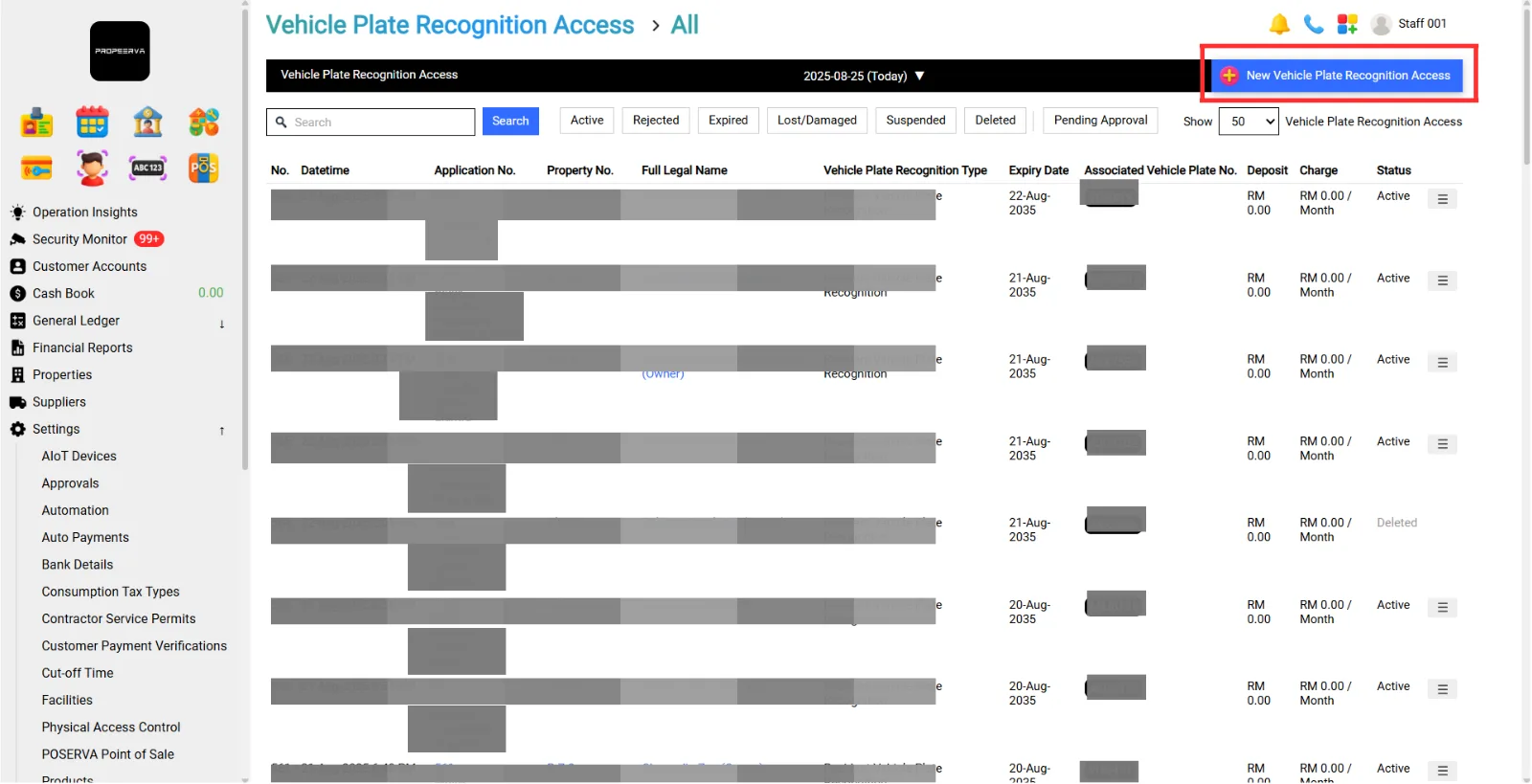
Go to Vehicle Plate Recognition Access > Vehicle Plate Recognition Access > Fill in details > Add
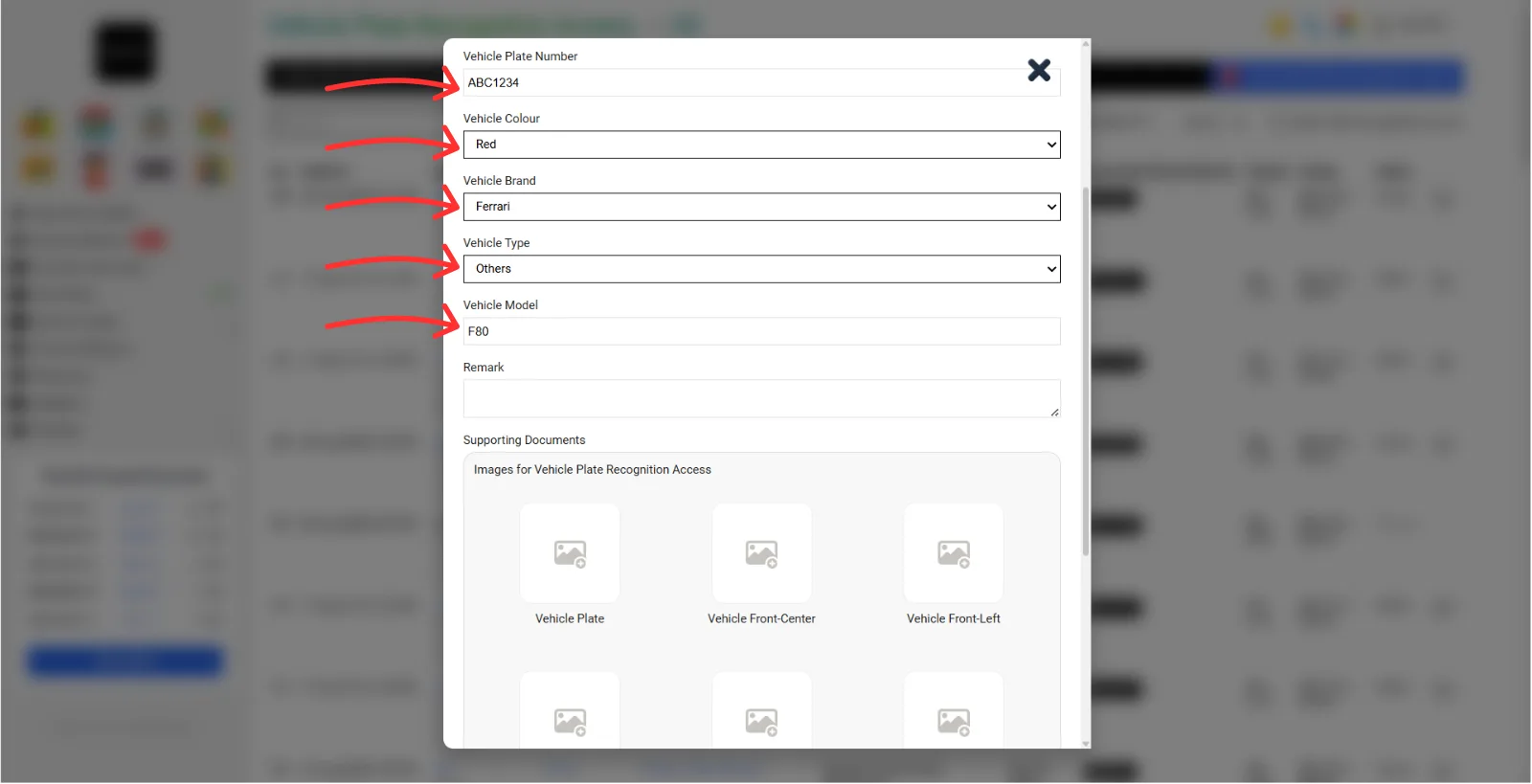
Details include:
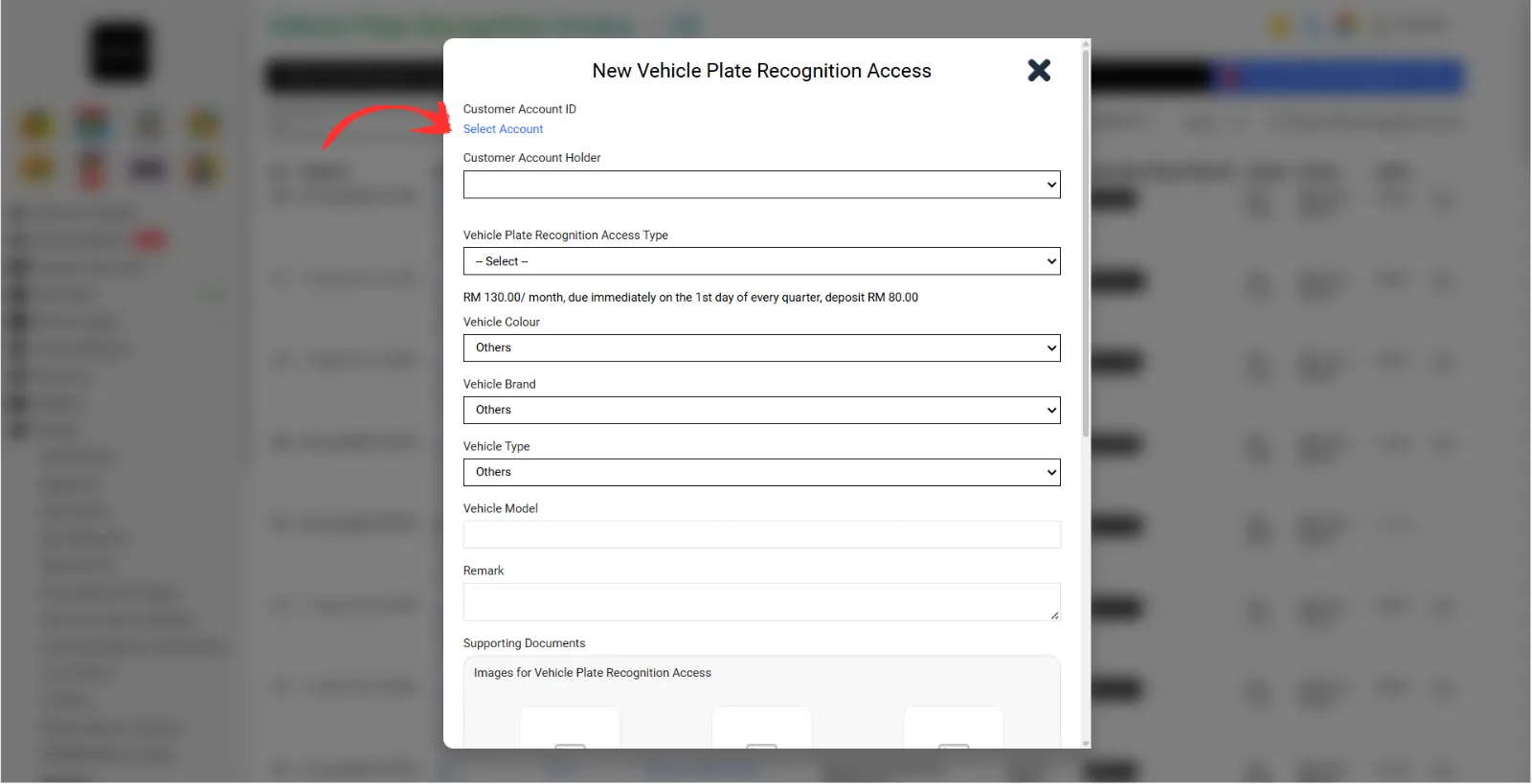
Step 1:
Click "Select Account"
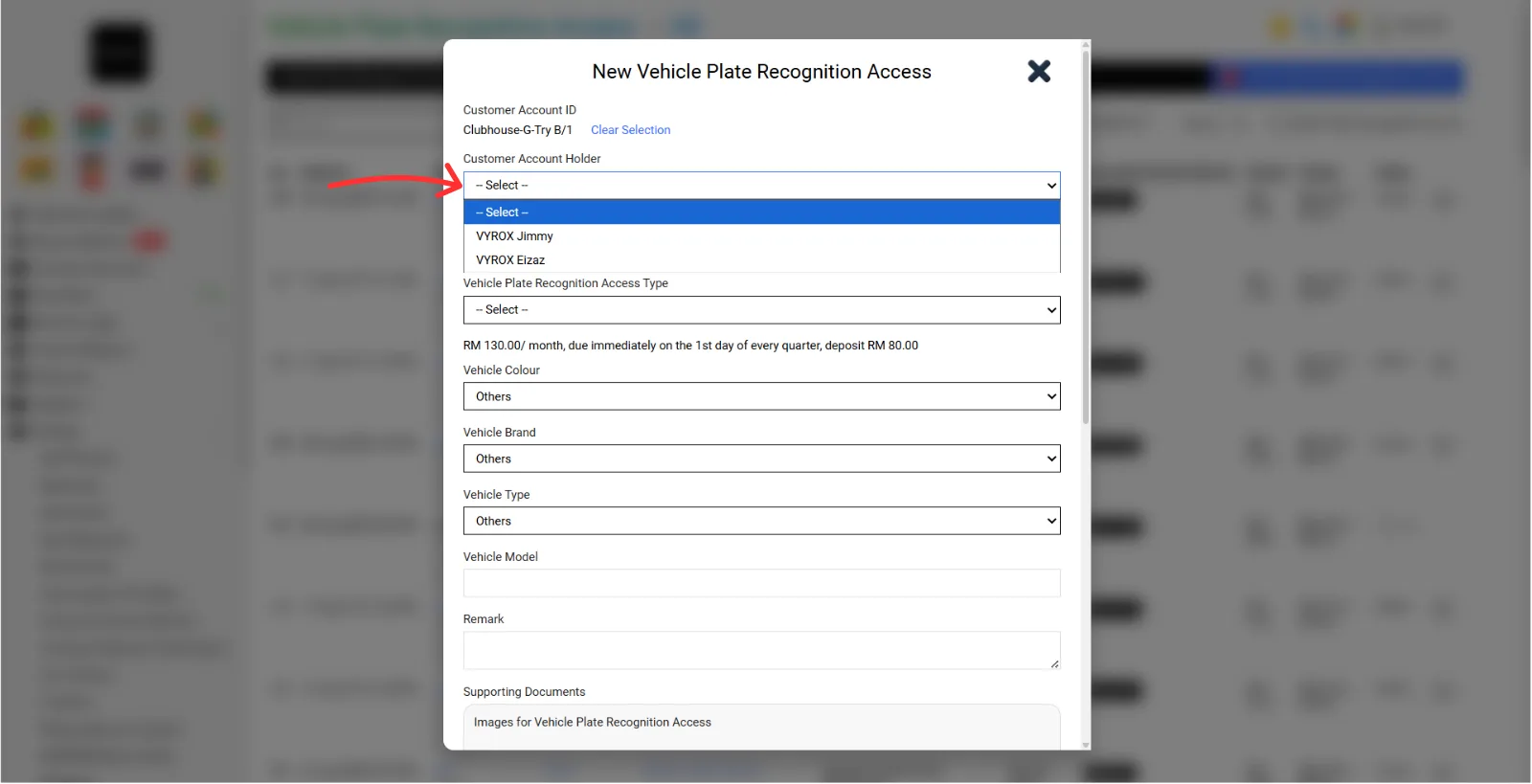
Step 2:
Select "Customer Account Holder"
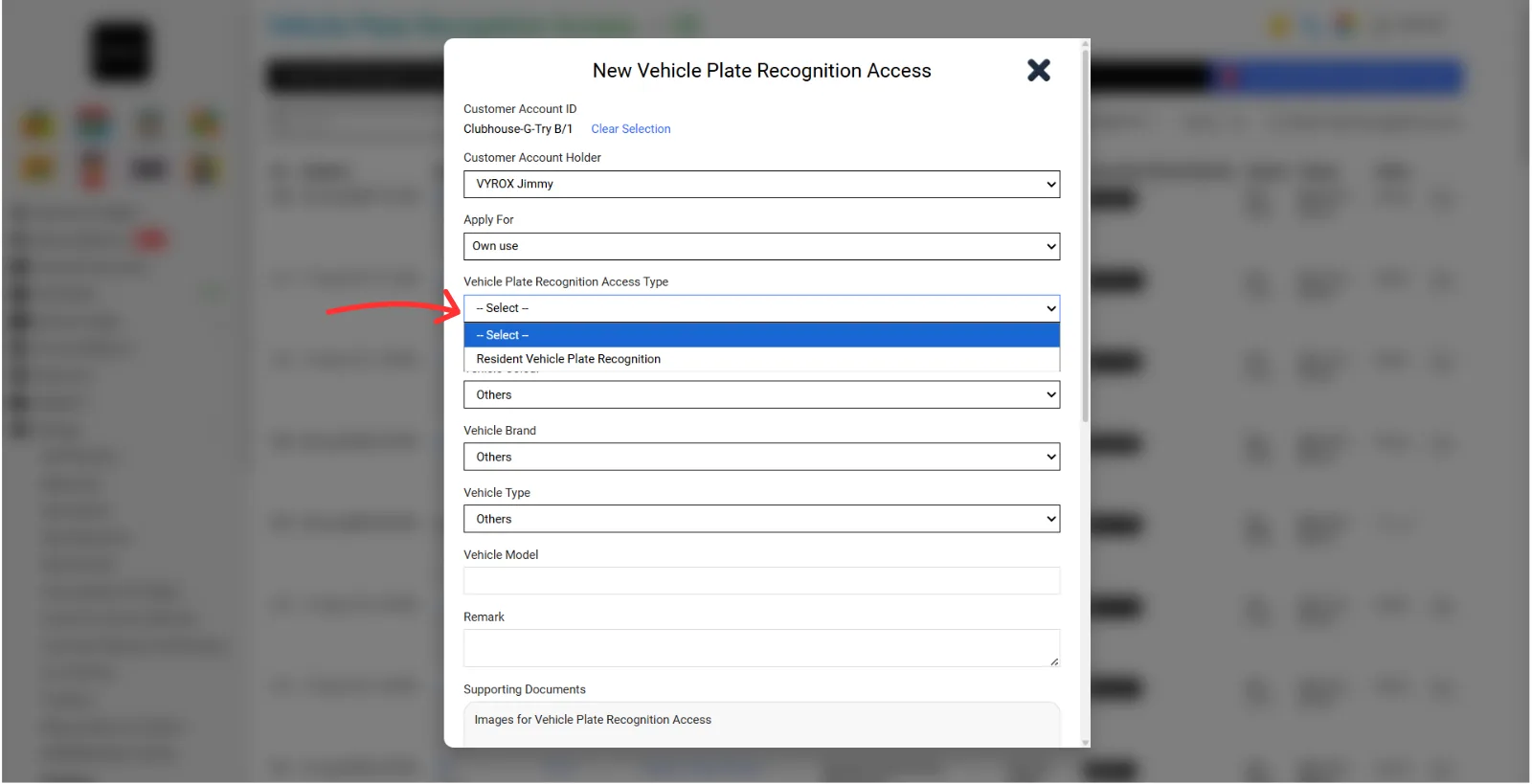
Step 3:
Select "Vehicle Plate Recognition Access Type"
Step 4:
Fill in the blank about details of Your Car
Step 5:
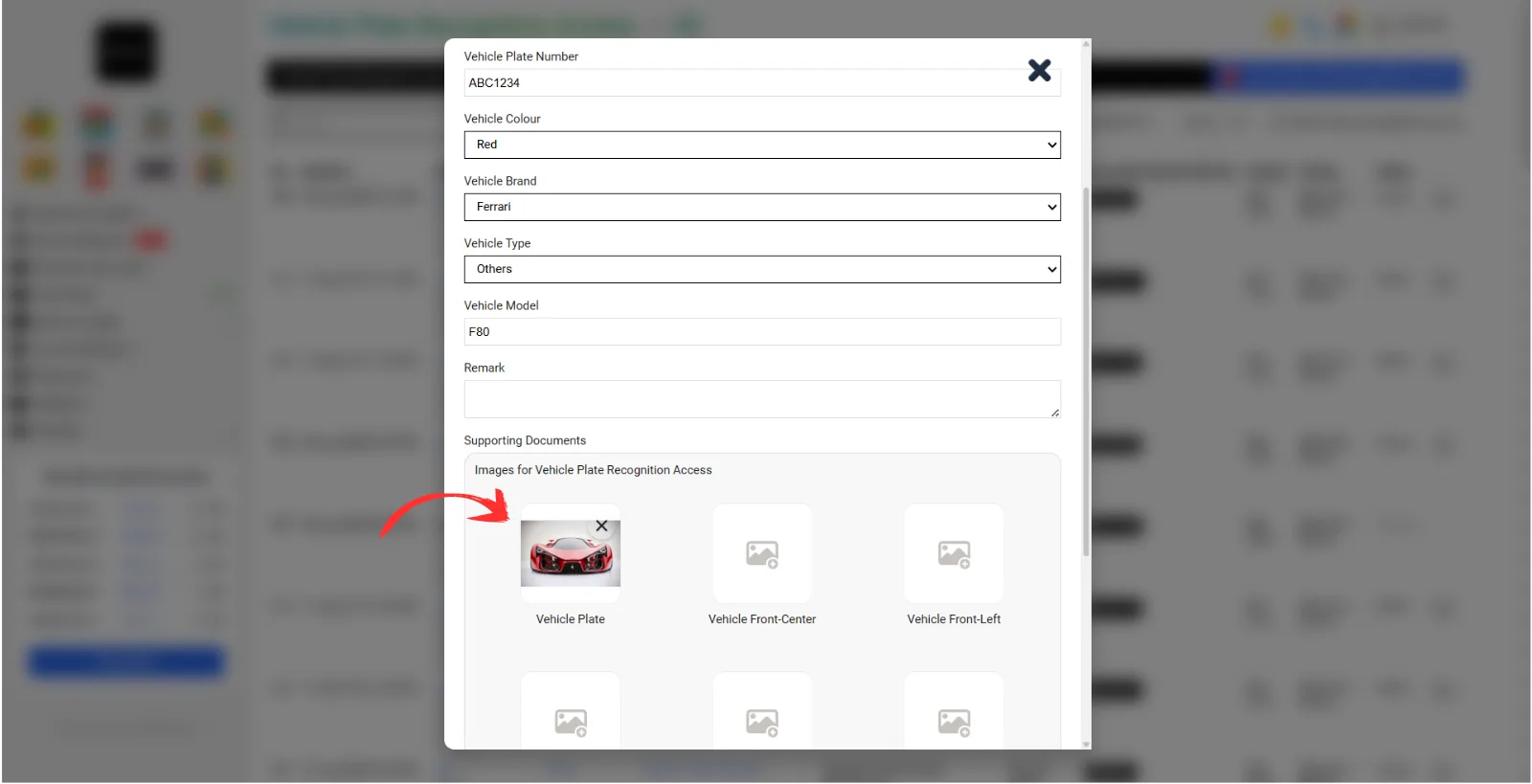
Take picture and insert at “Images for Vehicle Plate Recognition Access”
After that, Click "Add"
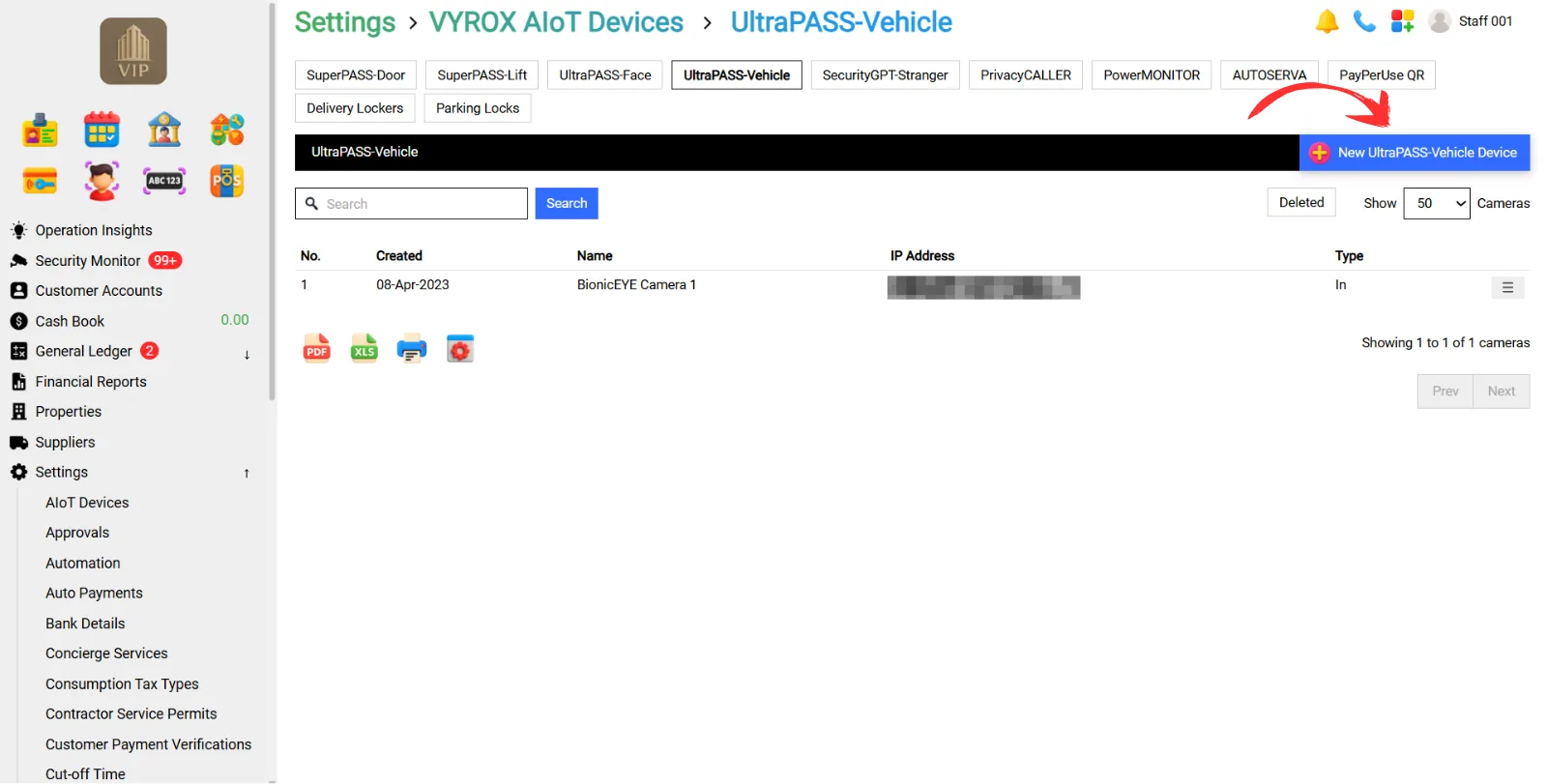
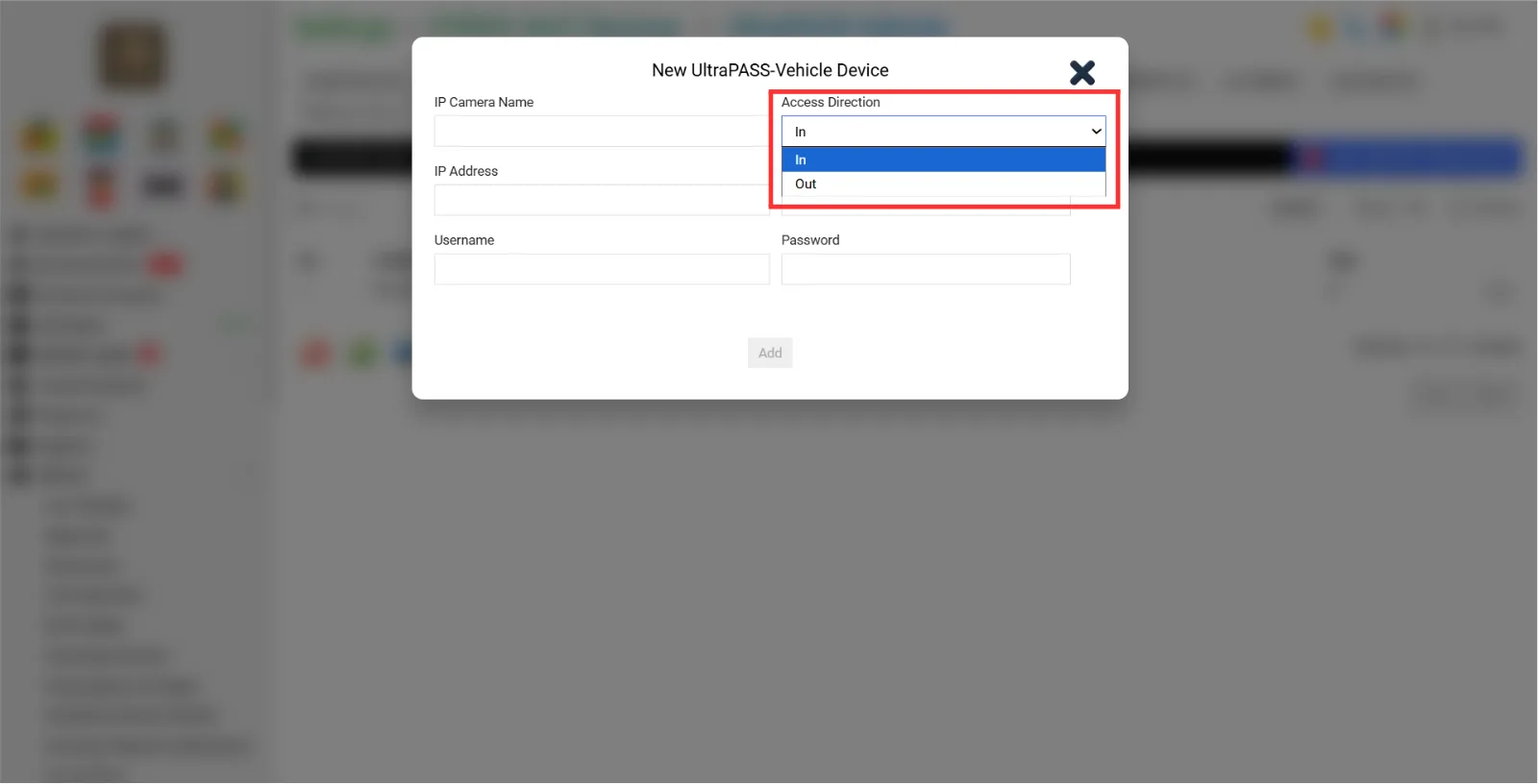
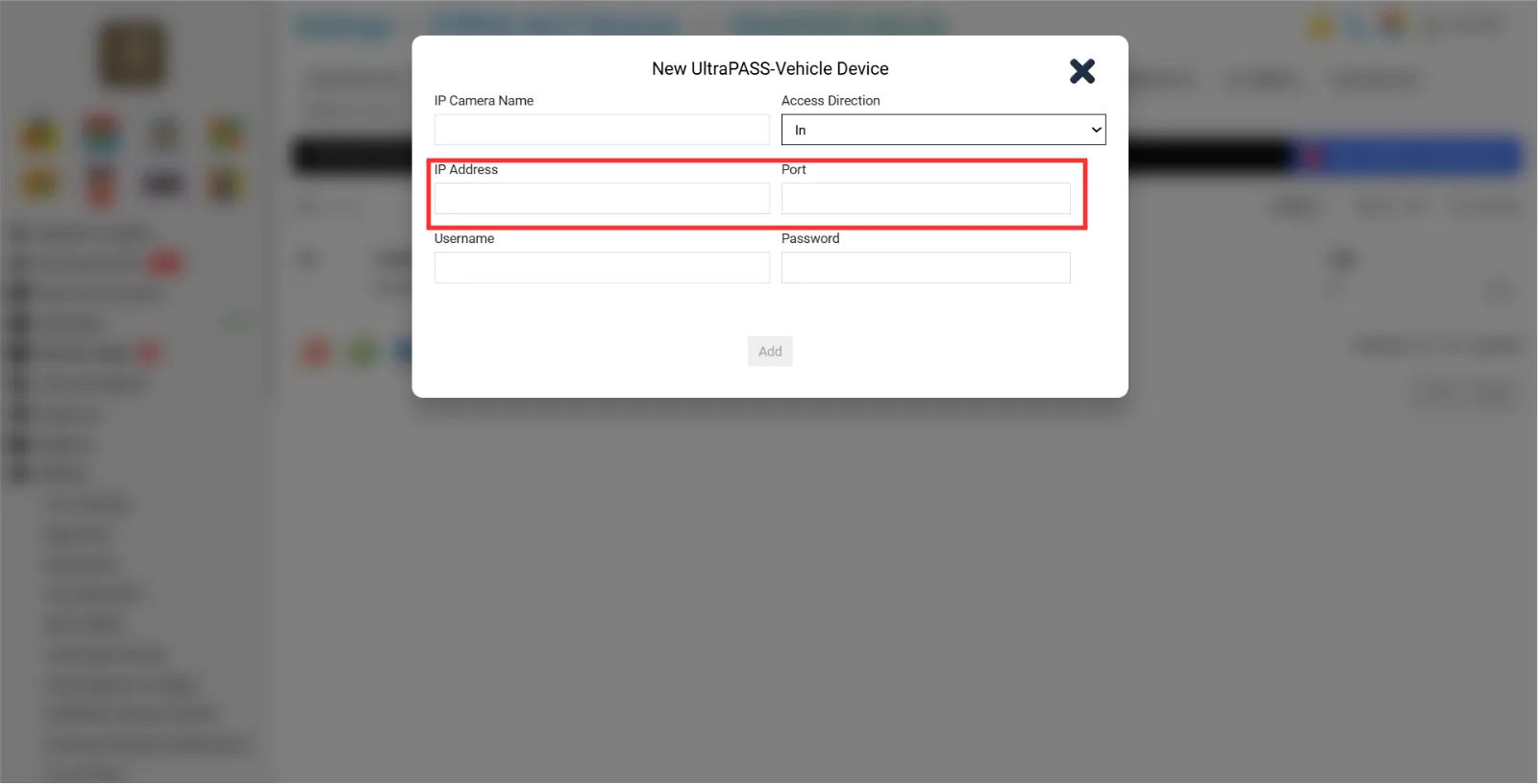
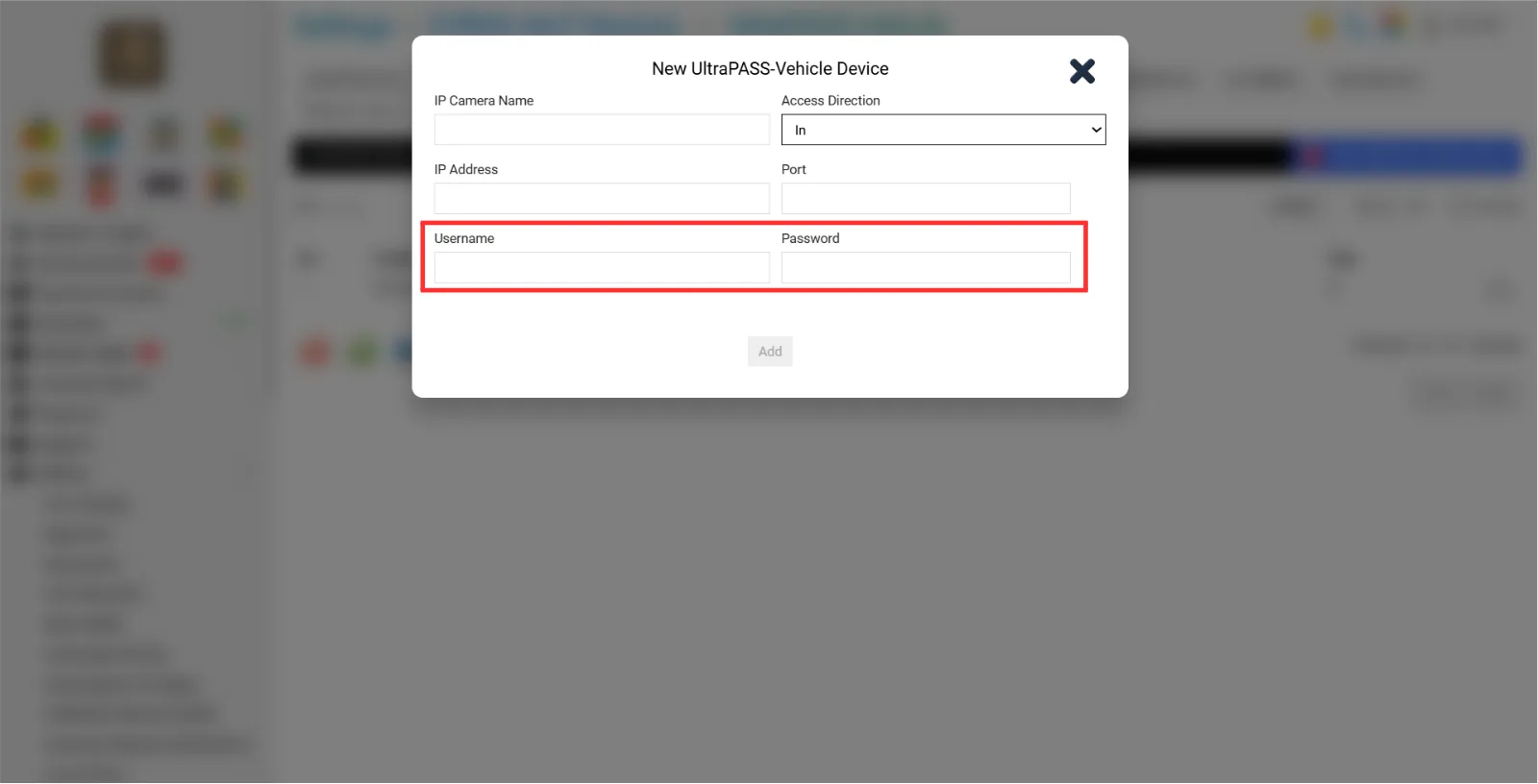
Go to Setting > AIoT Devices > SuperPAss Vehicle
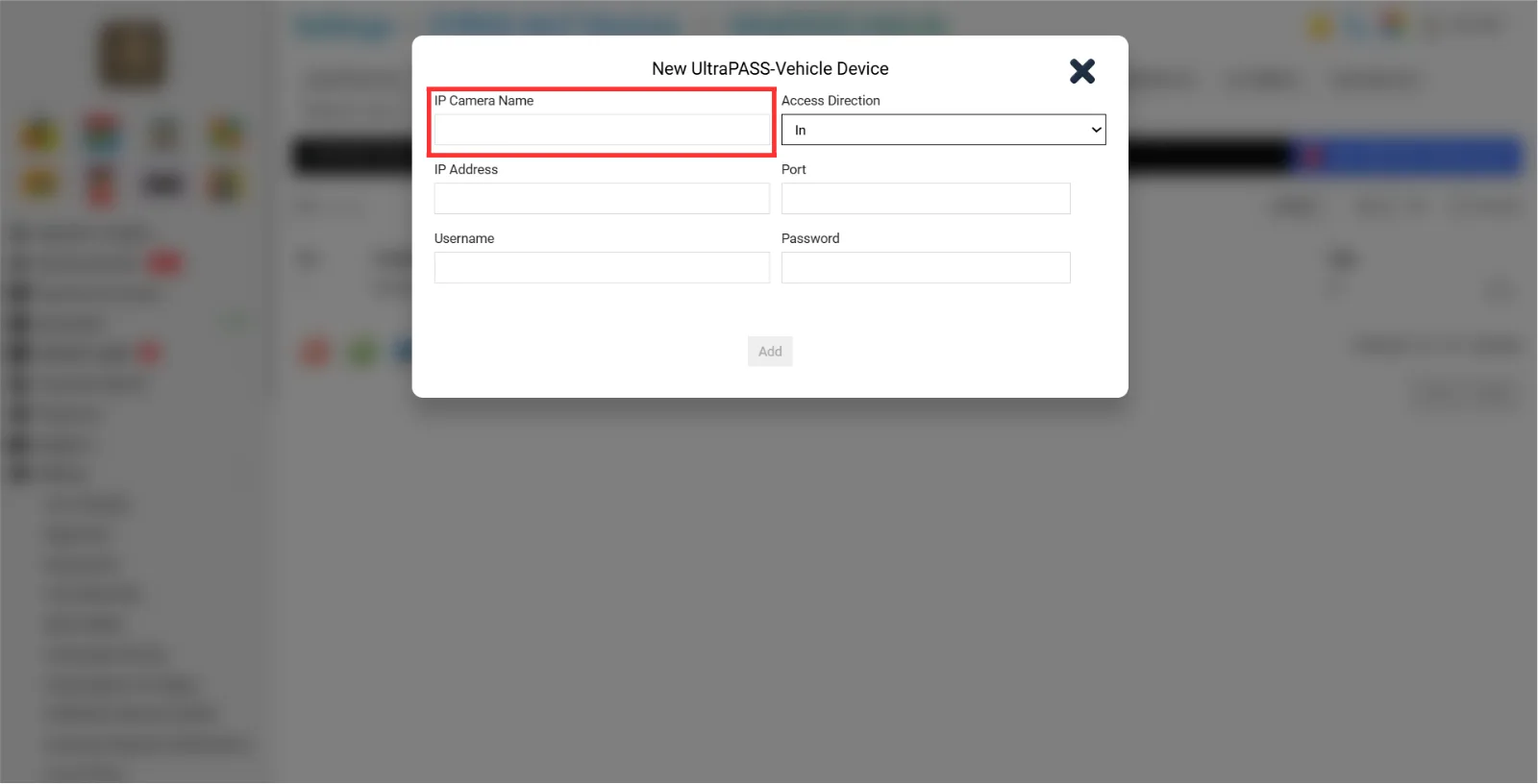
Details include:
Step 1:
Fill in blank “IP Camera Name”
Step 2:
Select “Access Direction”
Step 3:
Fill in the Blank “IP Address & Port”
Step 4: Fill in the blank “Username & Password”.
After done keying in all information, Click “Add”
This guide shows you step-by-step how to set up the Properties Unit part of VYROX VIP Smart Integrated Property Management System, which was created by VYROX INTERNATIONAL SDN BHD. Property managers, building officials, and facility workers can make and handle each unit, making sure that the information about each unit is always correct. Then, each unit can be easily connected to the UltraPass car module for managing car entry. This way, records for each unit can be directly tied to safe and automated access permits.
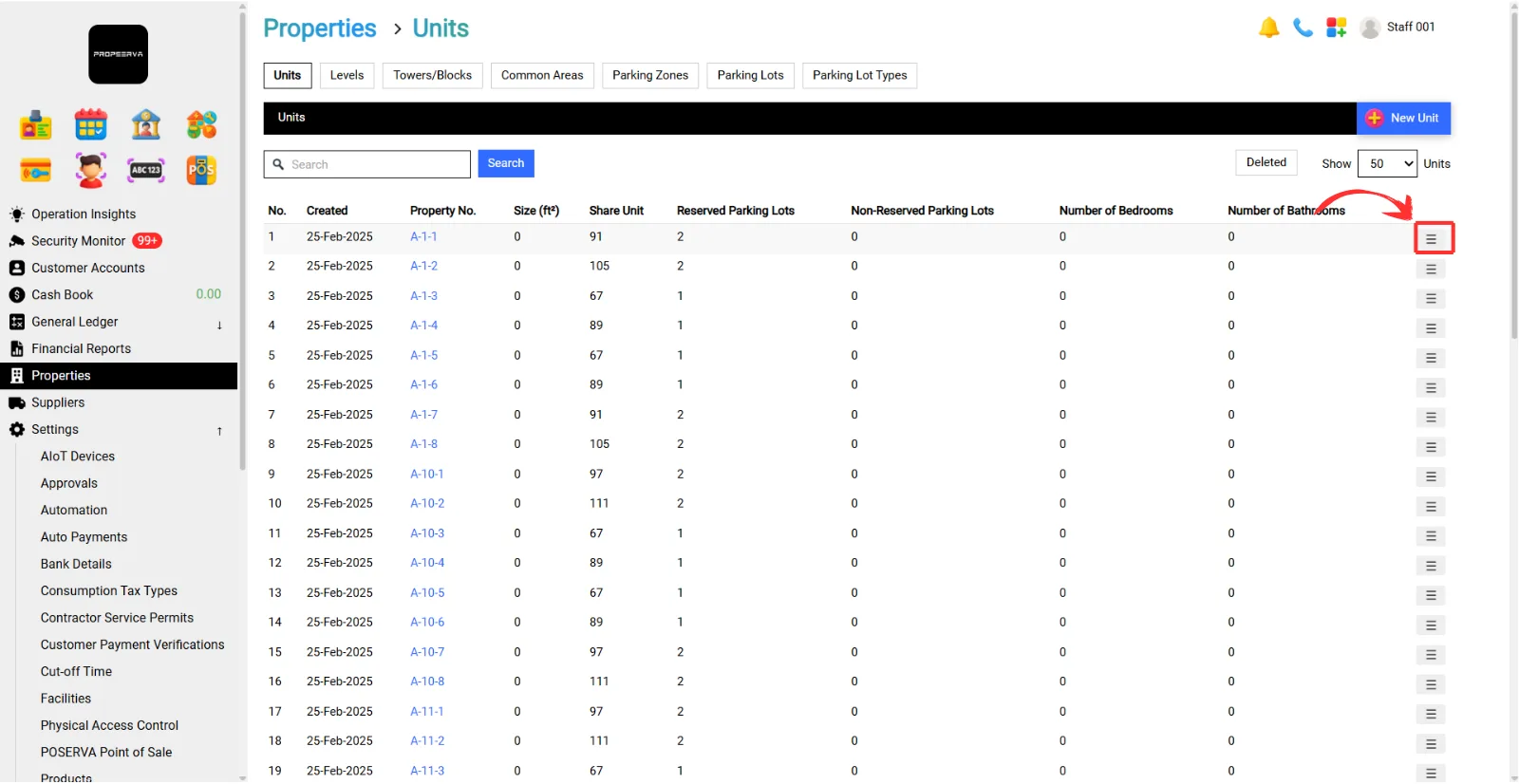
Go to Properties > Units > Three Lines in the box.
Step 1
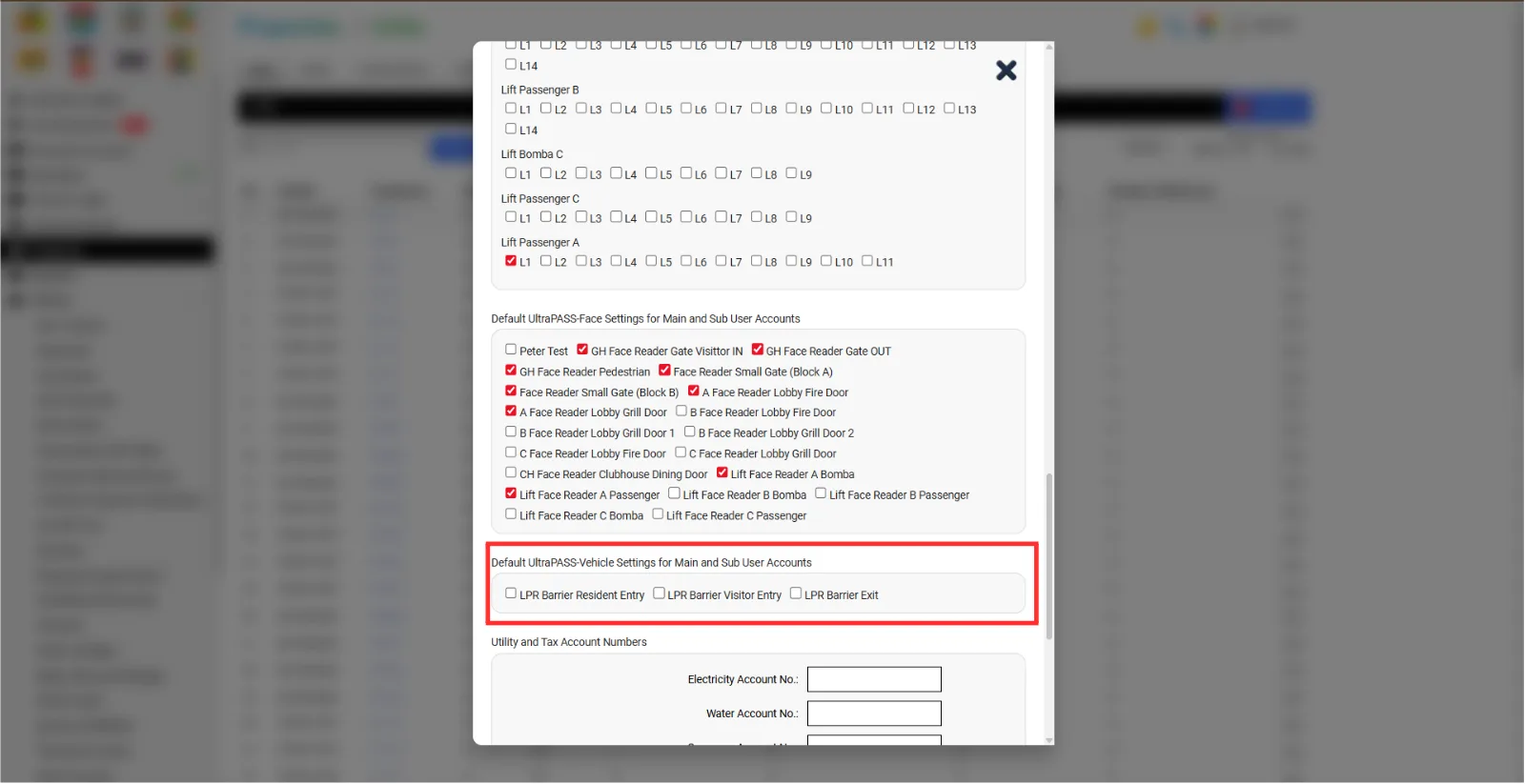
Tick and select , “Default UltraPASS-Vehicle Settings for Main and Sub User Accounts”
Note: Please tick according to the following unit-level floor and block.