Table of Contents
Sub-Users
1. Introduction
This guide is crafted to simplify the process of managing sub-users. It provides step-by-step instructions for using the sub-user management system, enabling you to register family members, tenants, and employees seamlessly and efficiently.
2. Sub-Users
This section offers a comprehensive overview of the tools and features available for managing sub-users. It includes options for adding, editing, and removing sub-user accounts, ensuring that each sub-user is configured appropriately.
2.1 Add New Sub-User
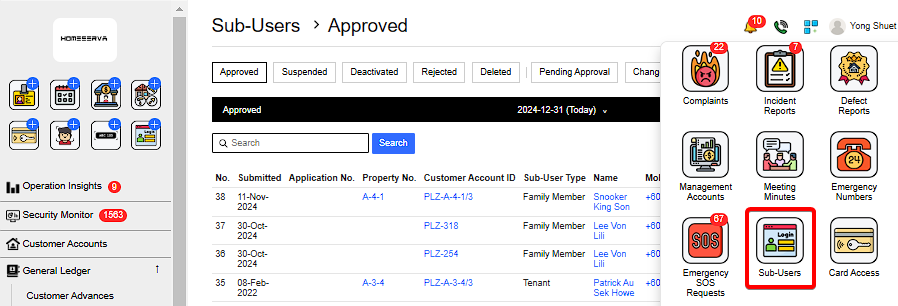
Go to Sub-Users > New Sub-User > Fill in details > Add
 |
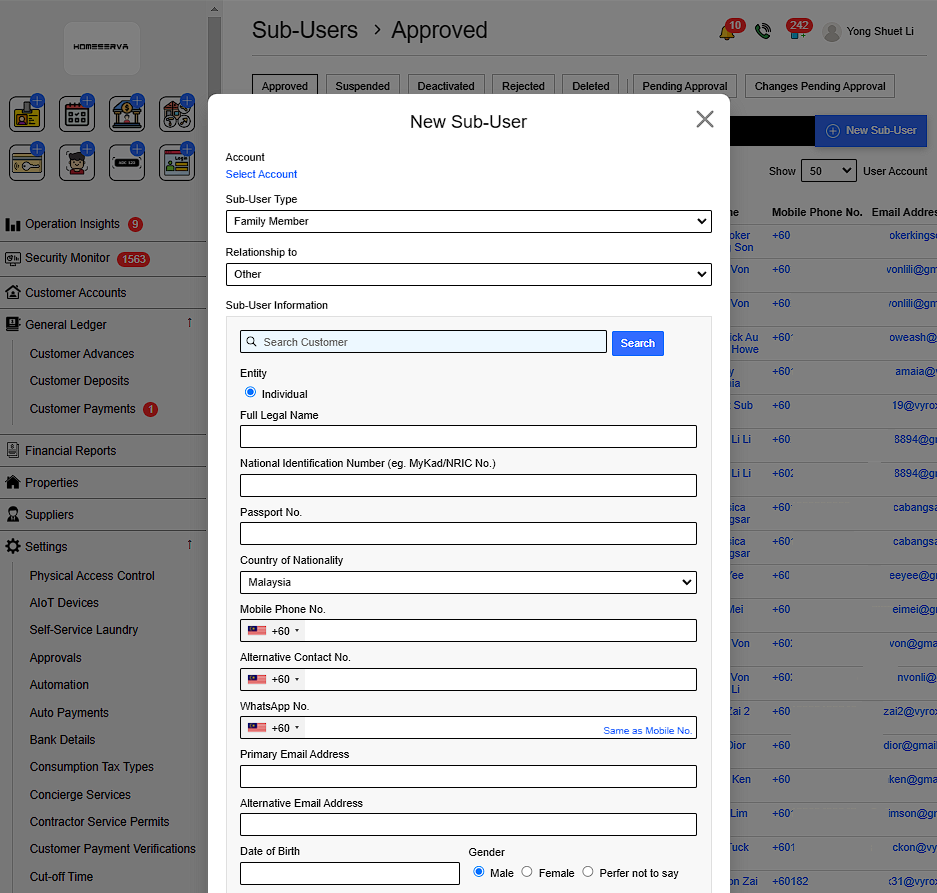
Details include:
- Select Customer account
- Sub-User Type
- Relationship to
- Select Sub-user account
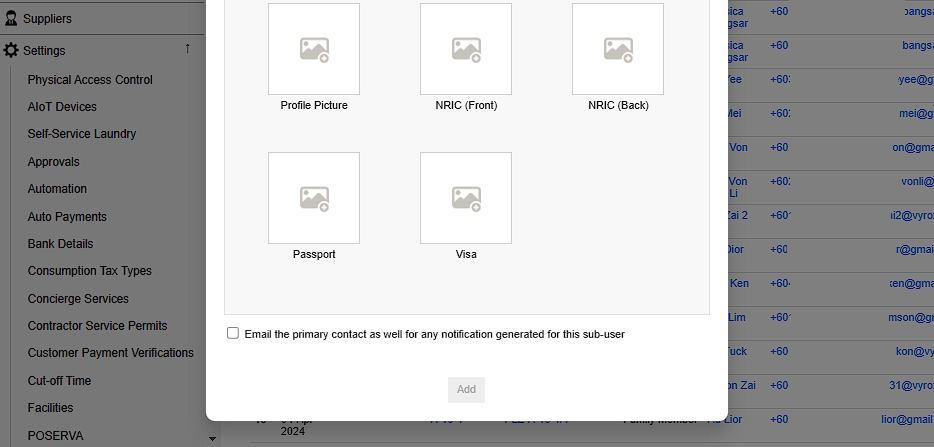
- Select whether to Email the primary contact as well for any notification generated for this sub-user
If sub-user account already exist , the following information are autofilled. Otherwise , manual fill in details are required.
- Select Entity type
- Sub-User Full legal name
- Sub-User National Identification Number (eg. MyKad/NRIC No.)
- Sub-User Passport No.
- Sub-User Country of Nationality
- Sub-User Mobile Phone No.
- Sub-User Alternative Contact No.
- Sub-User WhatsApp No.
- Sub-User Primary Email Address
- Sub-User Alternative Email Address
- Sub-User Date of Birth
- Sub-User Gender
- Insert Sub-User Profile Picture
- Insert Sub-User NRIC Picture (Front & Back)
- Insert Sub-User Passport Picture
- Insert Sub-User Visa Picture
 |
 |
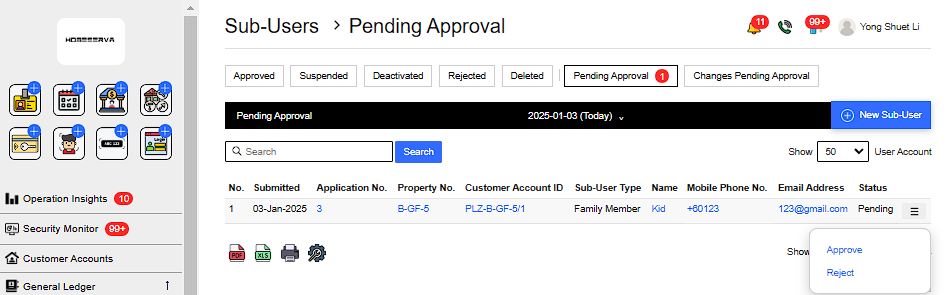
After this, management need to approve sub-user by going to Pending Approval page and click Approve to approve sub-user.
 |
2.2 Edit, Suspend , Deactivate or Delete Sub-User
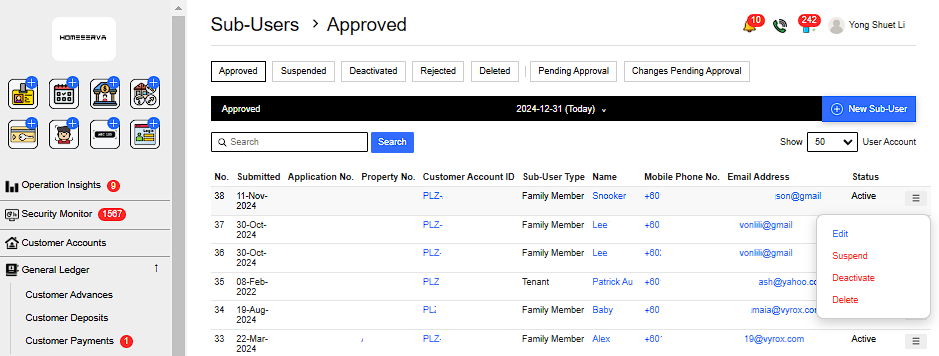
To edit , suspend , deactivate or delete sub-user , Go to Approved page > Click on the triple bar of selected sub-user > Select either to Edit , Suspend , Deactivate or Delete Sub-User.
 |
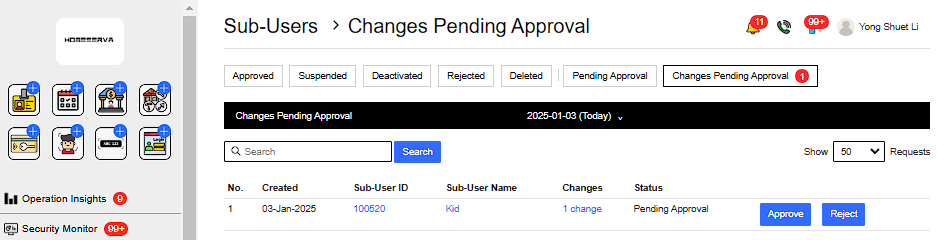
After sub-user account information is edited . Go to Changes Pending Approval page and click Approve .
 |
2.3 Unsuspend Sub-User
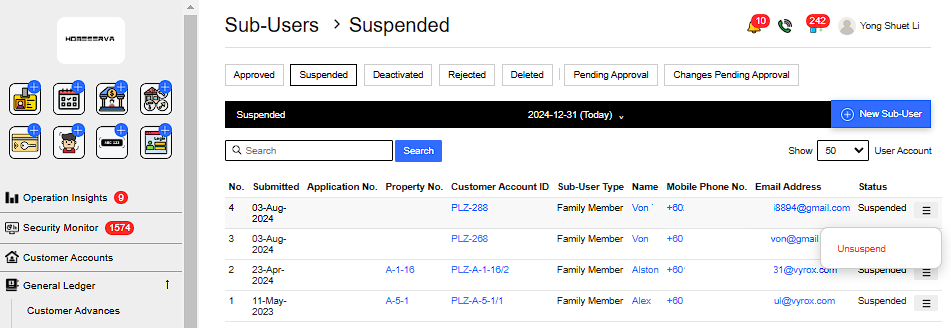
To unsuspend sub-user , Go to Suspended page > Click on the triple bar of selected sub-user > Select Unsuspend.
 |
QnA
How to resend email if Sub-user email was not received by customer
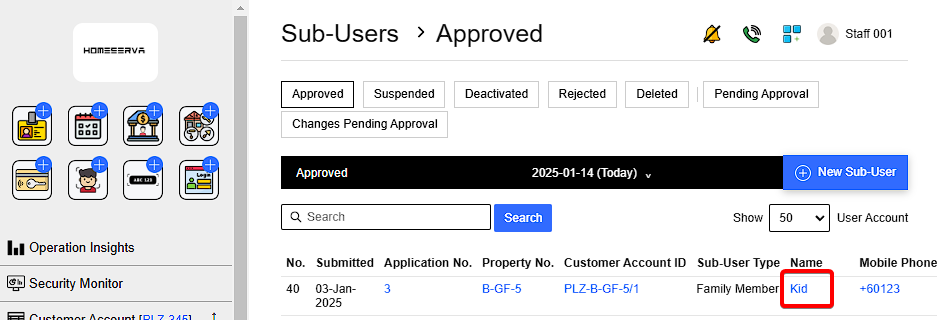
Go to Sub-User > Click on the sub-user account name > Choose options
 |
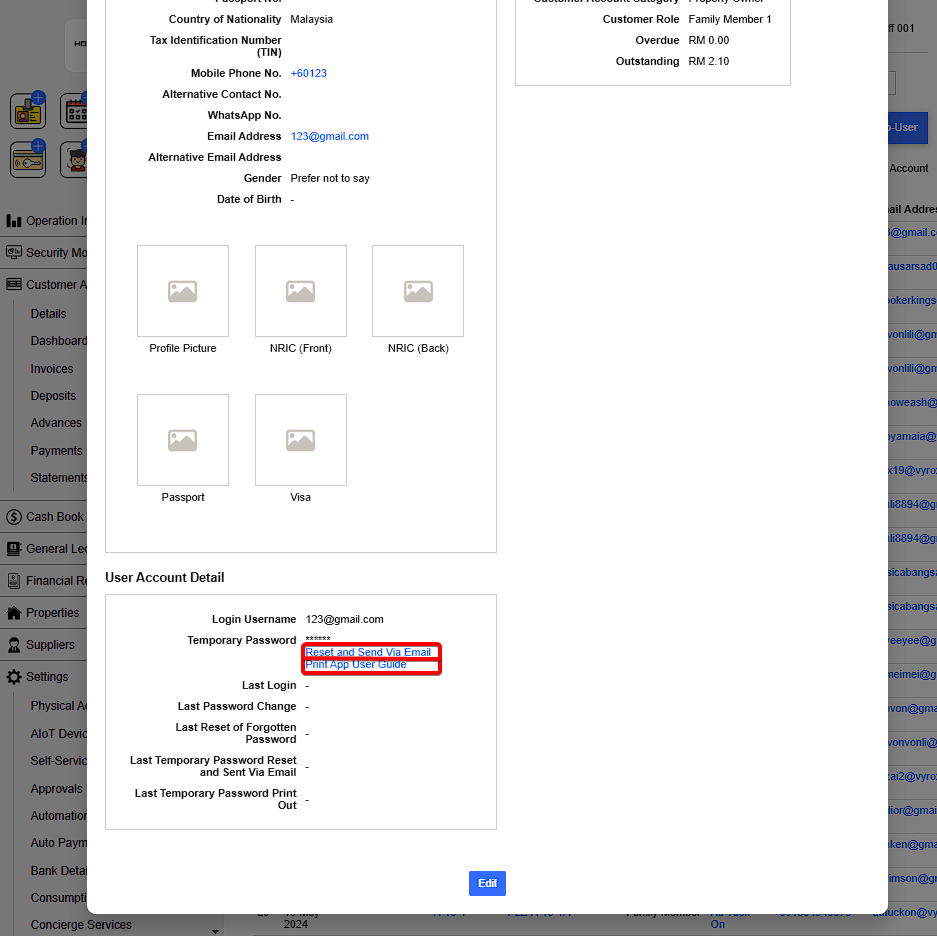 |
Options include:
- Reset and Send Via Email
- Print App User Guide