9. Smart Door Lock
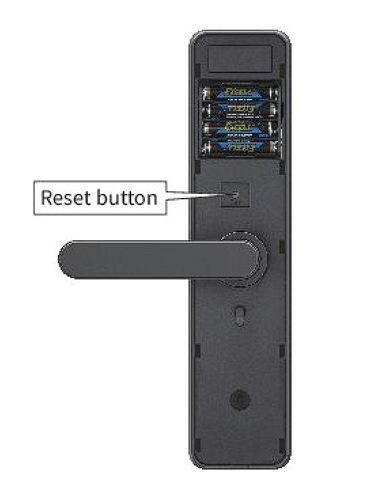
9.1 Reset Smart Door Lock Press “Reset” button at rear door lock body When you hear the voice notification, press 000 # to restore factory settings.
 |
9.2 Change Language
- *39 # Admin Password #
- Press 1 #, switch to Chinese.
- Press 2 #, switch to English.
9.3 Reset Smart Door Lock and Change Admin Password (If You Forgot the Current Password)
- Press “Reset” button at rear door lock body
- Once you heard notification voice, press 000 # to factory reset the door lock.
- Press * 12 #.
- Listen to the voice prompt and enter default 6-digit password 123456 #.
- Listen to the voice prompt and enter a new 6-digit password xxxxxx #.
- Re-enter the new 6-digit password to confirm: xxxxxx #.
- Voice notification confirms the password change.
9.4 Change Admin Password (If You Know the Current Password)
- Press * 12 #.
- Listen to the voice prompt and enter current 6-digit admin password: xxxxxx #.
- Listen to the voice prompt and enter a new 6-digit password: xxxxxx #.
- Re-enter the new 6-digit password to confirm: xxxxxx #.
- Voice notification confirms the password change.
9.5 Add a Fingerprint
- Press * 80 #
- Listen to the voice prompt and enter current 6-digit admin password: xxxxxx #.
- Listen to the voice prompt and swipe your fingerprint on the handle.
- Swipe again
- Swipe one more time.
- Voice notification confirms successfully fingerprint registration.
9.6 Add a Physical RFID card
- Press * 80 #.
- Listen to the voice prompt and enter current 6-digit admin password: xxxxxx #.
- Listen to voice prompt, swipe the RFID card in front of the smart lock.
- Listen to voice prompt, swipe the RFID card again.
- Voice notification confirms the successfully card registration.
9.7 Unlocking with USB Emergency Power Supply and Physical Key
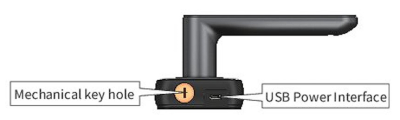
- If the battery is dead, connect a 5V power bank to the micro USB port at the bottom of the smart lock’s front panel.
- Unlock using fingerprint, PIN code, or RFID card.
- Alternatively, use the mechanical key to unlock.
 |
9.8 Advance Settings
| Function | Actual Operation |
|---|---|
| 1. Factory reset | Long press the reset button on the lock, and enter 000# after hearing the voice prompt of “Please enter the initialization password”. After the lock is reset to factory settings, all fingerprints, passwords, cards and mobile phone administrators will be cleared. |
| 2. Set the administrator password | When the administrator password is not set and the mobile phone administrator is not added, enter *12#123456#→enter the administrator password#→enter the same password# again. Note: When you need to use the mobile App to manage, this step is not selected on the APP → click Settings → click “Administrator unlock password” to enter a new administrator password. Note: Must be operated on the lock edge. |
| 3. Modify the administrator password | Enter *12# original administrator password#new administrator password#same new administrator password# on the locked keyboard to modify the administrator password. When the administrator password has not been set and the mobile administrator has not been added, touch the bright panel. After hearing the voice prompt of “Please add a mobile phone (Bluetooth) administrator”, add a door lock on the APP. |
| 4. Add a mobile phone administrator | After setting the administrator password or adding a mobile phone administrator, you can enter *83#administrator password# on the lock to make the lock enter the mode where mobile phone administrators can be added again. Other App accounts are allowed to add this lock and become new administrators. Note: After adding an administrator to a new APP account, the previous account will be automatically deleted, that is, only one first-level mobile phone administrator is allowed. |
| 5. Delete the phone administrator | In the APP, select the lock that needs to be deleted by the phone administrator, click Settings, and then click Delete. Note: After deleting the administrator on the App, the lock will be reset to factory settings. All fingerprints, passwords and cards previously added are invalid. |
| 6. Add fingerprint | On the APP, click “Fingerprint” → Add Fingerprint → Enter the fingerprint name and validity period → Click Next → Click Start to add Press your finger on the fingerprint collector several times according to the phone screen and voice prompts. Enter *80#→Enter the administrator password#→According to the voice prompt, press your finger on the fingerprint reader several times. Note: The fingerprint added directly on the lock can be uploaded to the App through the “Upload fingerprint in the lock” function in the App for management. After adding fingerprints directly on the lock, you can continue to add other fingerprints. You can also exit the add mode by pressing a key or waiting for a timeout. Note: This function is only supported on firmware versions 5.0.1 (inclusive) and above. |
| 7. Remove fingerprints | Click the fingerprint on the App → click the fingerprint to be deleted → click delete. Note: Must be operated on the lock edge. |
| 8. Rename the fingerprint | Click “Fingerprint” on the App → click the fingerprint to be renamed → click the name → enter a new name. |
| 9. Modify the fingerprint validity period | Click “Fingerprint” on the APP→click the fingerprint whose validity period needs to be modified→click the validity period>input a new validity period>click save. Note: After setting the validity period, the fingerprint can only be unlocked within the specified validity period. Must be operated on the lock edge. |
| 10. Add a password | Click “Get Password” on the App → select the password type: Custom → select the validity period> click to set a password> enter the password to be added. Note: “Custom” passwords must be operated on the edge of the lock. Click “Get Password” on the App → select the password type: permanent/period/single/clear/cycle → click to get password. Enter *80# on the lock→enter the administrator password#→enter the new password to be added#→enter the same password# again. Note: These types of codes do not require operation on the edge of the lock. Clear password is used to delete all passwords that have been in effect on the lock. Note: To lock the directly added password, you can upload the password in the lock in the password management of the App. Upload the password to the App for management. After the password is added directly on the lock, you can continue to add other passwords. You can also press the * key or wait for a timeout to exit the add mode. Note: This function is only supported on firmware versions 5.0.1 (inclusive) and above. |
| 11. Remove the password | Click “Password Management” on the APP → click the password to be deleted → click delete. Note: Must be operated on the lock edge. |
| 12. Change password | Enter *71#administrator password# on the lock to delete all unlock passwords (administrator passwords are not deleted). On the App, click “Password Management” → click the password you want to modify and click Password → enter a new password. Note: Must be operated on the lock edge. |
| 13. Rename password | CEnter *10#original password#new password#new password# on the lock to change the password (to change the administrator password, please use *12#) Click “Password Management” on the APP → click the password that needs to be renamed → click the name → enter the new name. |
| 14. Modify the validity period of the password | Click “Password Management” on the App → click the password whose validity period needs to be modified → click the validity period→ enter a new validity period → click Save. Note: Must be operated on the lock edge. Click “IC Card” on the App → Add IC Card → Enter the name and select the validity period → Click OK, then swipe the card to add. Note: Must be operated on the lock edge.15. |
| 15. Add IC card | Enter *80#→enter administrator password# on the lock, then swipe the card to add. Note: To lock the directly added IC card, you can upload the IC card to the App by going to “IC Card”→Upload the IC card in the lock in the App. After adding the IC card directly on the lock, you can continue to add other IC cards. You can also press the * key or wait for a timeout to exit the add mode. Note: This function is only supported on firmware versions 5.0.1 (inclusive) and above. |
| 16. Delete IC card | Click “IC Card” on the APP → click the card to be deleted → click delete. Note: Must be operated on the lock edge. Enter “69#administrator password# on the lock to delete all IC cards. |
| 17. Rename IC card | Click “IC card” on the App → click the 1C card that needs to be renamed → click the name → enter the new name. |
| 18. Modify the validity period of the IC card | Click “IC card” on the APP → click the IC card whose validity period needs to be modified → click the validity period> enter a new validity period → click save. Note: Must be operated on the lock edge. |
| 19. Unlock | App unlock: Click the lock icon on the App to unlock. Note: The lock must be unlocked on the lock side. When there is a gateway, you can also open the remote unlocking function on the lock, and then unlock it remotely (remote unlocking is disabled by default). Touch to unlock: When the App has “touch to unlock” enabled, open the App and touch the door lock. IC card unlock: Put the added IC card in the card swiping area to unlock. Fingerprint unlock: Press the added finger on the fingerprint reader to unlock. |
| 20. Lockout | After unlocking, it will be automatically locked after a 5-second timeout(except for temporary normally open). In normally open mode, long press the # button to lock. |
| 21. App Key | Click “Send Key” on the App to send electronic keys to other users. The electronic key is authorized a second time, making it a secondary administrator. |
| 22. View unlock records | Select the door lock on the App, and click the operation record to view it. Note: When there is no gateway, the unlock record of fingerprint/IC card/password can only be viewed after unlocking through the App.Click a fingerprint/IC card/password on the APP, click the operation record, you can view all the records of the fingerprint/IC card/password. |
| 23. Dummy Password | Additional numbers can be added before and after entering the correct combination on the lock. The total length of the virtual password is 16 bits. |
| 24. Protection Against Incorrect Password Entry | After the unlock password is entered incorrectly for 5 consecutive times, the system will lock the password keyboard. After 2 minutes, the lock will be released. |
| 25. Low Battery Warning | During the locking period, the correct fingerprint, IC card, and App unlock can unlock the keyboard lock state.When the battery voltage is lower than 4.8V, touch the panel and the voice prompt “When the battery is low, please replace the battery. At the same time, the screen backlight will flash quickly for 1 second.Before unlocking with fingerprint/IC card/password, if the voice prompts that the battery is low, please replace the battery before unlocking. |
| 26. Key | During the password input process, press the button once to delete the last entered password number. After all deleted, if you are in add mode, you can exit this mode. After all the entered numbers are deleted, press the * key three times again, and the screen will turn off. |
| 27. Change language | In Chinese: enter “*39#administrator password#1#” In English: enter “*39#administrator password#2#“Note: the administrator password would be 123456 if no administrator is added. |
| 28. Temporary Open Mode | After the correct password, fingerprint, and swiping card to unlock, before automatic locking, enter 123# on the keyboard to enter the temporary normally open mode. The temporary normally open mode will be invalid the next time the lock is unlocked or closed. |
| 29. Anti Privacy Alarm | A lock with an anti-camera switch is installed. After the switch is triggered, the horn will sound an alarm for 1 minute. To turn off the anti-camera alarm: enter *32#administrator password#0# on the lock. Turn on the anti-camera alarm: enter *32#administrator password#1# on the lock. Note: When no administrator is added, the administrator password is replaced by 123456. |
| 30. Lock Sound | The lock sound can be turned off in the App. When the lock sound is turned off, when the button is touched, the screen will flash to remind the user that the button has been pressed. |
9.9 Smart Door Lock App Control


