Table of Contents
Membership & Membership Price
1. Introduction
This guide is designed to help you seamlessly manage memberships and set pricing for your facility booking system. With a user-friendly approach , you’ll find it simple to handle member accounts, subscriptions, and billing efficiently, ensuring a smooth experience for both management and customers.
2. Membership Management
This section provides tools and insights to manage memberships effectively. From account setup to subscription management, you’ll have everything you need at your fingertips.
2.1. Add Membership Plan
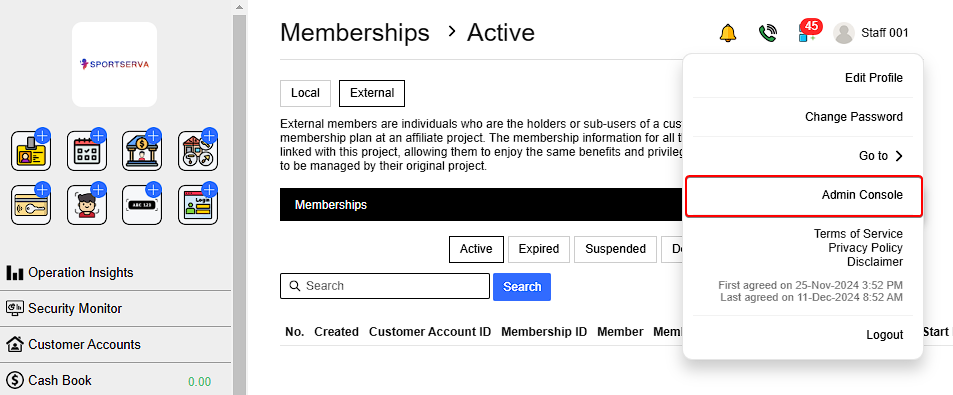
Go to Profile > Admin Console > Membership Plans > New Membership Plan
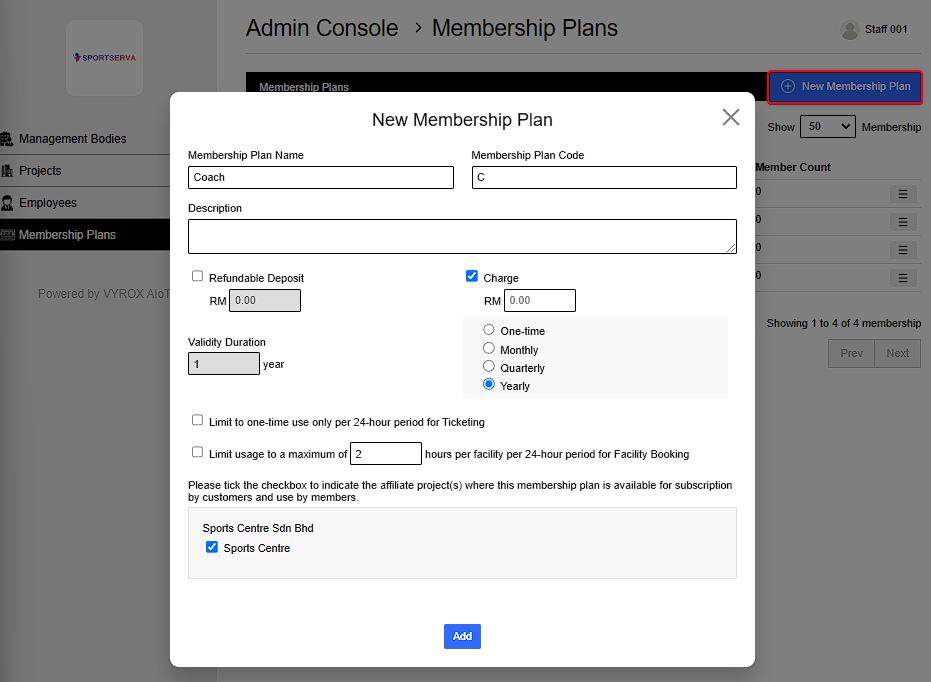
Fill in details such as Membership Plan Name , Plan code and select charging rate , refundable deposit , validty durtion and projects affiliated. The membership can
- Limit to one time use only per 24 hour period for ticketing
- Limit usage to maximum of selected hours per facility for Facility Booking
 |
 |
2.2. Membership Special Rate
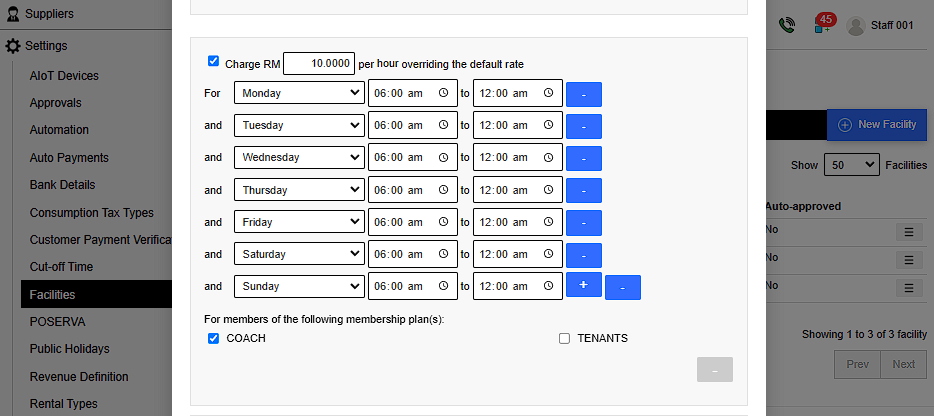
Go to Settings > Facilites > Select facility previously added > Edit > Tick checkbox and fill in membership plan , timing and prices , for facility to charge membership special rate
 |
Key Notes!
Add each day individually from Monday to Sunday to ensure maximum accuracy for system application, rather than grouping them as weekdays (Monday–Friday) and weekends (Saturday and Sunday).
2.3. Add customer As Members
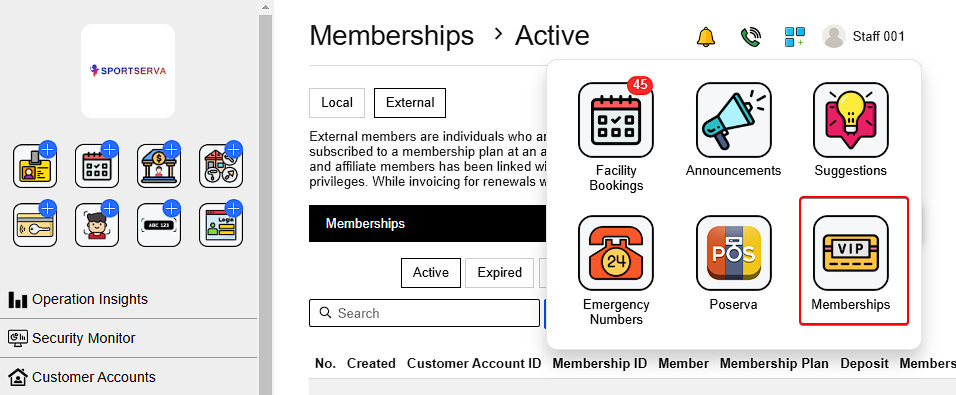
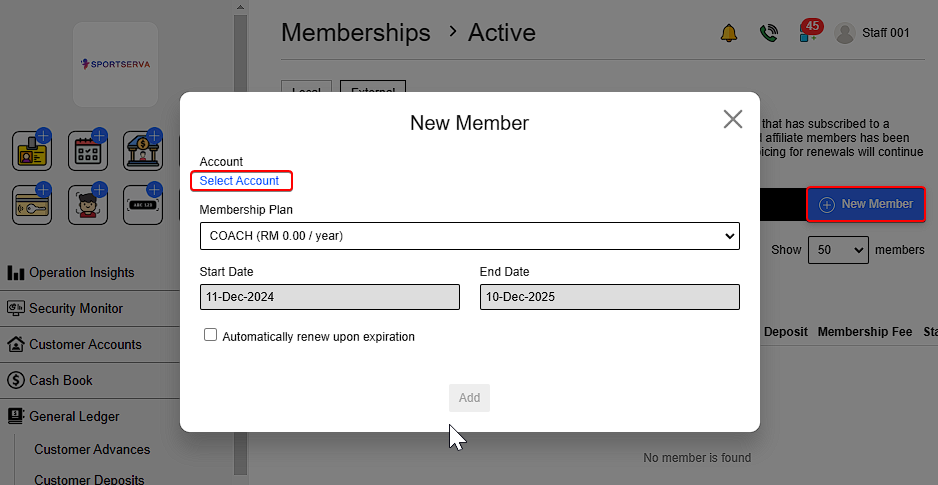
Go to More options > Memberships > New Member > Select account > Select membership plan > Select whether to automatically renew upon expiration > Add .
 |
 |
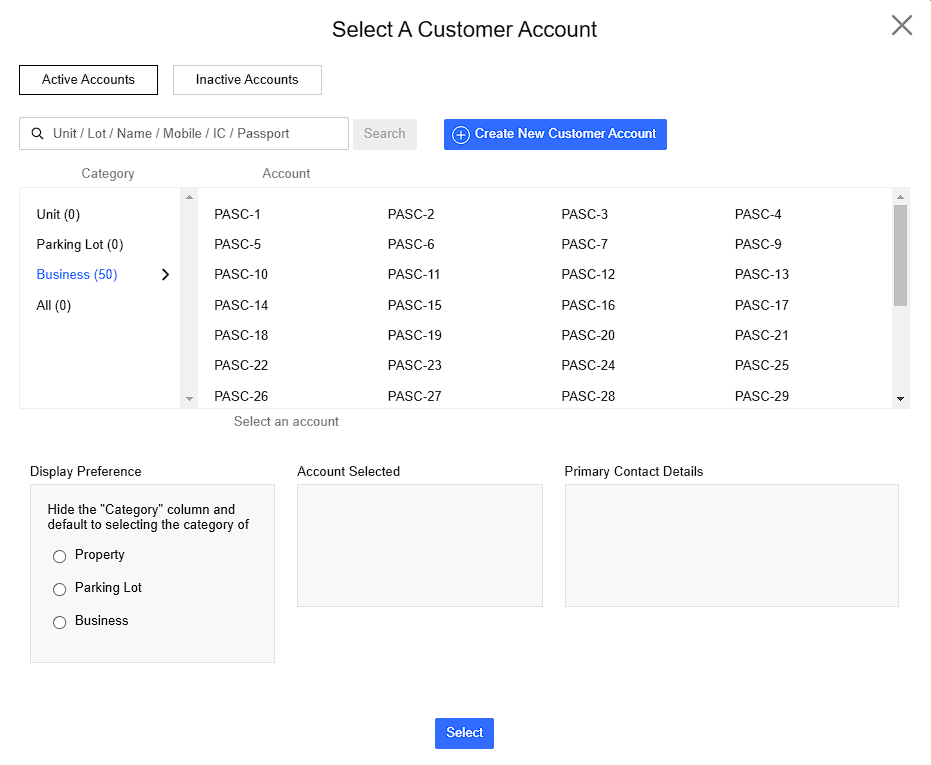
2.4 Select an Account & Billing Information
Existing Customer : Can be search based on name , phone number or by catagory.
 |
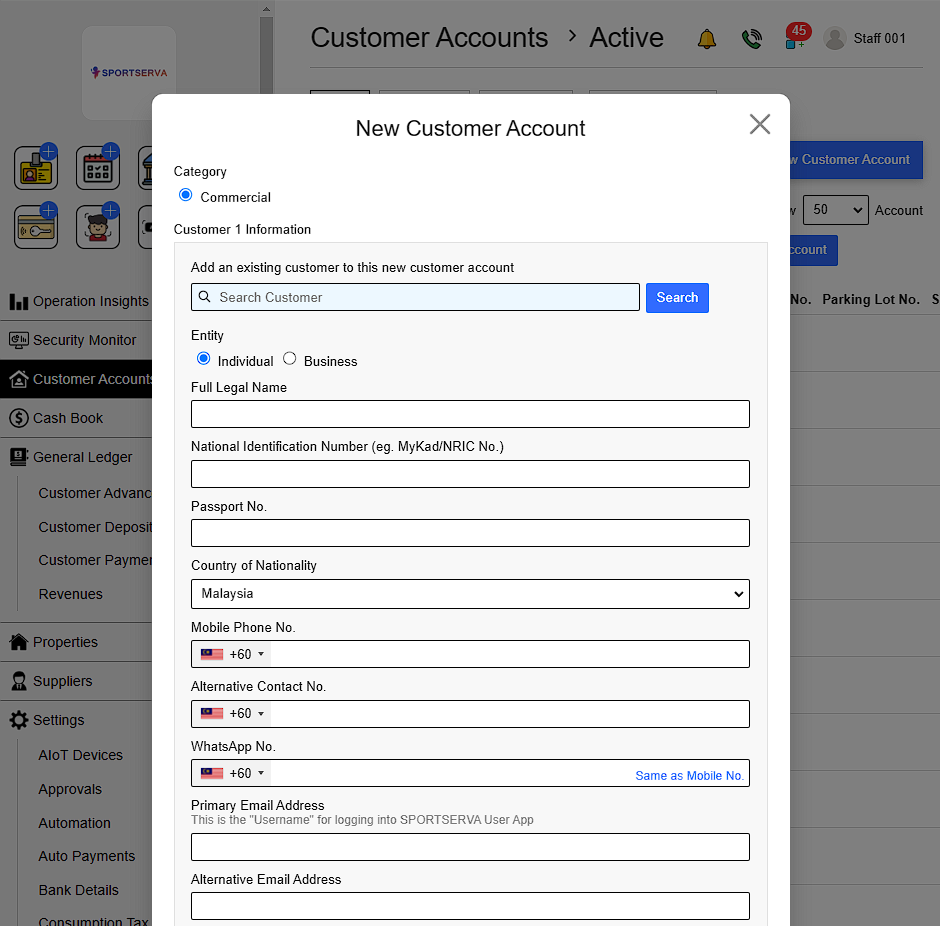
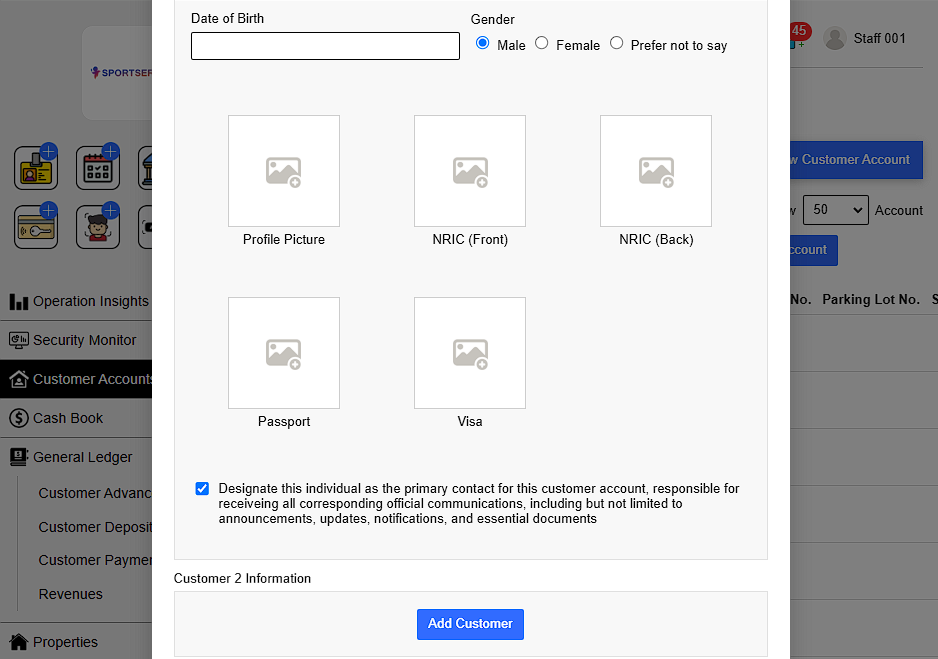
New customer : Go to Create New Customer Account > Fill in details Details include :
- Full Name
- NRIC (National Registration Identity Card)
- Country of Nationality
- Phone number
- Email Address
- Date of birth
- Gender
- Customer Picture (upload)
- Picture of NRIC (upload)
- Customer 2 information (optional)
 |
 |
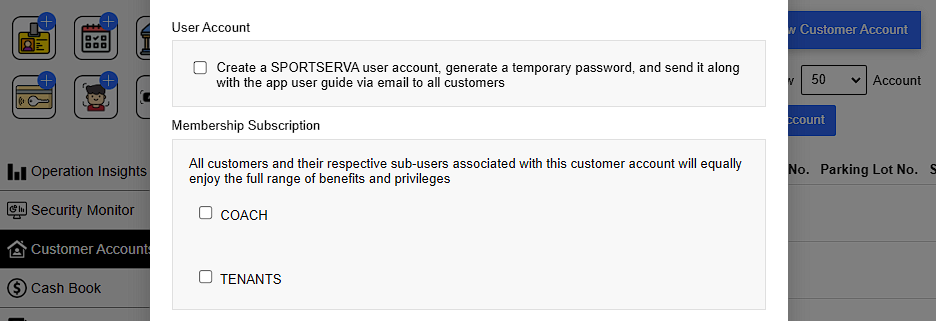
Management can choose to Create a SPORTSERVA user account , generate a tempory password and send it along with the app user guide via email to all customer. This ensures customers can access their accounts securely, start using the system immediately, and understand its features without any confusion.
Choose Membership Subscription:
This ensures that all customers and their sub-users under the same account can equally enjoy the full range of benefits and privileges, creating a unified and inclusive experience.
 |
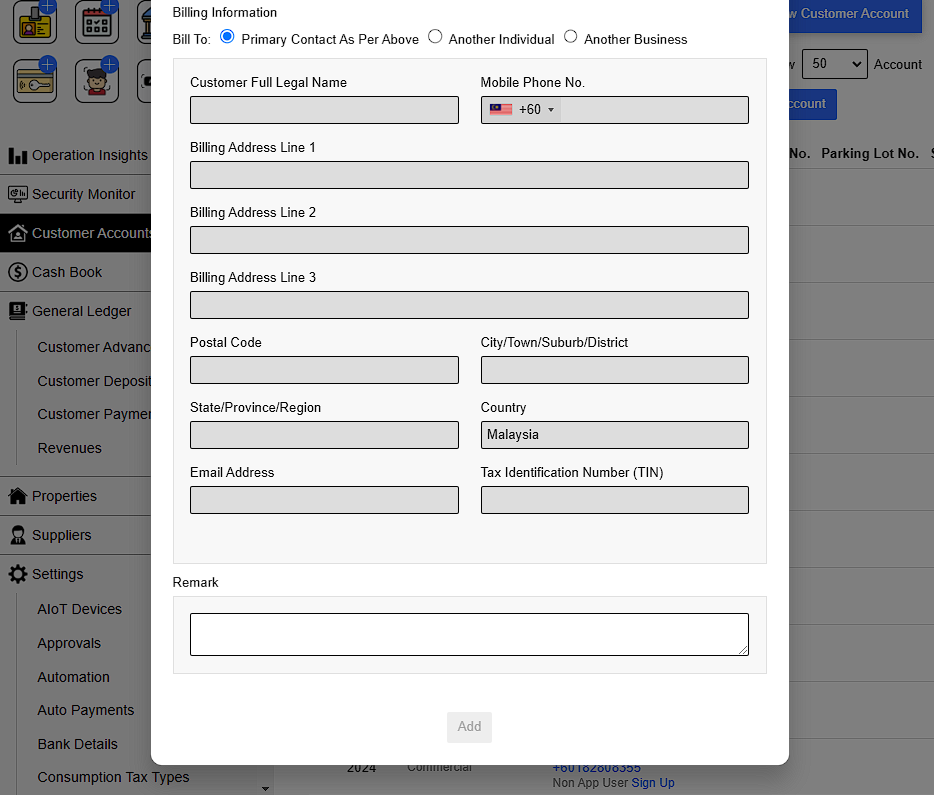
Finally Add billing information , Remarks and click add when finish to create account. After that , repeat the process of Add customer as members to finalize add customers to membership.
 |
3. Membership Module Key Features
1. Timing & Pricing:
- Flexible options to set timing and pricing for memberships.
Example:
- Members : RM10 ( Monday to Friday ) ( 6am to 11:55pm)
- Non-member: RM15 ( Monday to Friday ) ( 6am to 6pm)
2. Booking Limits for Members and Non-Members:
- Limit maximum booking hours for both member and non-member seperately.
Example:
- Members : 3 hour booking limit per session
- Non-member: 1 hour booking limit per session
3. Sub-User Management:
- Ability to add sub user to the principle account
- Example: A family can have one main principle account for the parents and multiple sub-accounts for their family members.
4. Customizable Booking Durations:
- Separate booking duration settings for members and non-members.
Example:
- Members : Can book up to 60 days in advance.
- Non-members : Can book up to 30 days in advance.
QnA
How to see/find customer past membership details
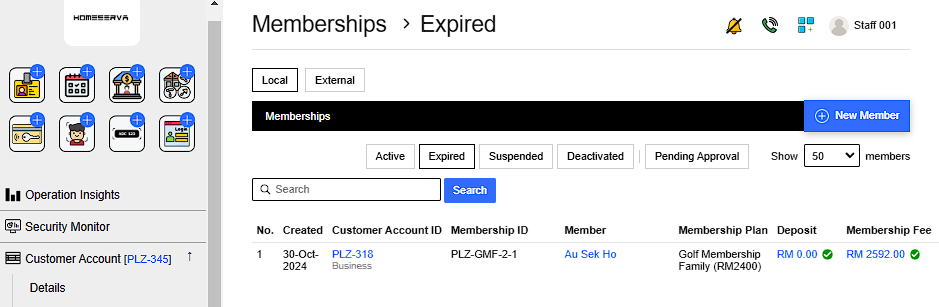
In the case where customer membership is lost , the membership might be Expired ,Suspended or Deactivated.
Go to Memberships > Expired
 |
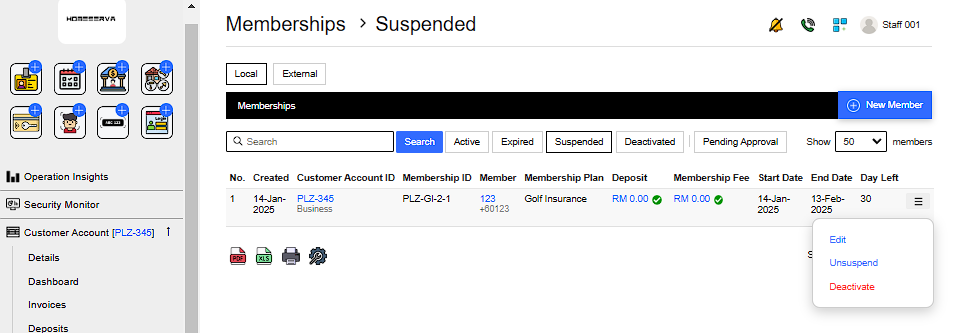
Go to Memberships > Suspended
Suspended membership can be unsuspended by clicking More options > Unsuspend
 |
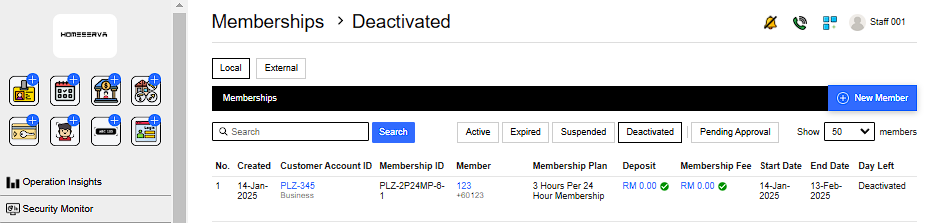
Go to Memberships > Deactivated
 |