Table of Contents
Financial Reports
VYROX VIP Financial Reporting Assistant
This guide helps you easily create custom professional and detailed financial reports for your products and services. Quickly uncover important insights about your business performance with just a few simple steps.
1. Getting Started
Before you begin creating financial reports, ensure the following prerequisites:
1.1. Ensure you have your username and password for secure access.
1.2. Prepare the list of products and services you want to analyze.
1.3. Confirm that you are logged into the VYROX VIP Platform.
2. Creating Revenue Summary Template
2.1. Open Financial Reports from the menu.
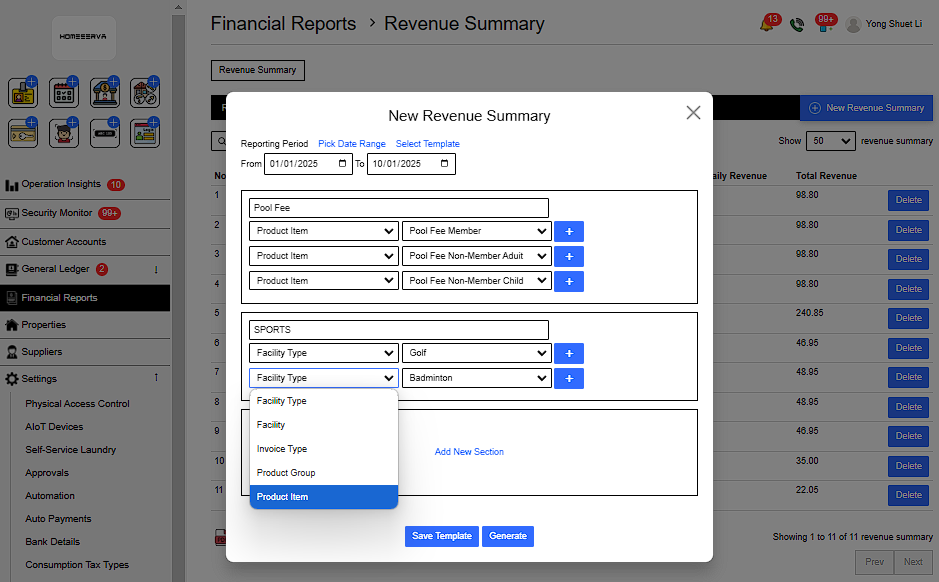
2.2. Enter the desired revenue category name in the Section Name field.
2.3. Use the Facility Type option to analyze revenue generated by the Facility Bookings App.
2.4. Select Facility to focus on revenue data from a specific facility within the Facility Bookings App.
2.5. Choose Invoice Type to analyze revenue from service-related transactions.
2.6. Select Product Group to review revenue across product groups in the POSERVA Point of Sales App.
2.7. Choose Product Item to view revenue details for specific products in the POSERVA Point of Sales App.
2.8. Tap Add New Section to create another revenue category and repeat the steps for further analysis.
2.9. Don’t forget to tap Save Template to save your changes.
 |
3. Generating Revenue Summary Report
3.1. Open Financial Reports from the menu.
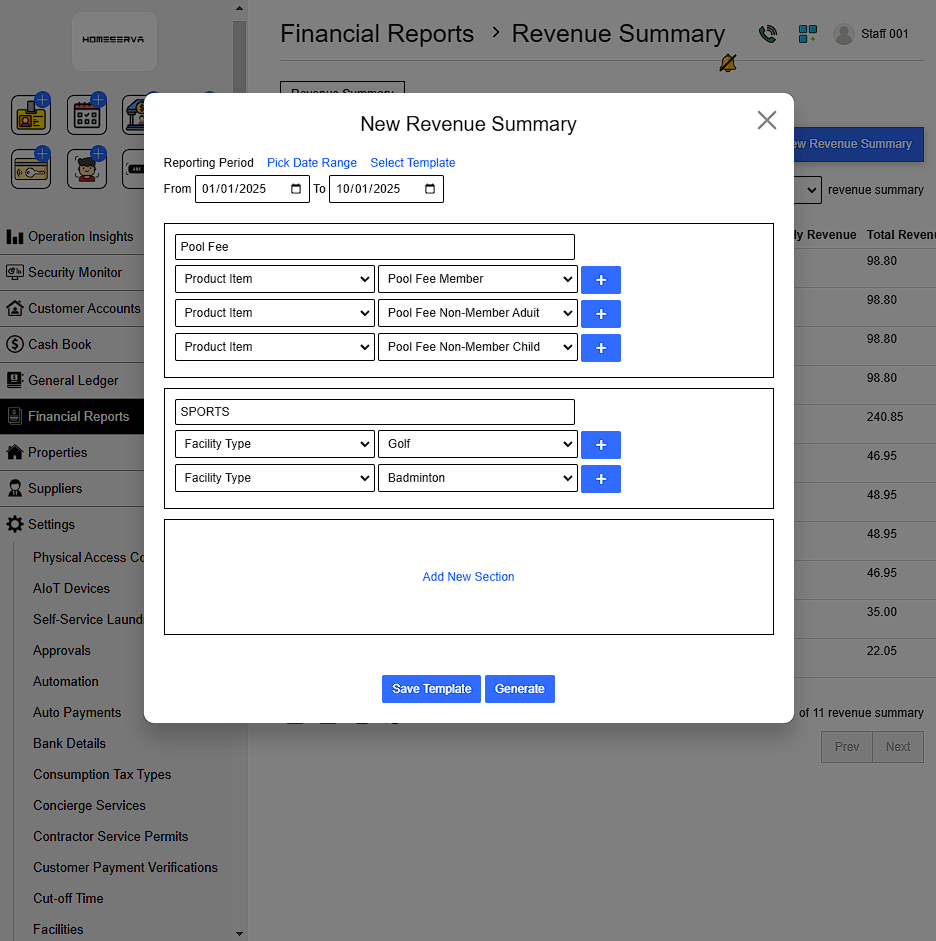
3.2. Tap New Revenue Summary
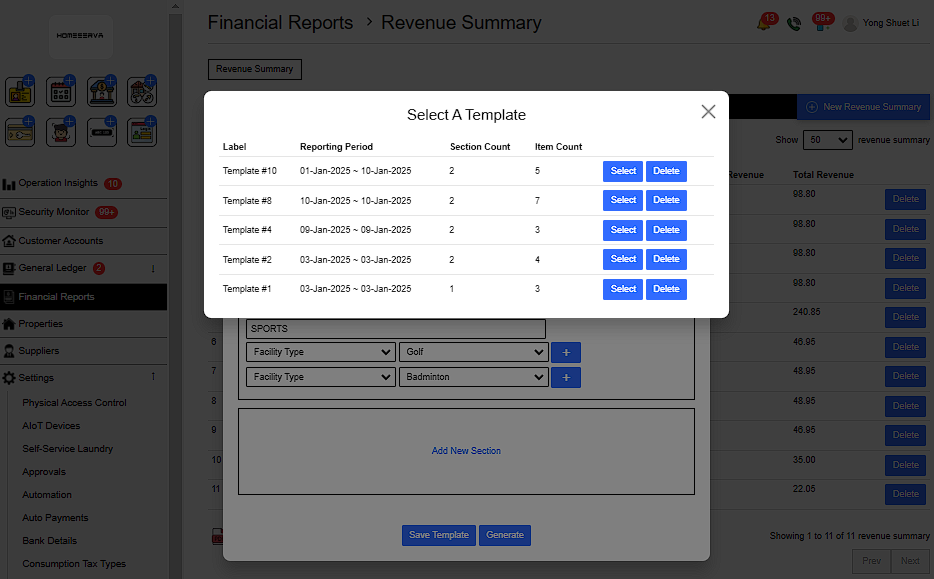
3.3. Tap Select Template and choose your preferred report template.
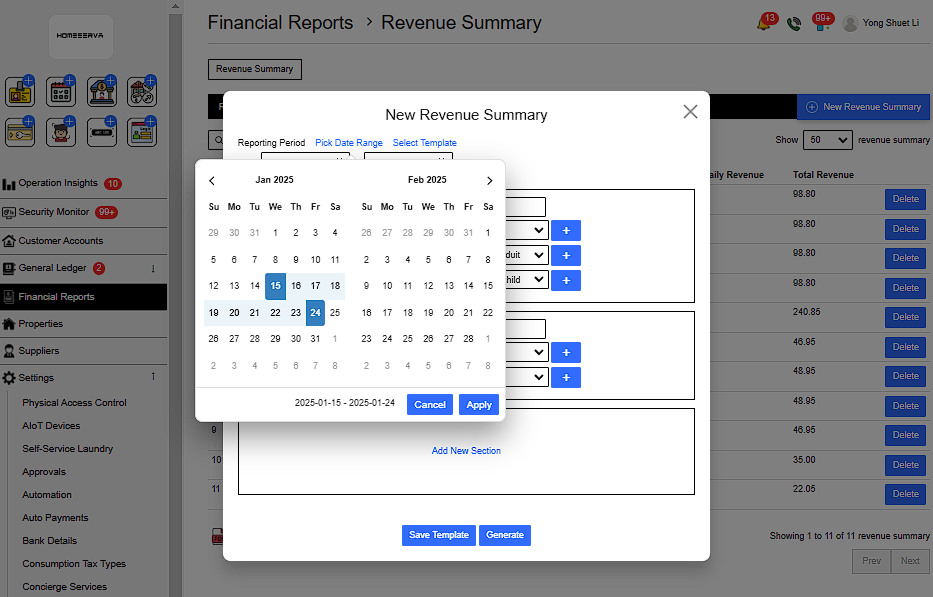
3.4. Tap Pick Date Range to select the timeframe for your revenue summary. You can focus the report on specific periods like daily, monthly, quarterly, or a custom range to suit your needs.
3.5. If you’ve made any changes to the template, tap Save Template to keep your updates.
3.6. Finally, tap Generate to complete the process and view your report.
 |
 |
 |
4. Downloading Revenue Summary Report
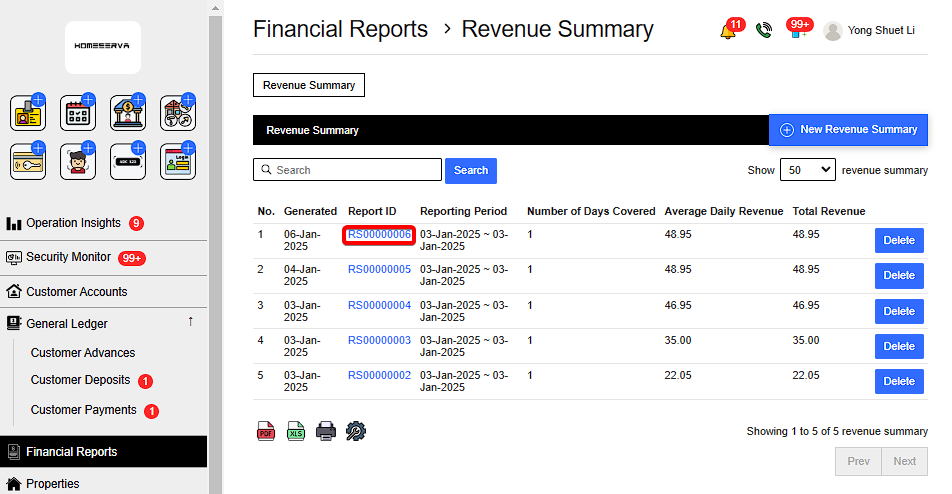
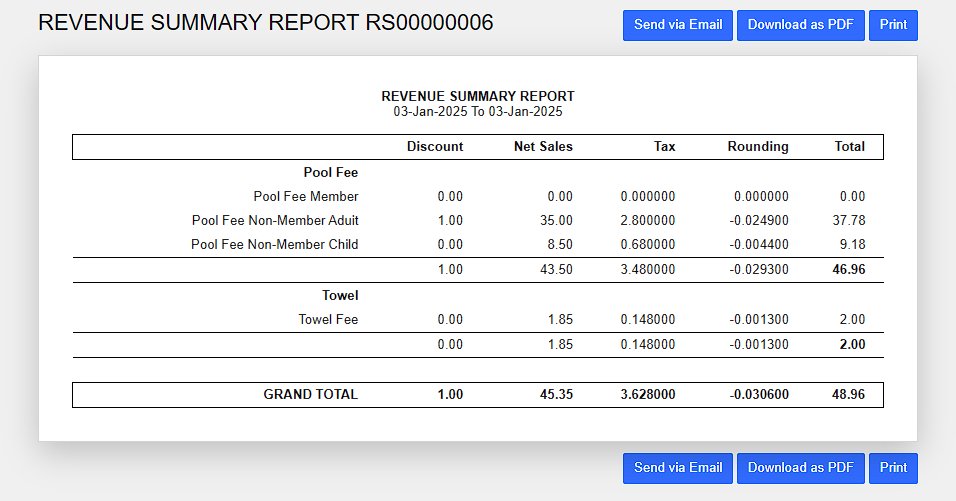
Go to Financial Reports > Click on the Report ID of the Revenue Summary
 |
 |
5. Add Template After Accidentally Delete Template
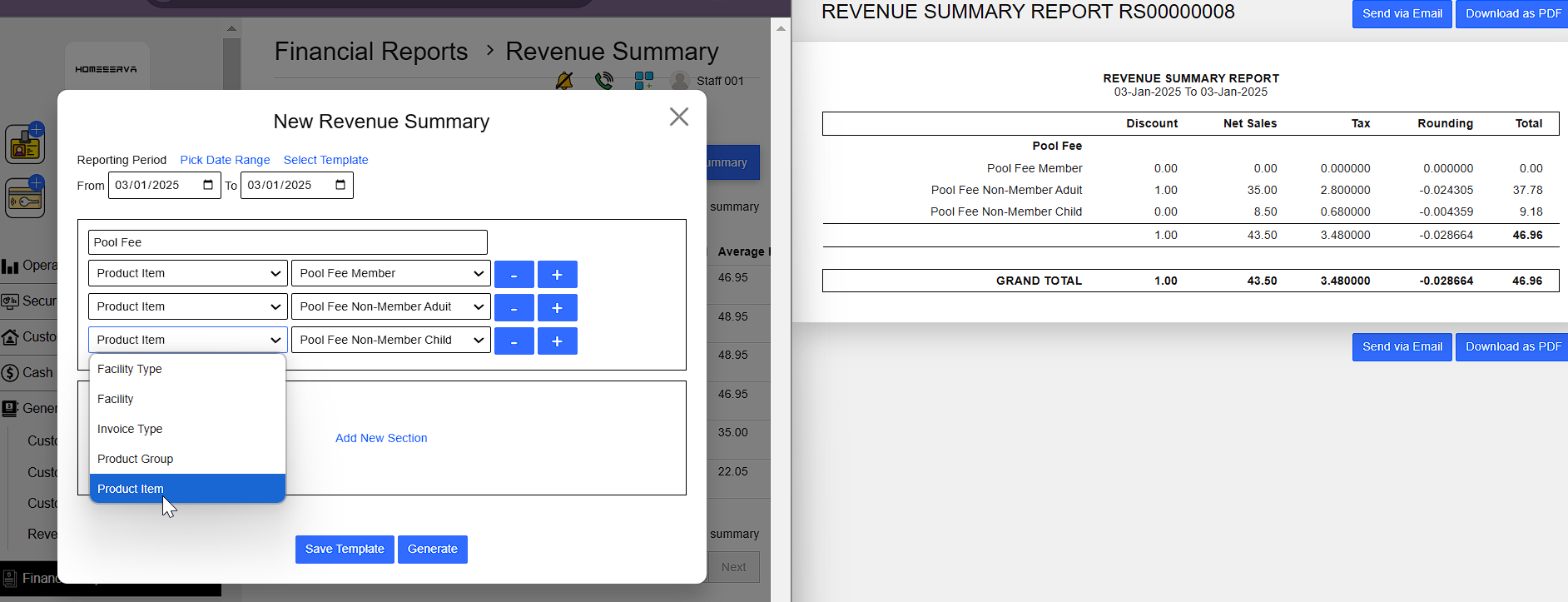
If template is accidentally deleted , open back a previously generated Revenue Summary Report at the Report ID and copy the format.
- Section Name
- Select the Item or Service catagory
- Select the Item or Service
Remember to click Save Template first and then Generate. Otherwise the whole process need to be repeated.
 |
6. Edit Catagory and Items or Services
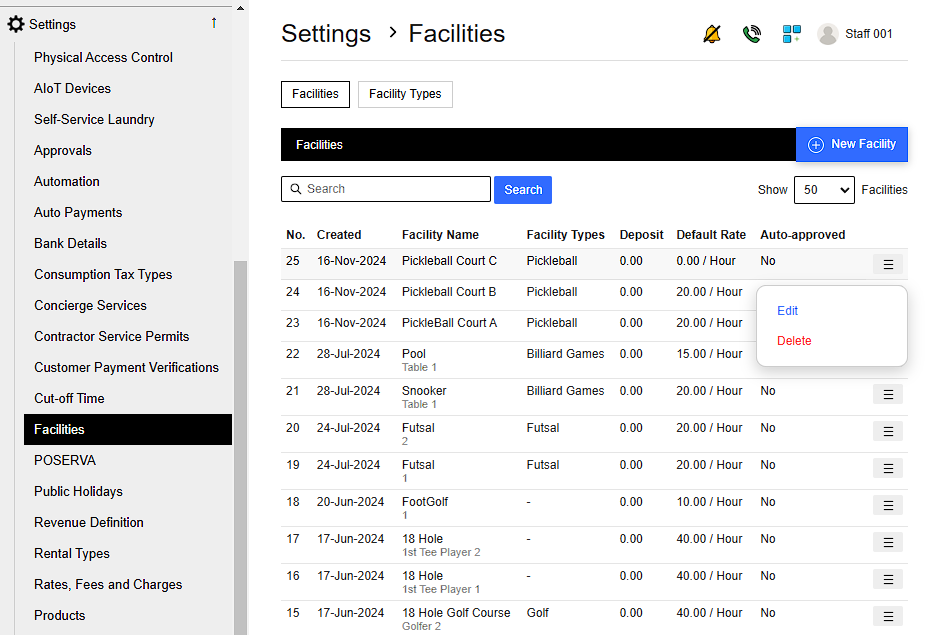
1) Facility Type and Facility can be edited at Facilities setting
Go to Settings > Facilities > Add ,Edit or Delete Facilities
 |
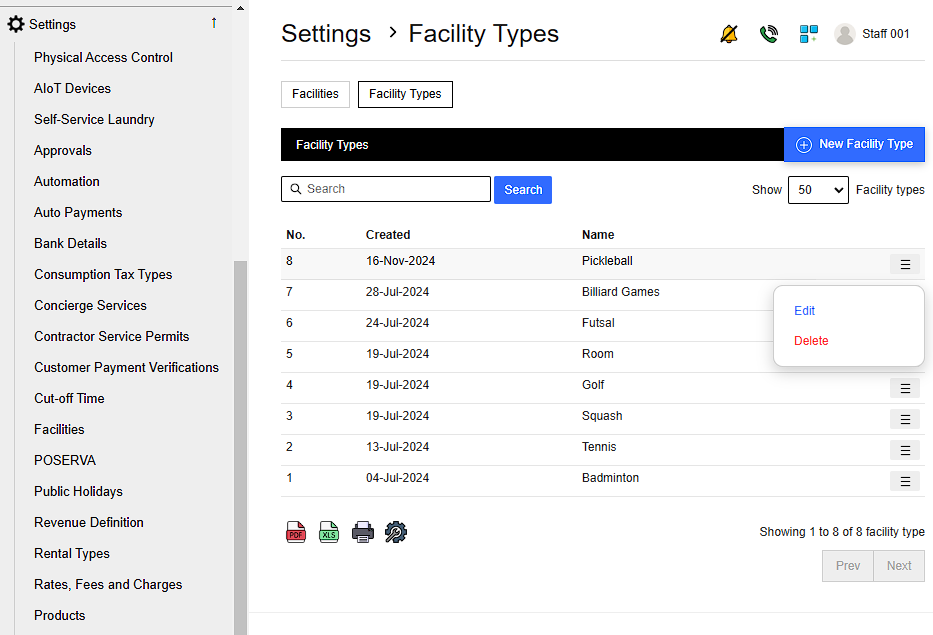
Go to Settings > Facilities > Facility Types > Add ,Edit or Delete Facilities Type
 |
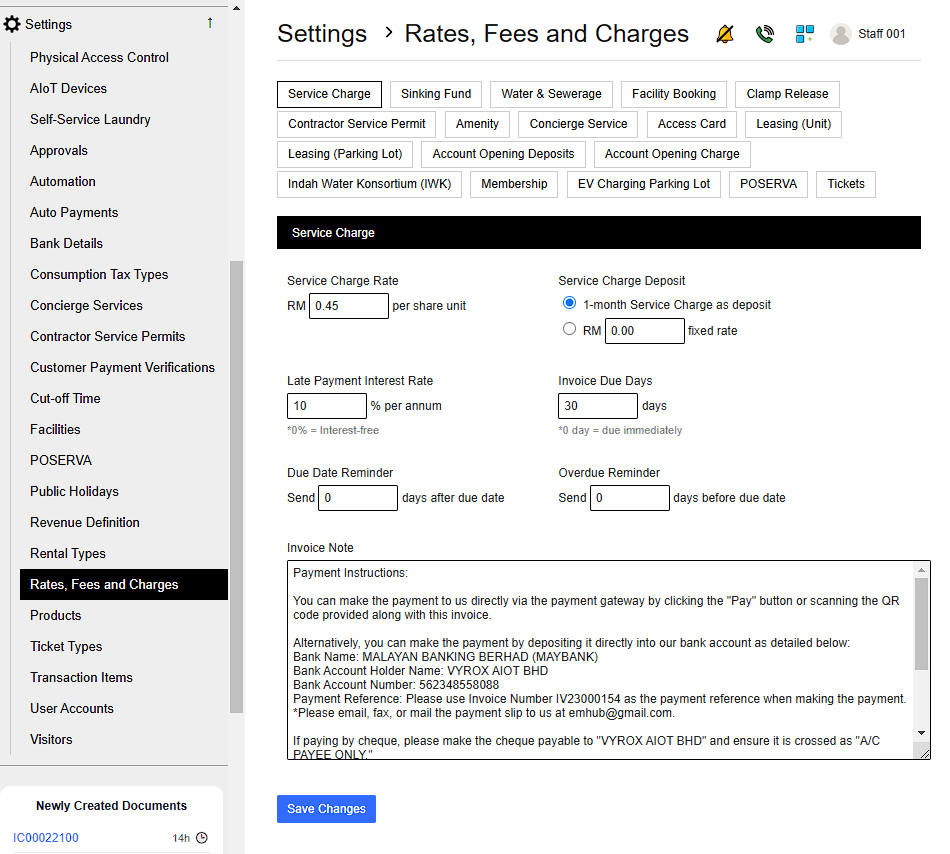
2) Invoice type can be edited at Rates, Fees and Charges setting
Go to Settings > Rates, Fees and Charges > Edit Rates, Fees and Charges
 |
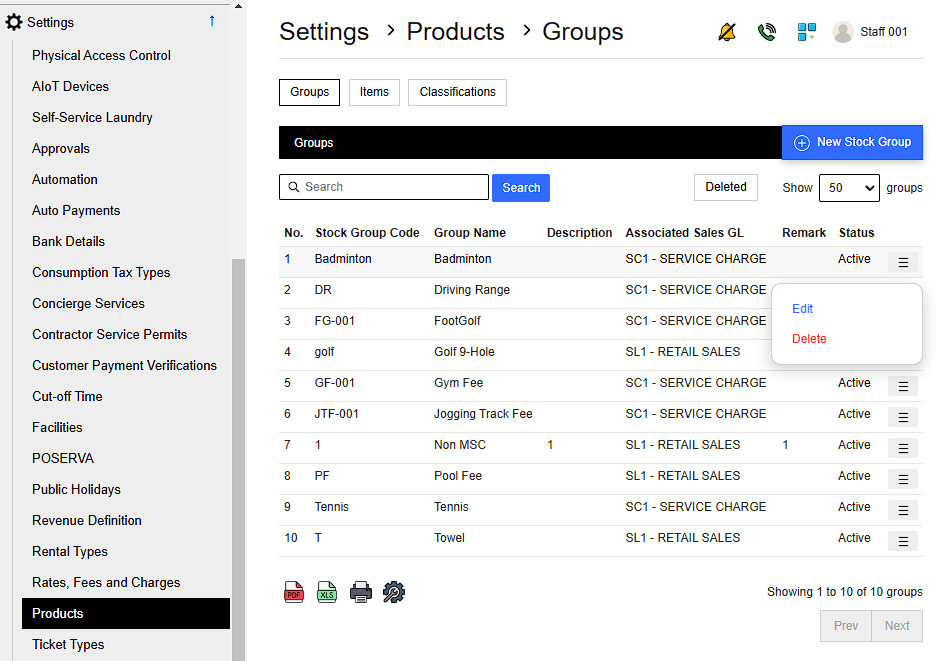
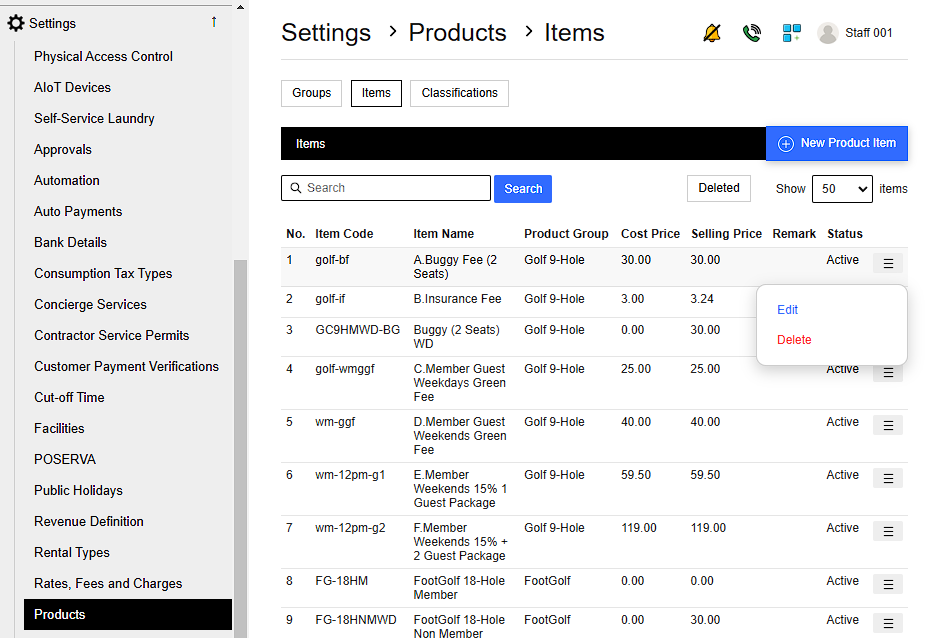
3) Product Group and Product Item can be edited at Products setting
Go to Settings > Products > Groups > Add ,Edit or Delete Product Group
 |
Go to Settings > Products > Items > Add ,Edit or Delete Product Item
 |