Sport Club King · Sport Club King AIoT Lighting & Billing System
11. Database Backup System
Read this chapter to learn how to import and export database for backup purpose.
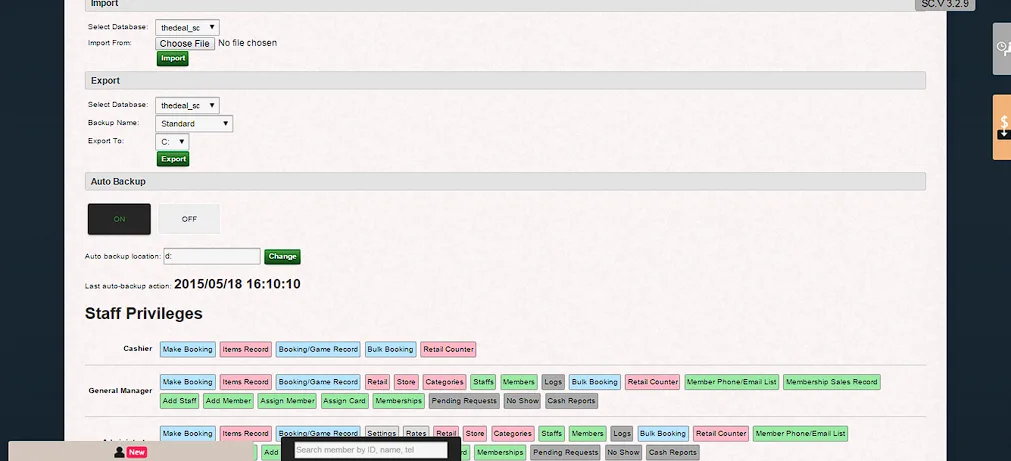
- Click “General Settings” > System Backup
- There are three options, Import, Export and Auto Backup in System Backup.
i. Import: Click “Browse” > select database file >Click “Import” to import the database. You can neglect it if you are not familiar to database.
ii. Export: Select drive you want to export to > Click “Export” to export the database. You can neglect it if you are familiar to database.
iii. Auto Backup
Click “ON” button to assign software auto backup database into specific drive every 3 hours
Click “OFF” button to disable software to auto backup database every 3 hours
Fill in Auto backup location with computer drive name: For example: D:, E:, F:, etc.