VYROX Very Intelligent Platform (VIP) · Very Intelligent Platform: Management Guide
This guide is designed to streamline the process of managing complaints. It provides step-by-step instructions for using the complaints management system, enabling you to track, resolve, and improve the overall experience for users .
This section offers a detailed overview of the tools and features available for efficient complaints management. From logging new complaints to tracking their status and resolution, all functionalities are crafted to simplify and enhance your workflow.
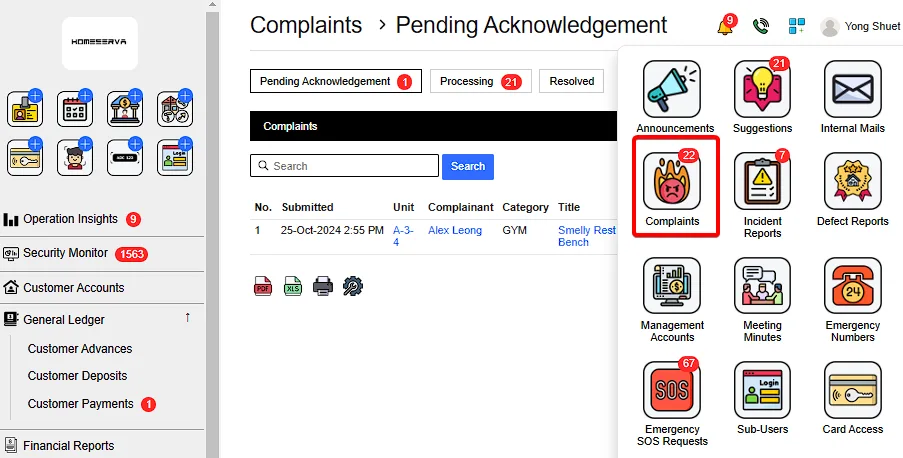
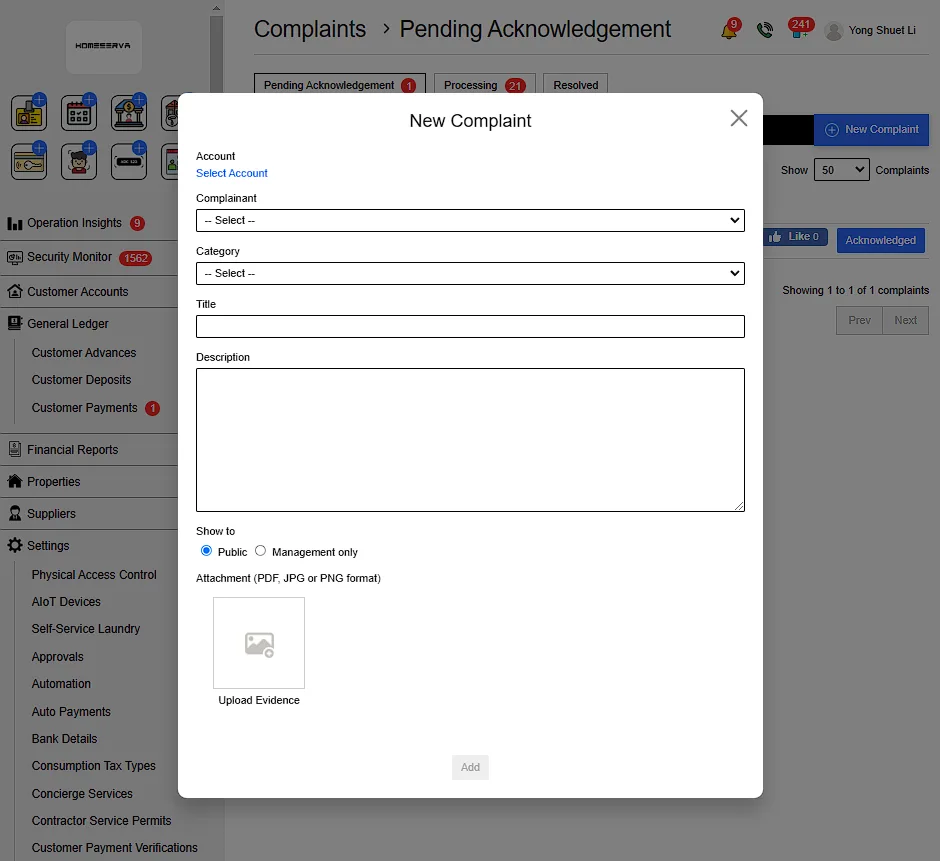
Go to Complaints > New Complaints > Fill in details > Add
Details include:
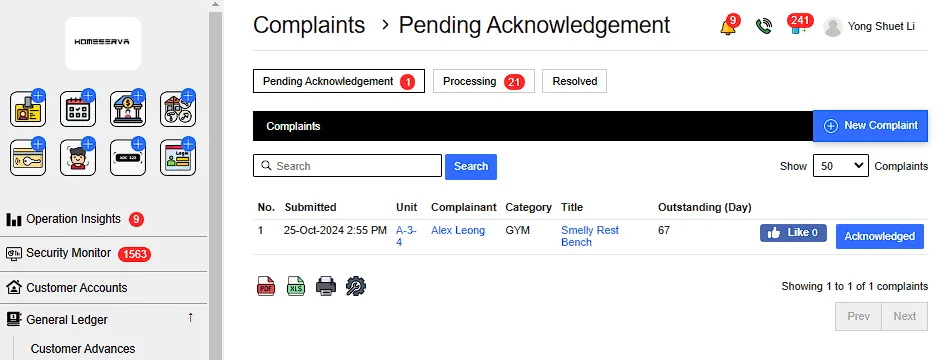
After New Complaints is filed , Goto Pending Acknowlegement page and click "Acknowleged".
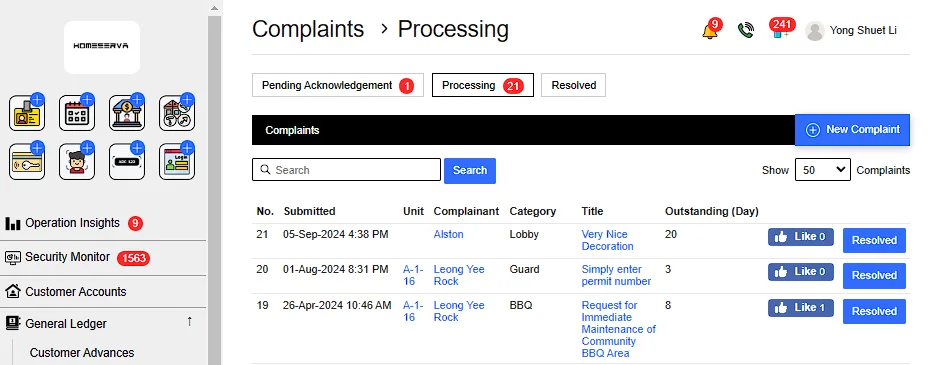
After Acknowleged Complaints , management can see processing complaints in Processing page .
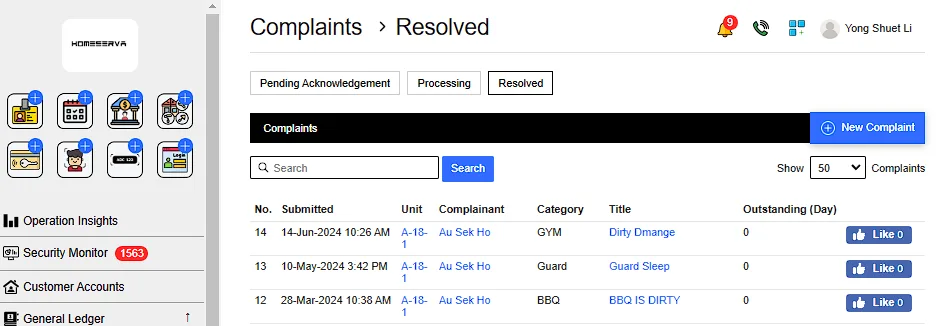
After management have resolved the complaints , Goto Processing page and click "Resolved".
Management can refer to previously resolved complaints as reference at Resolved page